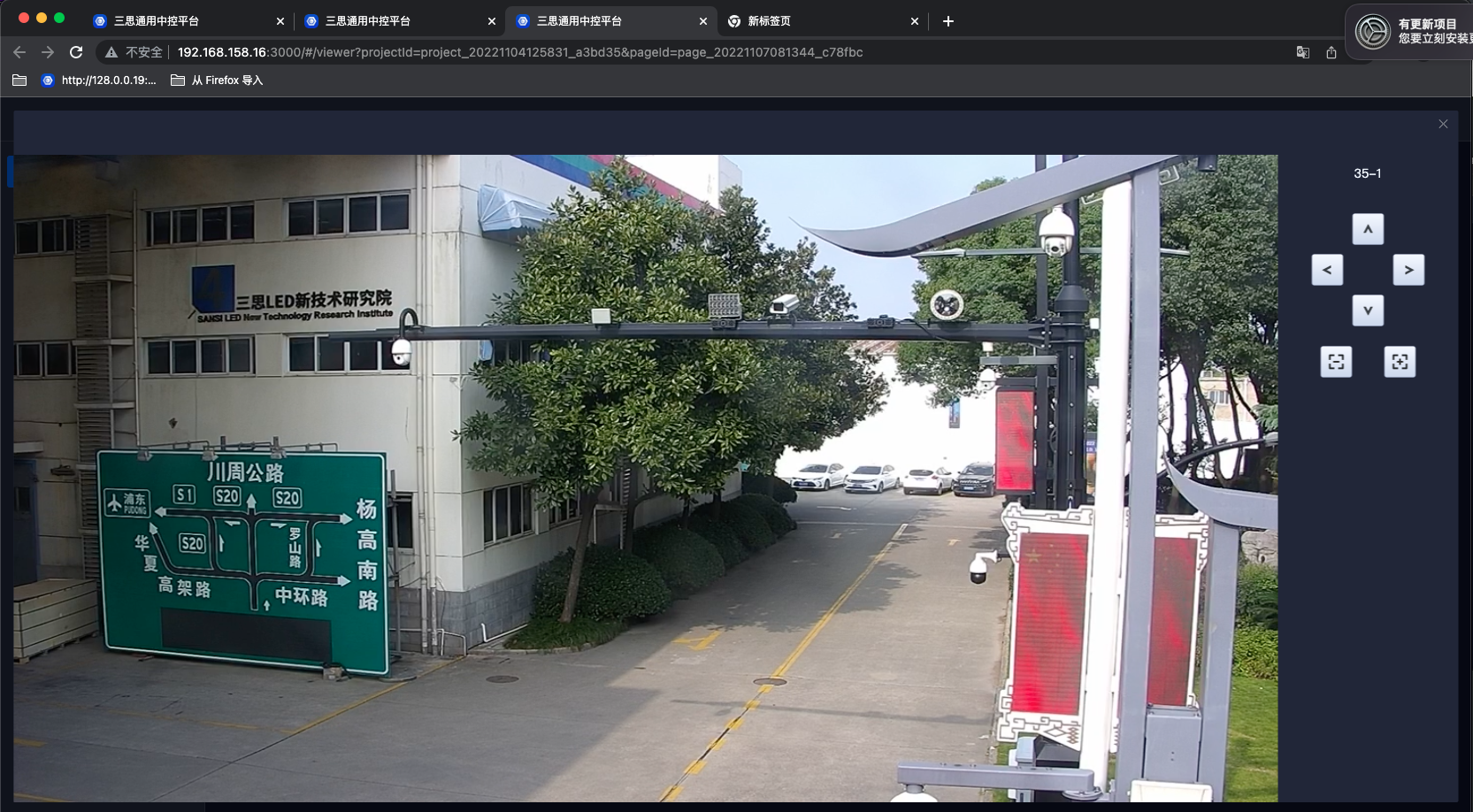
Video Surveillance Plugin
Deployment Manual
| Deployment Manual | Version | Compiled By | Date |
|---|---|---|---|
| Video Surveillance Deployment Manual | V1.0.0 | Wang Jiale | 2022.11.11 |
Using Xuan Dao Intelligent Control Service Management Deployment
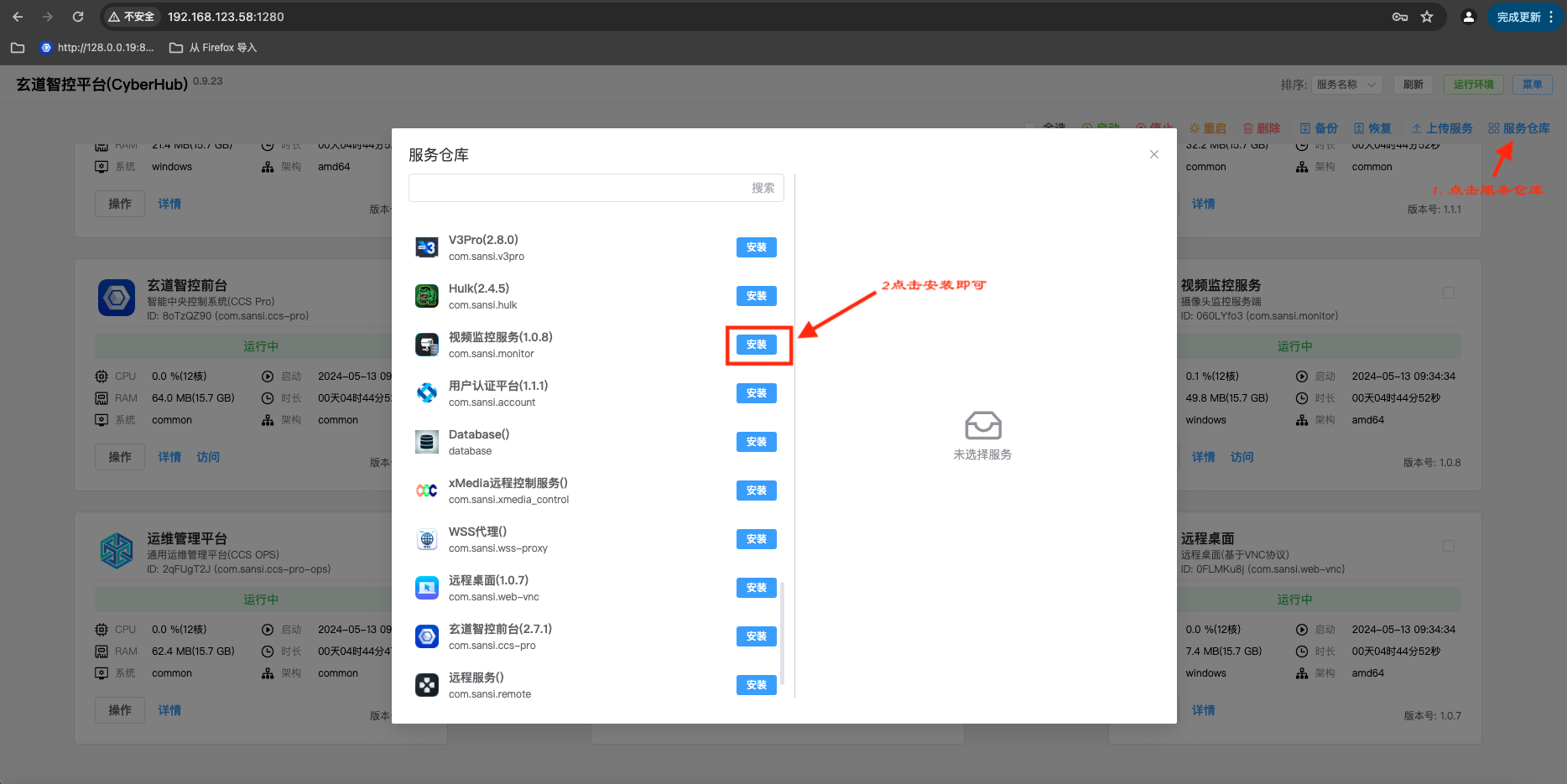
- Open the Xuan Dao Intelligent Control Service Management page, click on the service repository, locate the video surveillance service, and install it.
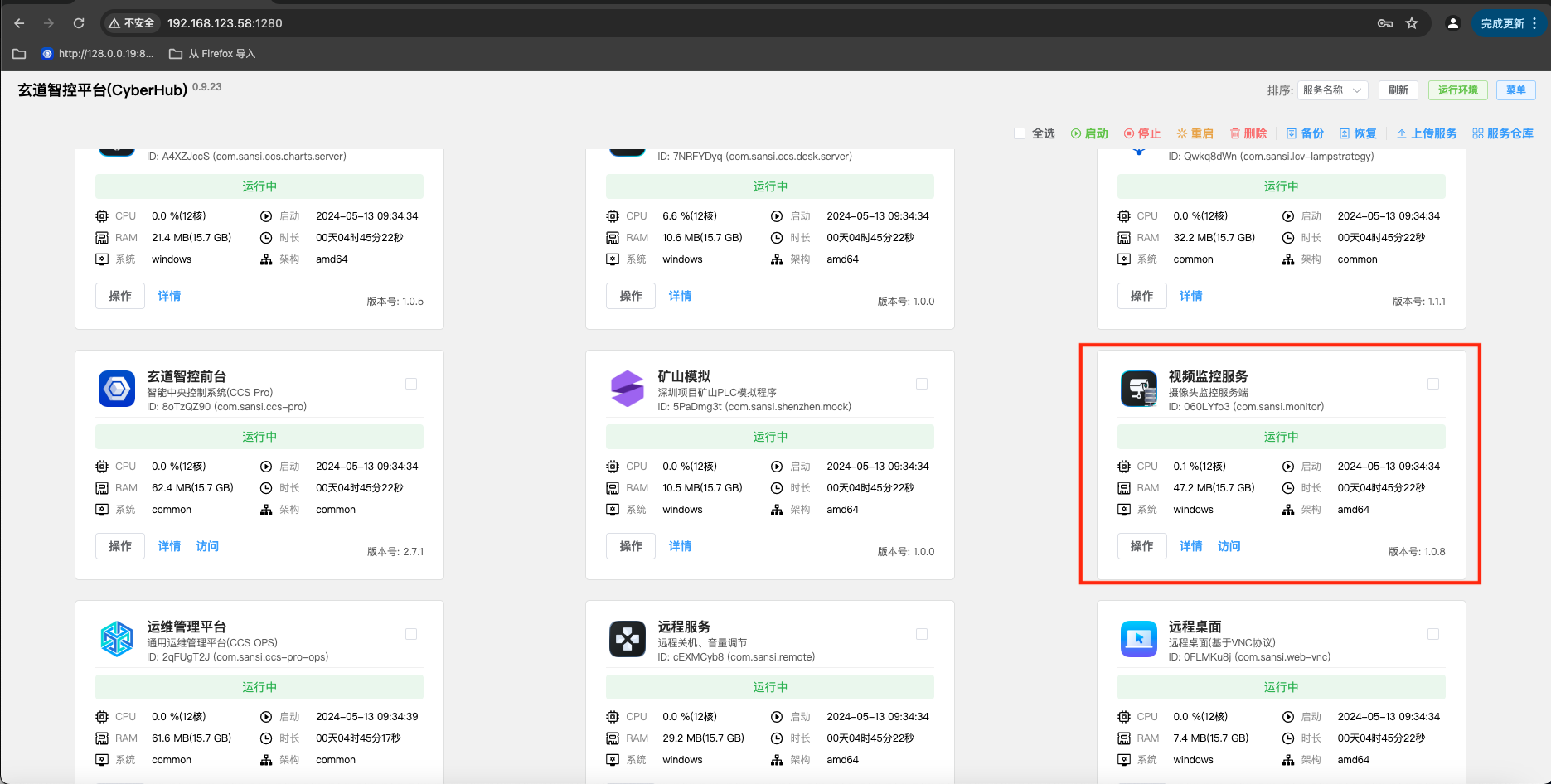
View the service running status. You can see the service version number, running status, runtime, and more.
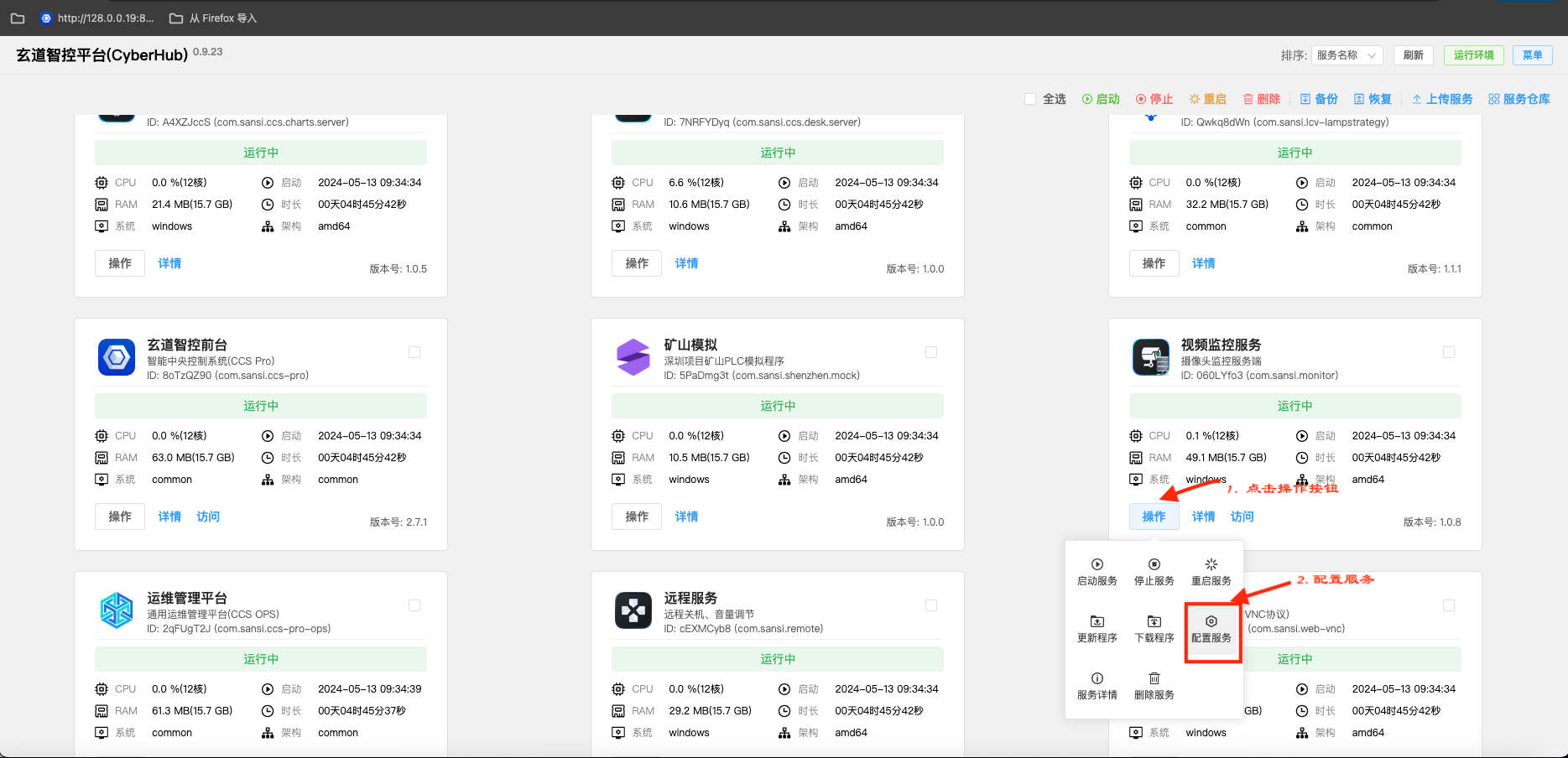
Modify or edit the configuration file.
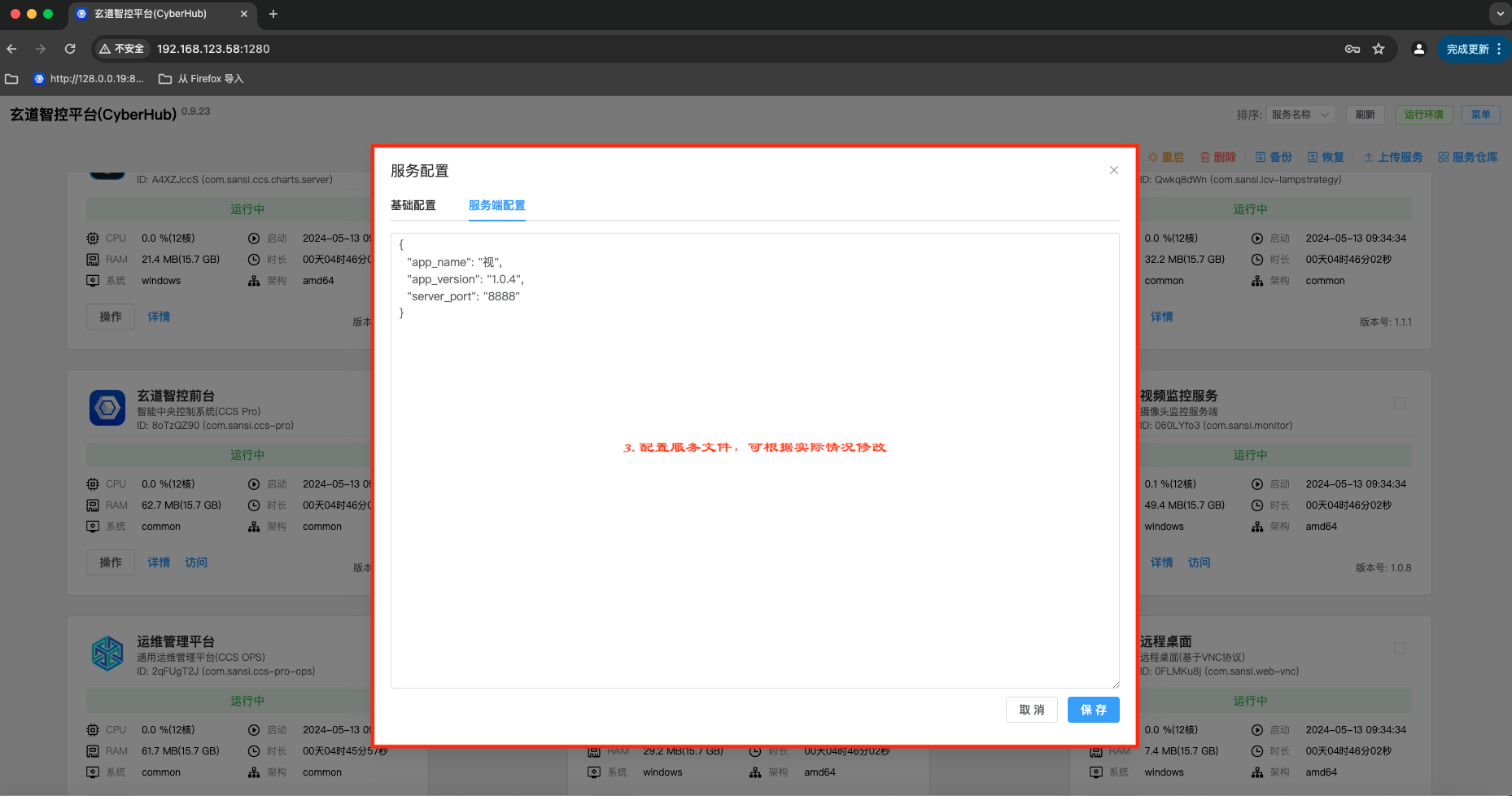
Notes
The project directory structure is shown in the figure below.
- Ccs-plugin-monitor is the project runtime program.
- Data is the data storage file.
- config.json is the project configuration file.
The configuration file is as follows:
{
  "app_name": "视频监控服务",
  "app_version": "v1.0.0",
  "server_port": "8888"
}
Camera Settings
If the customer does not require sound, please select the video stream in the video stream settings. The camera defaults to a composite stream (including video and sound), resulting in a larger data volume.
User Manual
| Deployment Manual | Version | Compiled By | Date |
|---|---|---|---|
| Video Surveillance User Manual | V1.0.0 | Wang Jiale | 2022.11.11 |
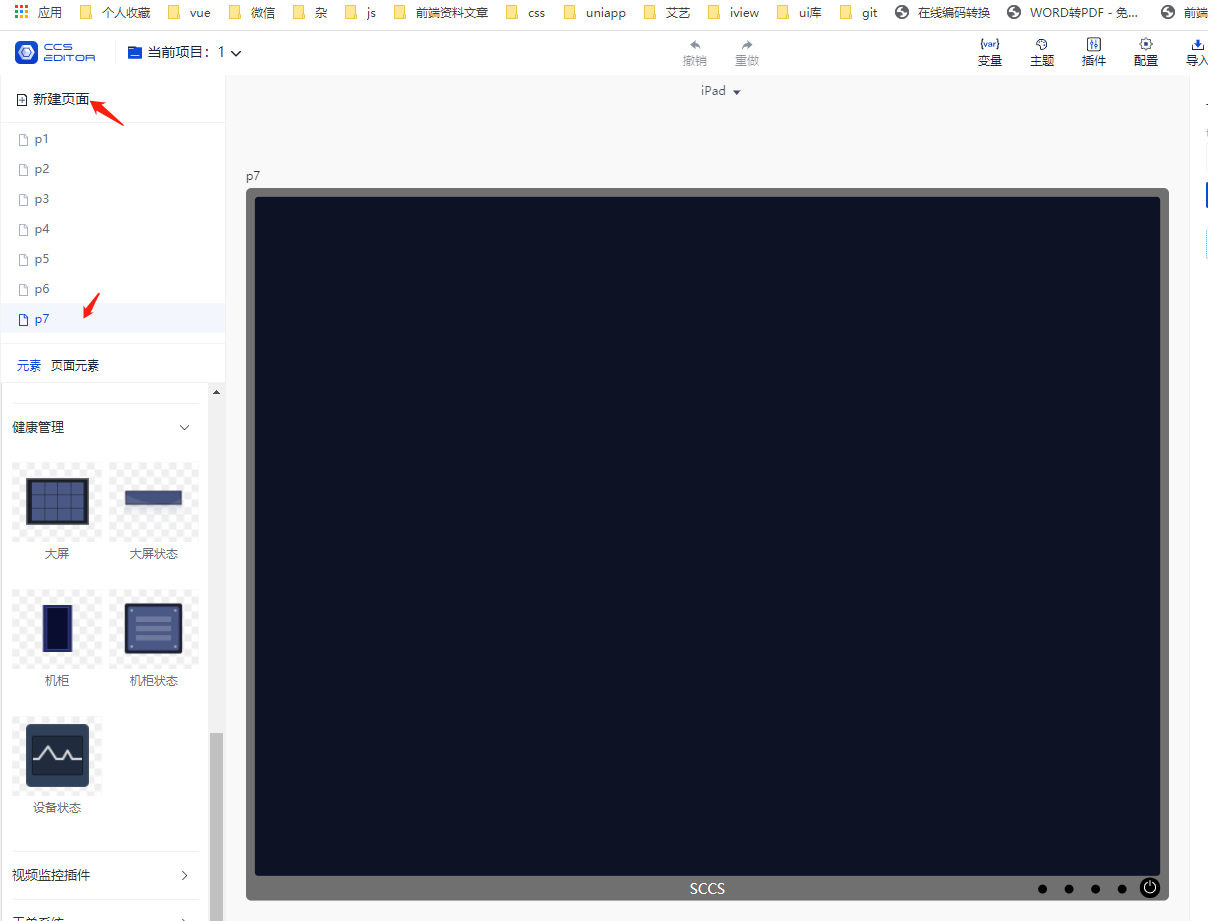
Create a New Page
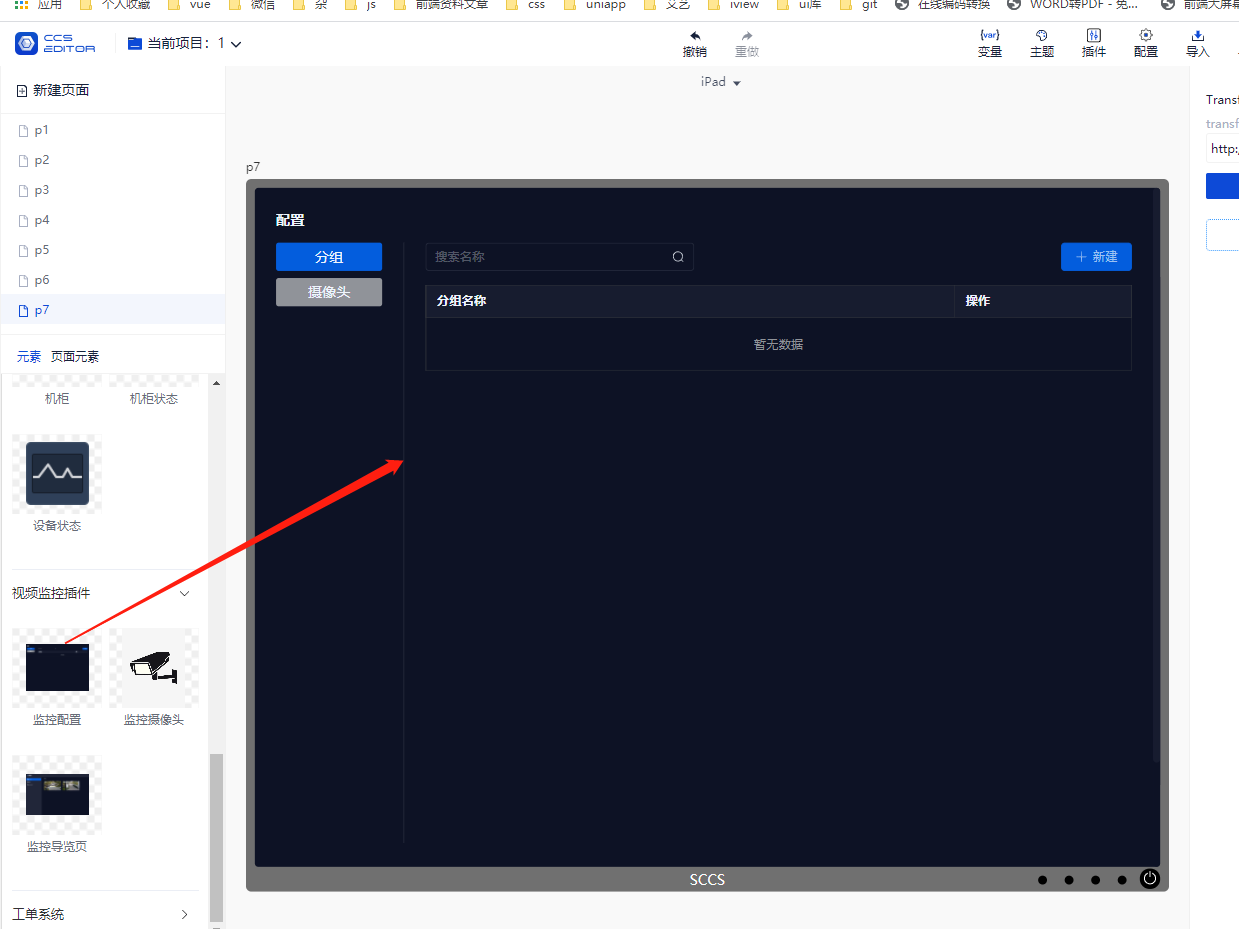
Drag in the Surveillance Configuration Page
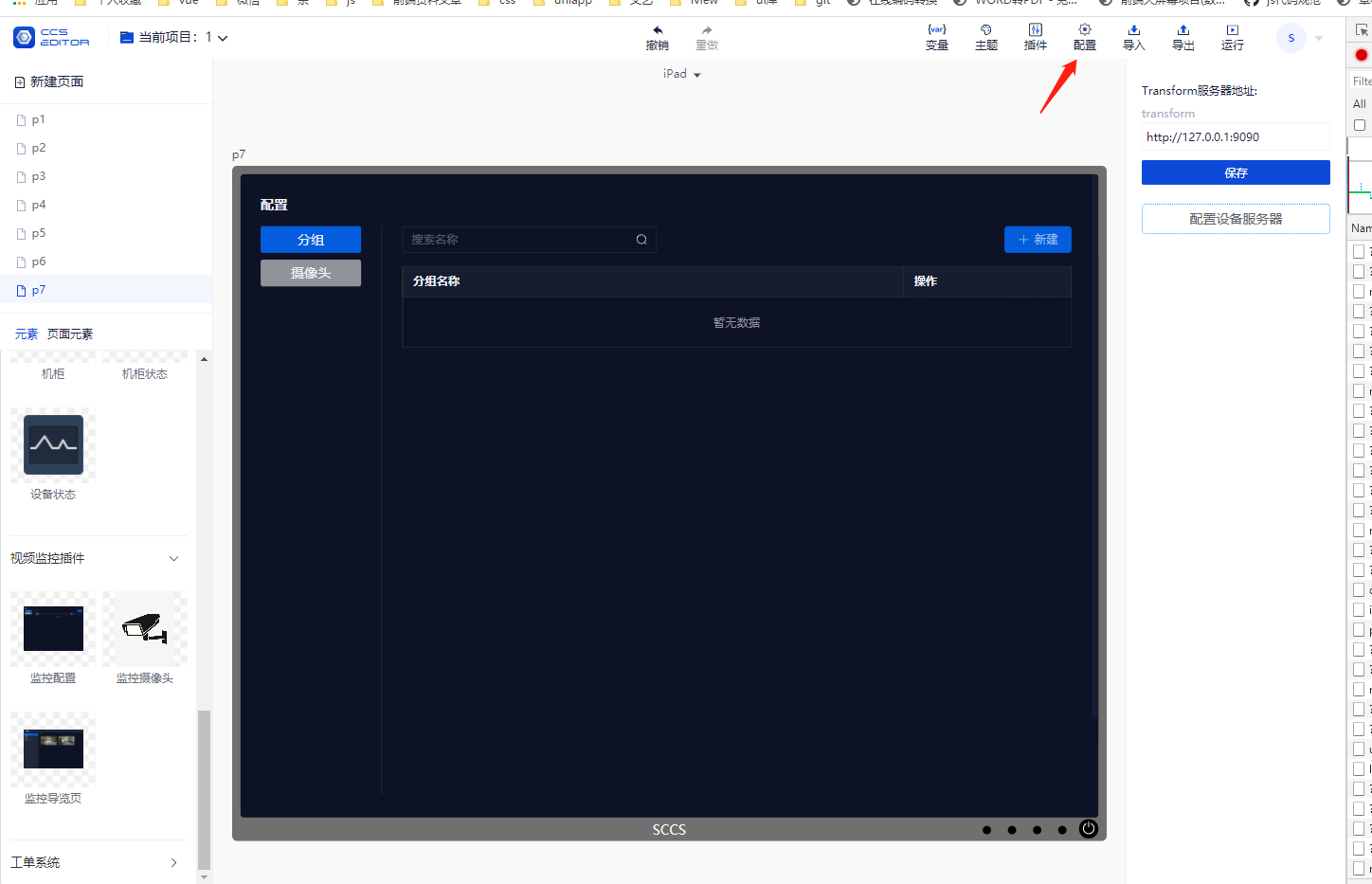
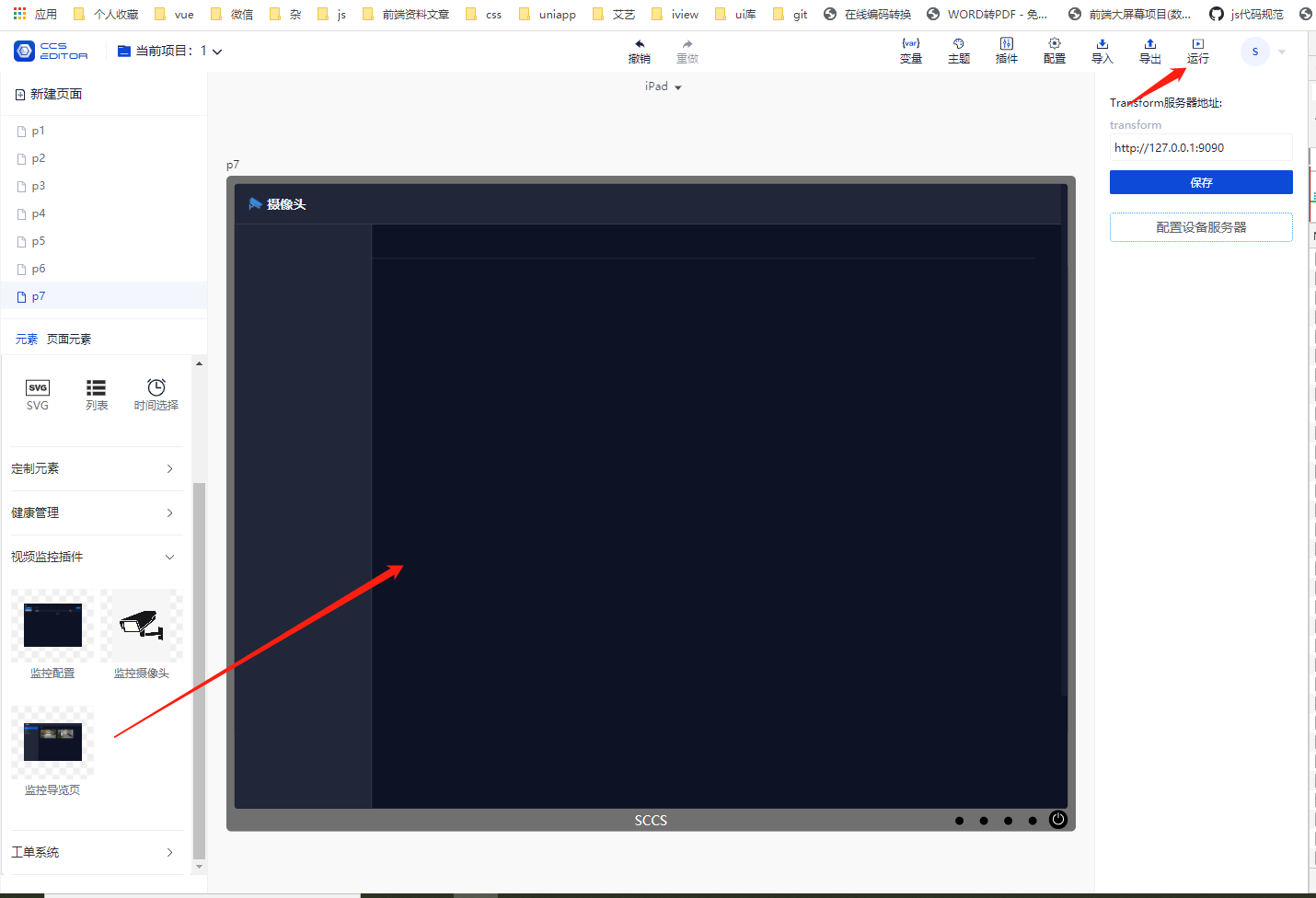
Click on Configuration ---> Configure Server Address ---> Click Run
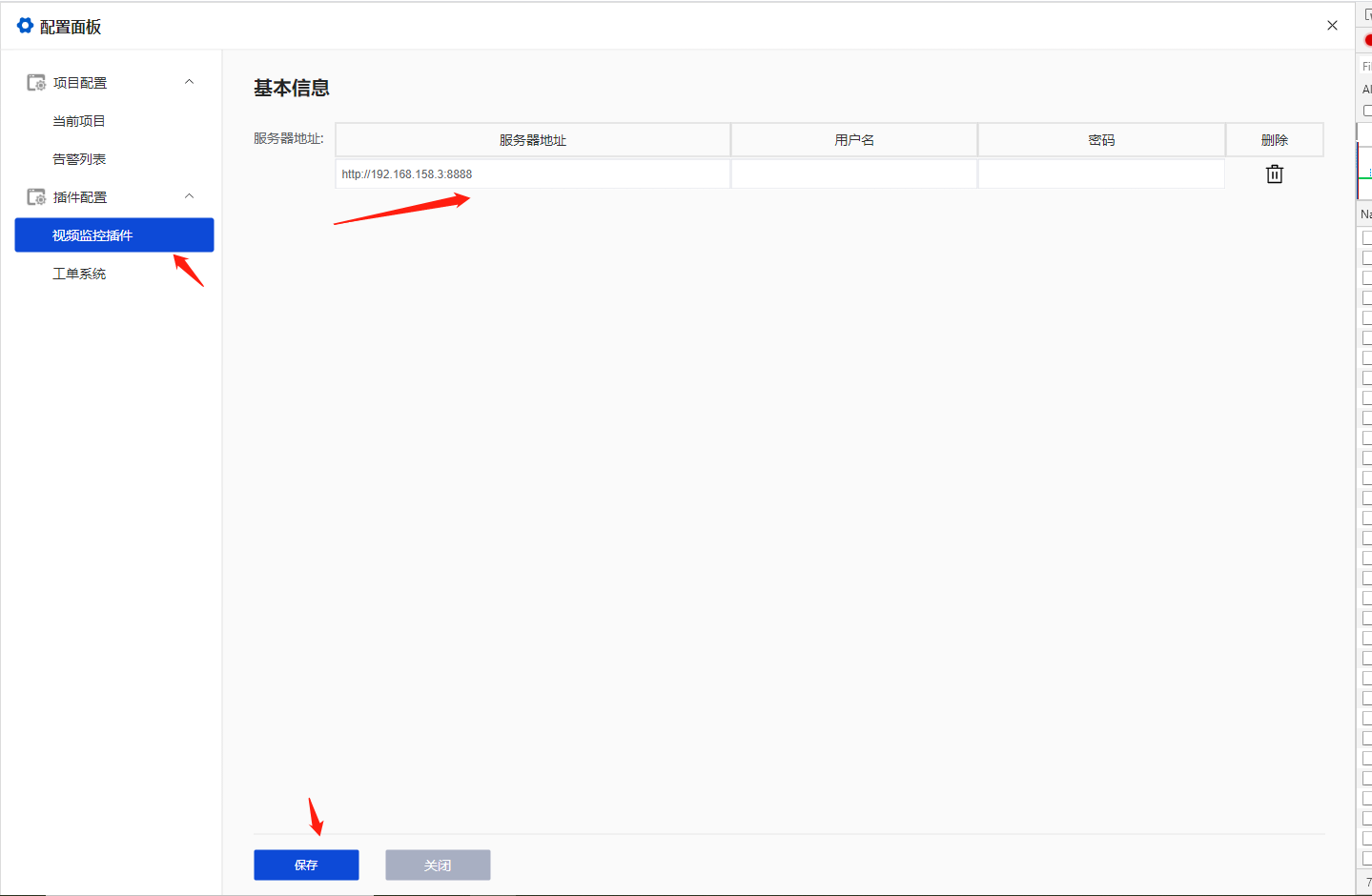
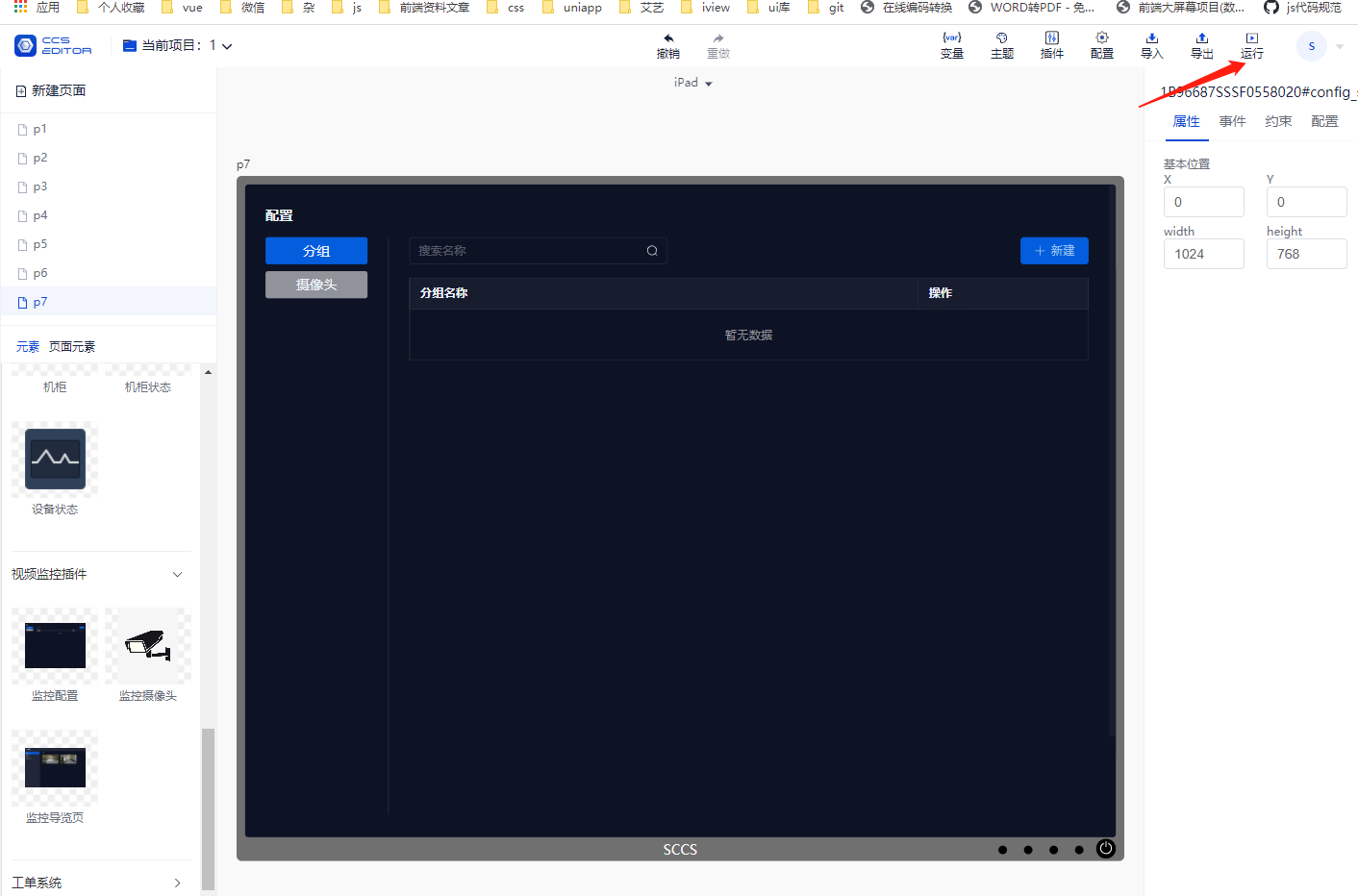
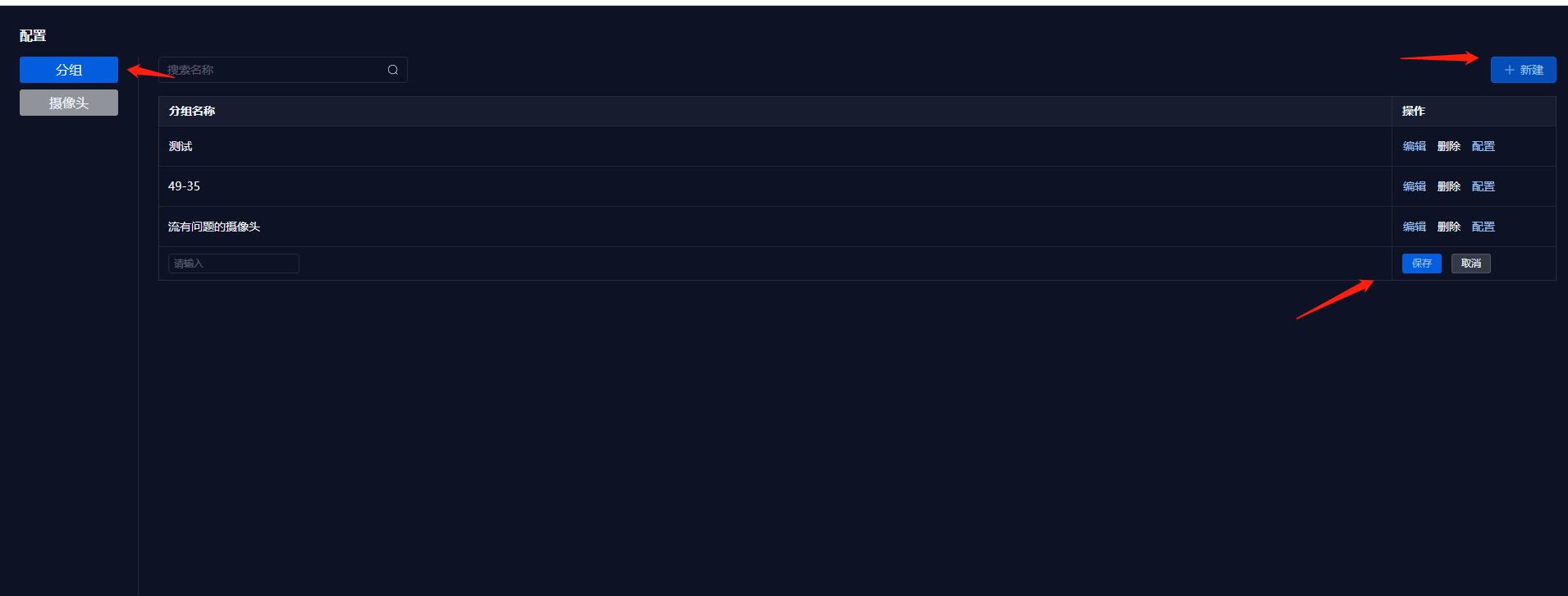
Create a New Video Group
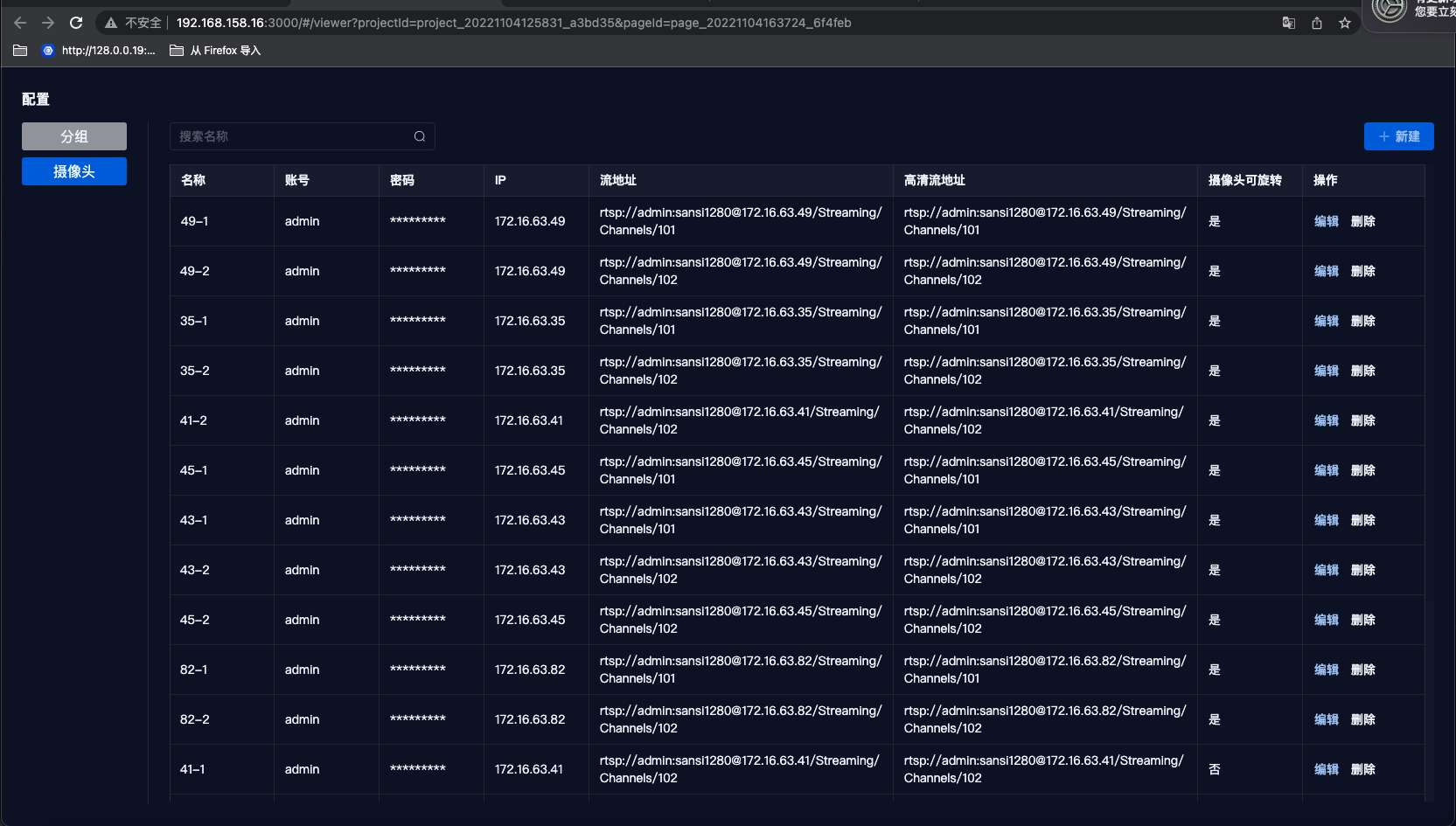
Add a New Camera
Note: For stream addresses, use the lower resolution address for standard streams and the higher resolution address for HD streams.
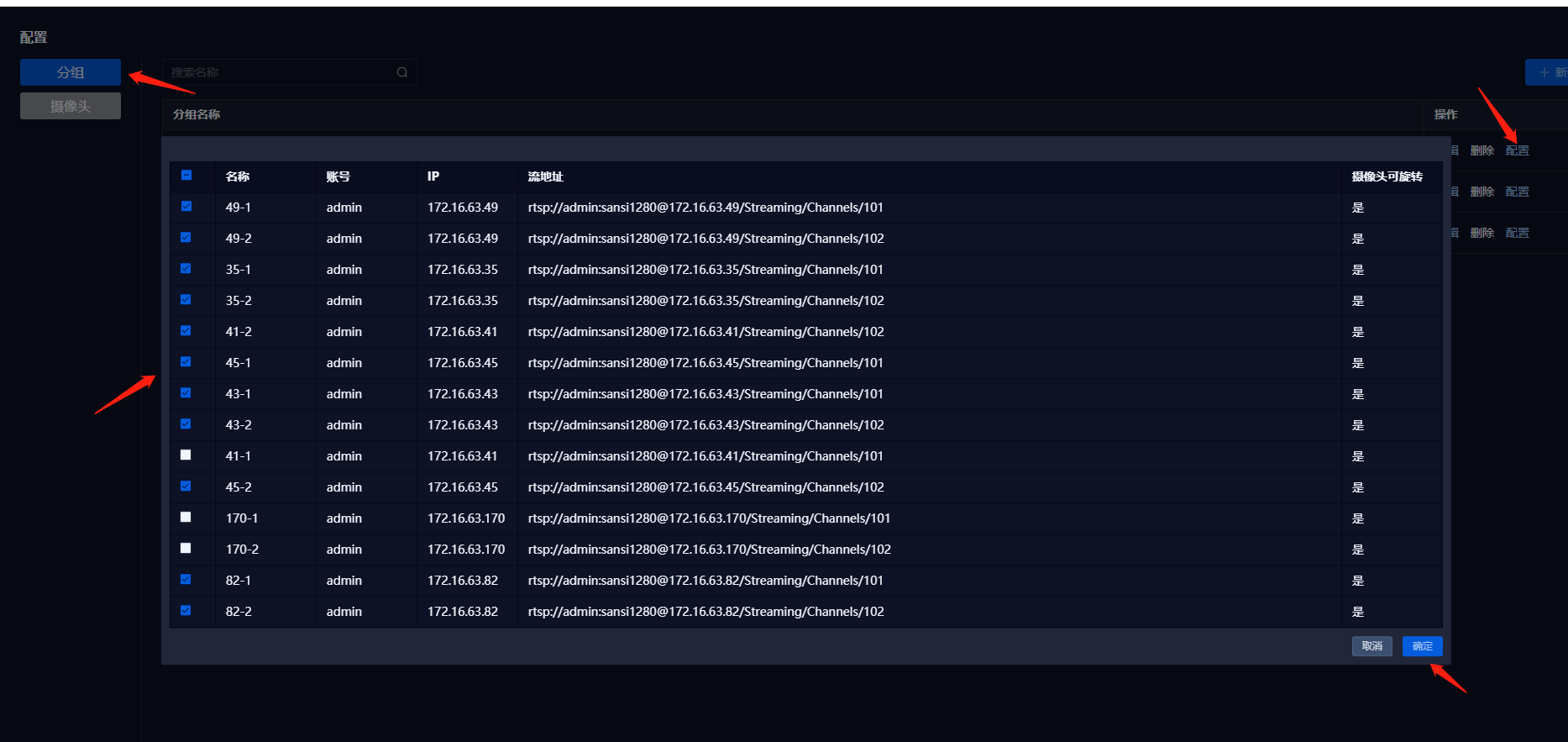
Select the Group ---> Click Configure ---> Check the Camera ---> Confirm
Bind Camera on a Separate Page
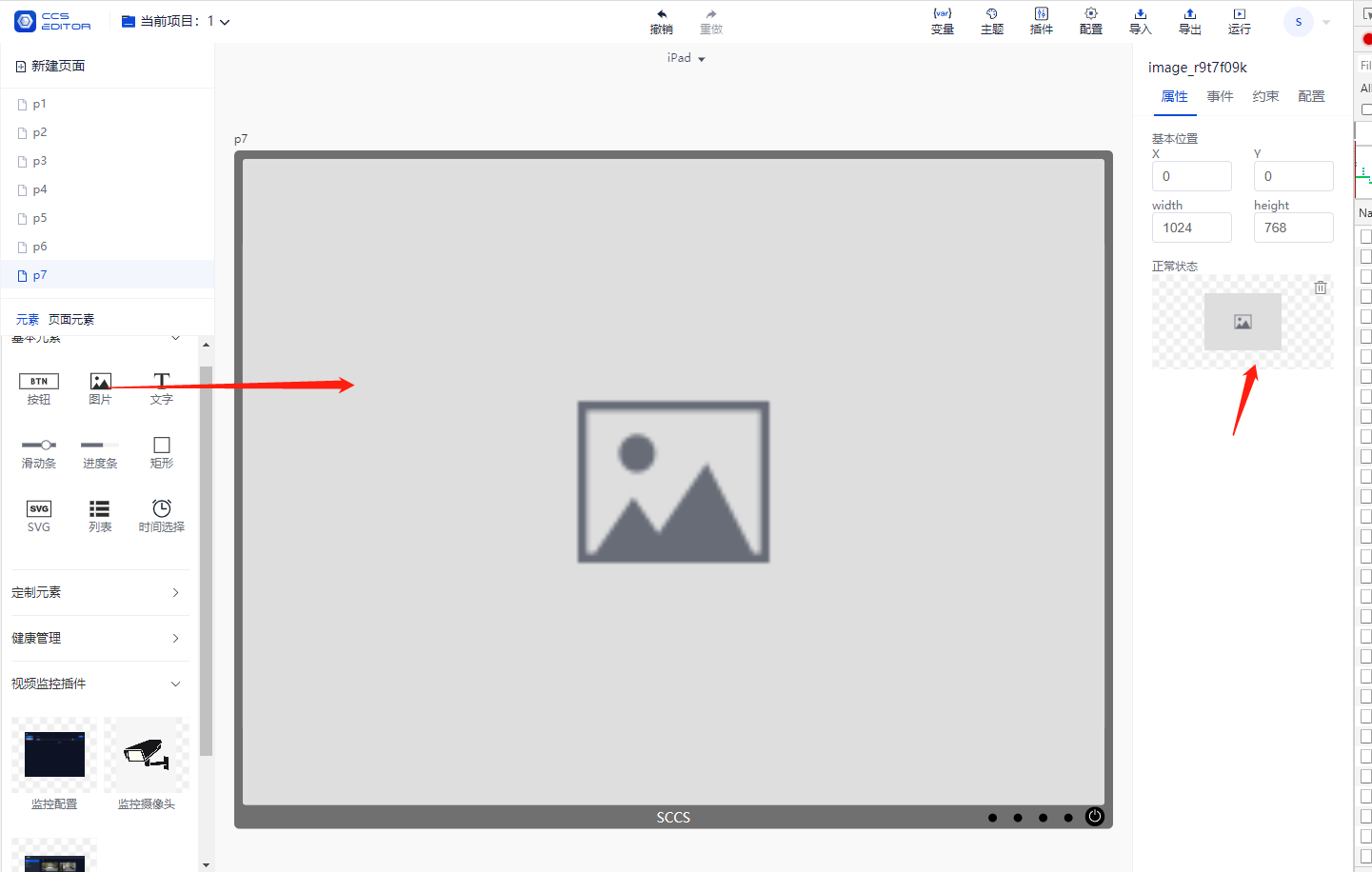
First, select a background image and set the floor background;
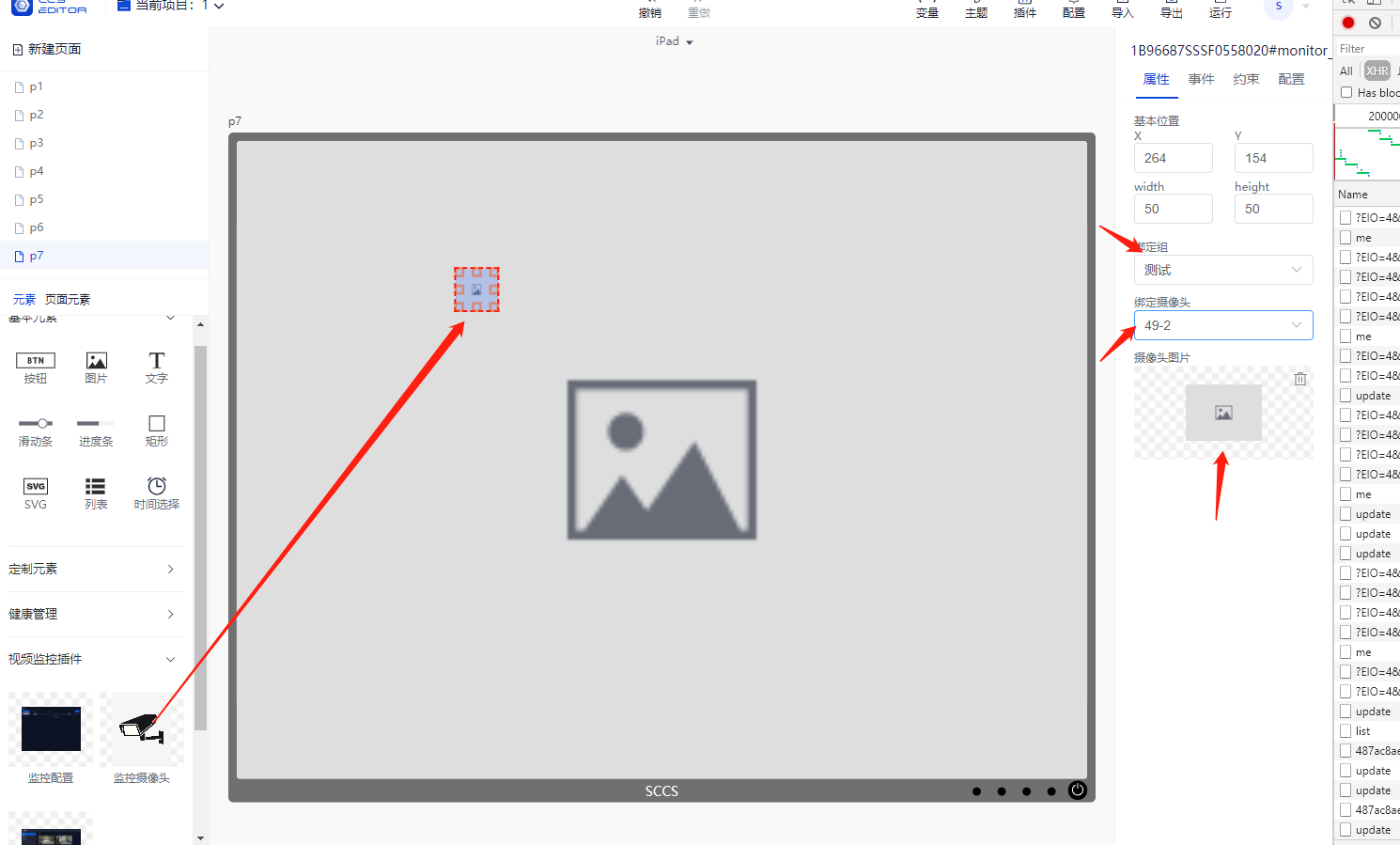
Drag in the surveillance camera ---> Bind Group ---> Bind Camera ---> Bind Camera Image
Click Run, then click on the camera to view.
Drag in the Surveillance Navigation Page, click Run to view.
The camera group list on the Control Page is as follows:
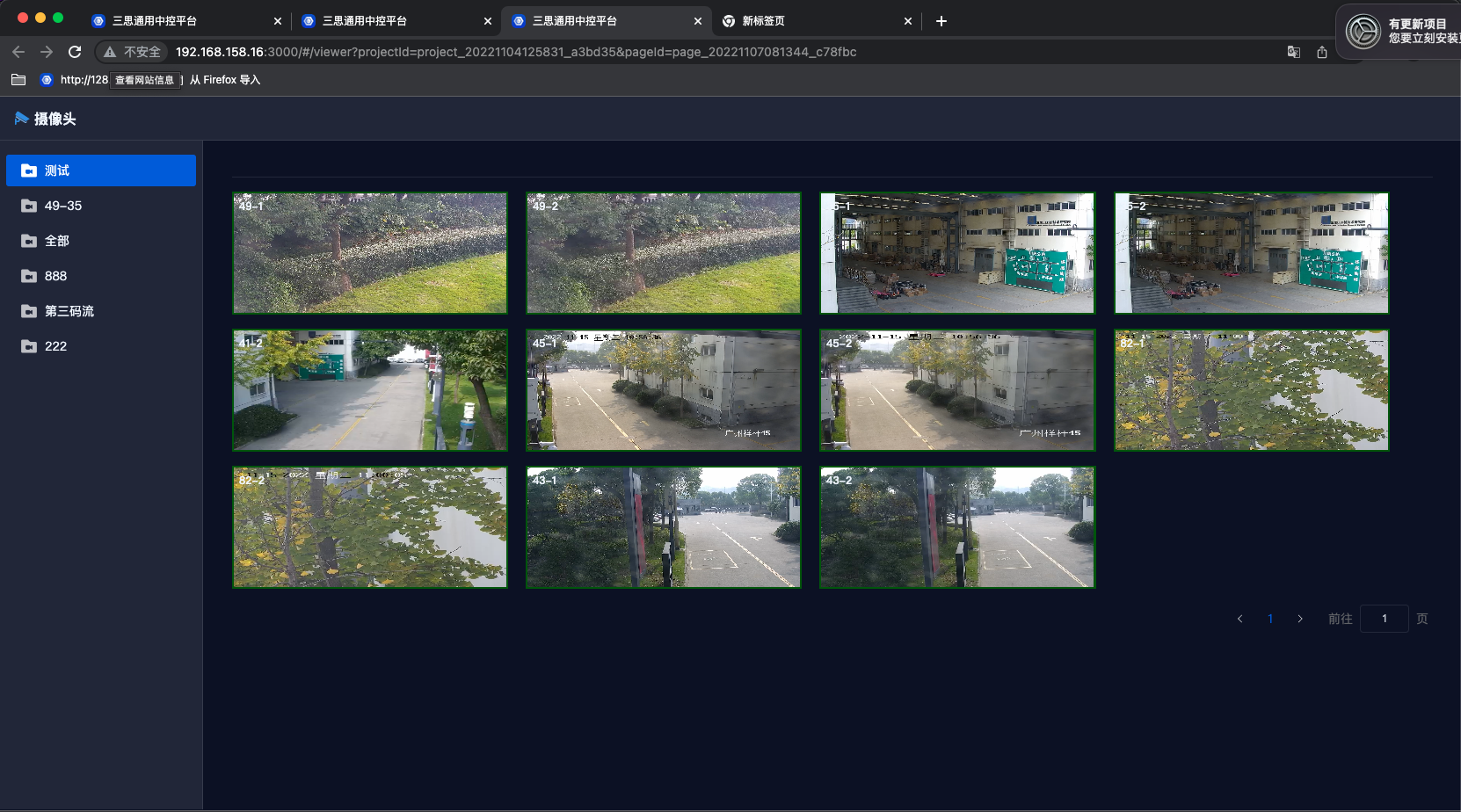
Click on the video in the list to view high-definition video surveillance and PTZ control.