User Manual for Service Management
| Document Version | Content Revision | Reviser | Revision Date |
|---|---|---|---|
| V1.0 | Added basic content for the manual | Wang Yao | 2023-11-24 |
| v1.6 | Updated basic content for the manual | Wang Jiale | 2024-09-11 |
| V2.0 | Updated basic content for the manual | Guochenghao | 2024-09-20 |
Module Introduction
A service management module that integrates complete process management, flexible program operation, detailed log management, and high security, aimed at providing users with an efficient, secure, and user-friendly service program control experience.
Functional Advantages
| Functional Advantage | Detailed Description |
|---|---|
| Complete Process Management | Supports starting, stopping, and restarting with process guardians to ensure subprocesses run normally. |
| Flexible Program Operation | Conveniently import/uninstall programs and clean up data during uninstallation. |
| Detailed Log Management | Provides log dumping, size/quantity limitations, encoding issue resolution, and supports downloading logs individually. |
| Friendly User Experience | Intelligent log scrolling, configuration saving checks, upload progress display, etc., enhance user experience. |
| Strong System Compatibility | Supports the system's default interpreter and cross-platform use. |
| Rich Configuration Management | Supports environment variable management, program configuration, and runtime environment management. |
| Convenient Automatic Integration | Startup automatically on boot, update functionality, and integration with cloud platforms. |
| Powerful Backup and Restore | Supports one-click backup of programs and data as archive files and restoring on another device. |
Function List
✅:Feature available 🚫:Feature not available
| Function Point\Platform | Windows | Linux | MacOS |
|---|---|---|---|
| Service List | ✅ | ✅ | ✅ |
| Custom Sorting | ✅ | ✅ | ✅ |
| Add Service | ✅ | ✅ | ✅ |
| Start Service | ✅ | ✅ | ✅ |
| Stop Service | ✅ | ✅ | ✅ |
| Restart Service | ✅ | ✅ | ✅ |
| Delete Service | ✅ | ✅ | ✅ |
| Update Service (keeping configuration, data) | ✅ | ✅ | ✅ |
| Download Service | ✅ | ✅ | ✅ |
| Backup Data | ✅ | ✅ | ✅ |
| Restore Backup | ✅ | ✅ | ✅ |
| Self-update Service | ✅ | ✅ | 🚫 |
| One-click Installation Package | ✅ | ✅ | 🚫 |
| Time-consuming Operation Progress Prompt | ✅ | ✅ | ✅ |
| View Log | ✅ | ✅ | ✅ |
| Download Log | ✅ | ✅ | ✅ |
| Log Real-time Update | ✅ | ✅ | ✅ |
| CPU Status | ✅ | ✅ | ✅ |
| RAM Status | ✅ | ✅ | ✅ |
| Startup Time | ✅ | ✅ | ✅ |
| Startup Duration | ✅ | ✅ | ✅ |
| Runtime Environment Management | ✅ | ✅ | ✅ |
| Multiple Runtime Environment Isolation | ✅ | ✅ | ✅ |
| Runtime Environment Automatic Matching | ✅ | ✅ | ✅ |
| Edit Service Configuration | ✅ | ✅ | ✅ |
| Multiple Configuration File Editing | ✅ | ✅ | ✅ |
| Custom Environment Variables | ✅ | ✅ | ✅ |
| Custom Startup Parameters | ✅ | ✅ | ✅ |
| Data Isolation to Avoid Conflicts When Starting Multiple Services | ✅ | ✅ | ✅ |
| Startup on Boot | ✅ | ✅ | 🚫 |
| Automatic Restart on Failure | ✅ | ✅ | ✅ |
| Restart Count | ✅ | ✅ | ✅ |
| Restart Delay Time | ✅ | ✅ | ✅ |
| View Documentation | ✅ | ✅ | ✅ |
| View API Documentation | ✅ | ✅ | ✅ |
| Custom Homepage | ✅ | ✅ | ✅ |
| Batch Start | ✅ | ✅ | ✅ |
| Batch Stop | ✅ | ✅ | ✅ |
| Batch Restart | ✅ | ✅ | ✅ |
| Batch Backup | ✅ | ✅ | ✅ |
| Batch Restore | ✅ | ✅ | ✅ |
| Cloud Service Repository | ✅ | ✅ | ✅ |
| Automatically Match Programs Suitable for Current System Architecture | ✅ | ✅ | ✅ |
| Cloud Backup | ✅ | ✅ | ✅ |
| Cloud Restore | ✅ | ✅ | ✅ |
| First Installation Guide | 🚫 | 🚫 | 🚫 |
| View and Manage System Processes | 🚫 | 🚫 | 🚫 |
| Automatically Handle Firewall Rules | ✅ | 🚫 | 🚫 |
| Network Terminal | ✅ | ✅ | ✅ |
| HTTPS Support | ✅ | ✅ | ✅ |
Program Entry
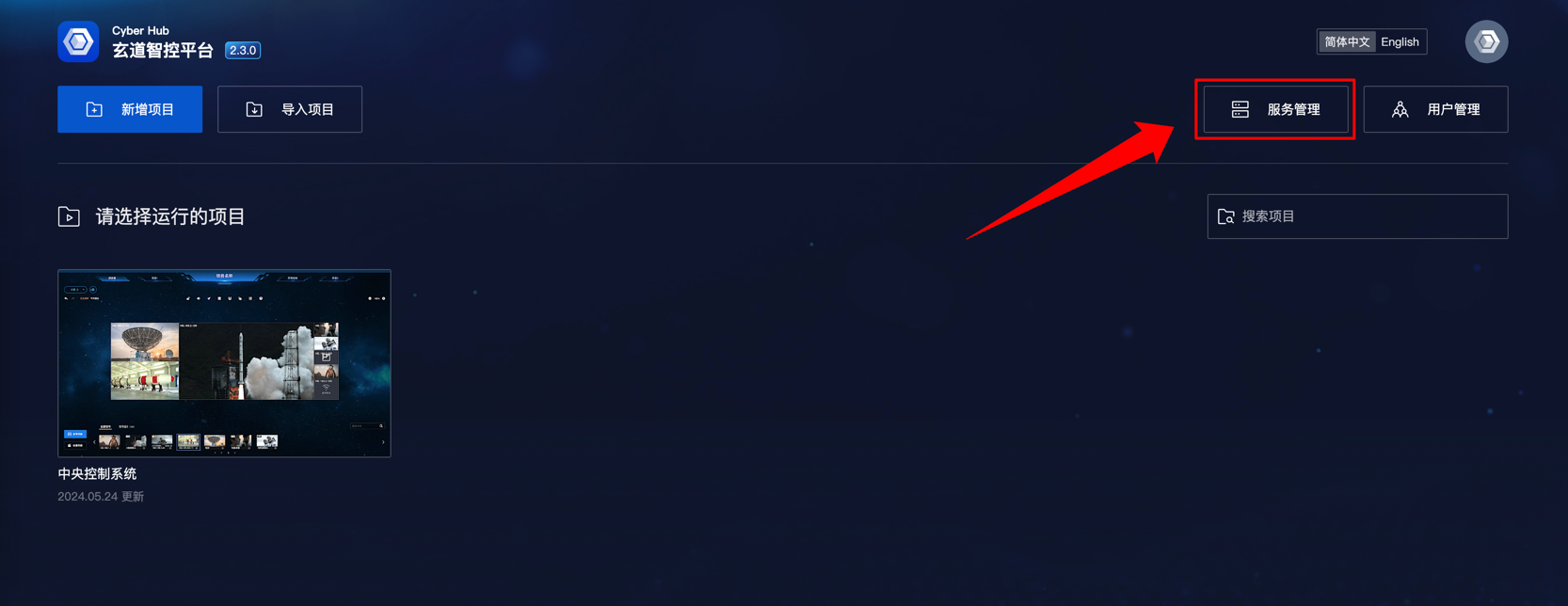
Click the 【Service Management】 button to enter the service management page.
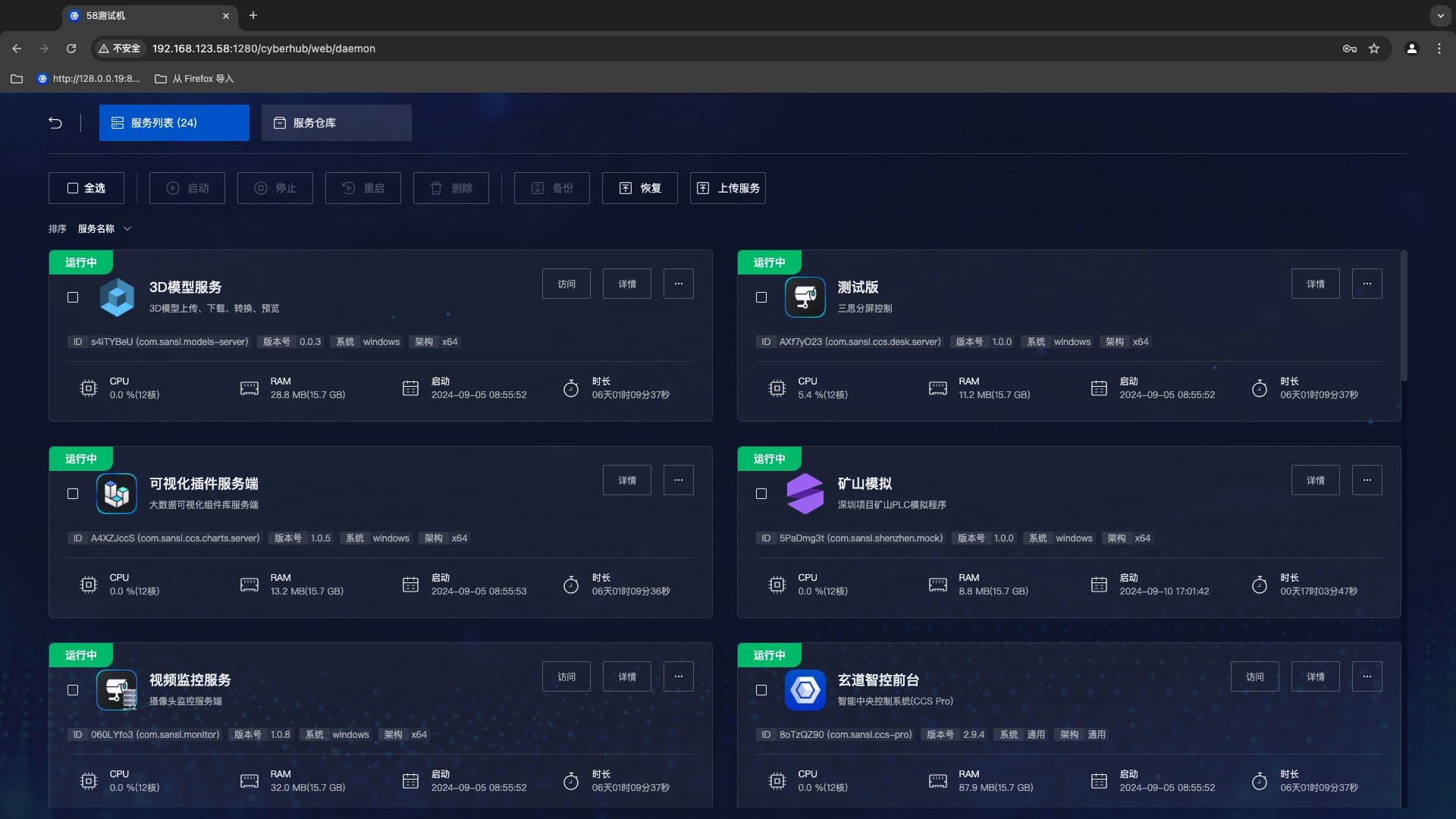
Service List
Service Control
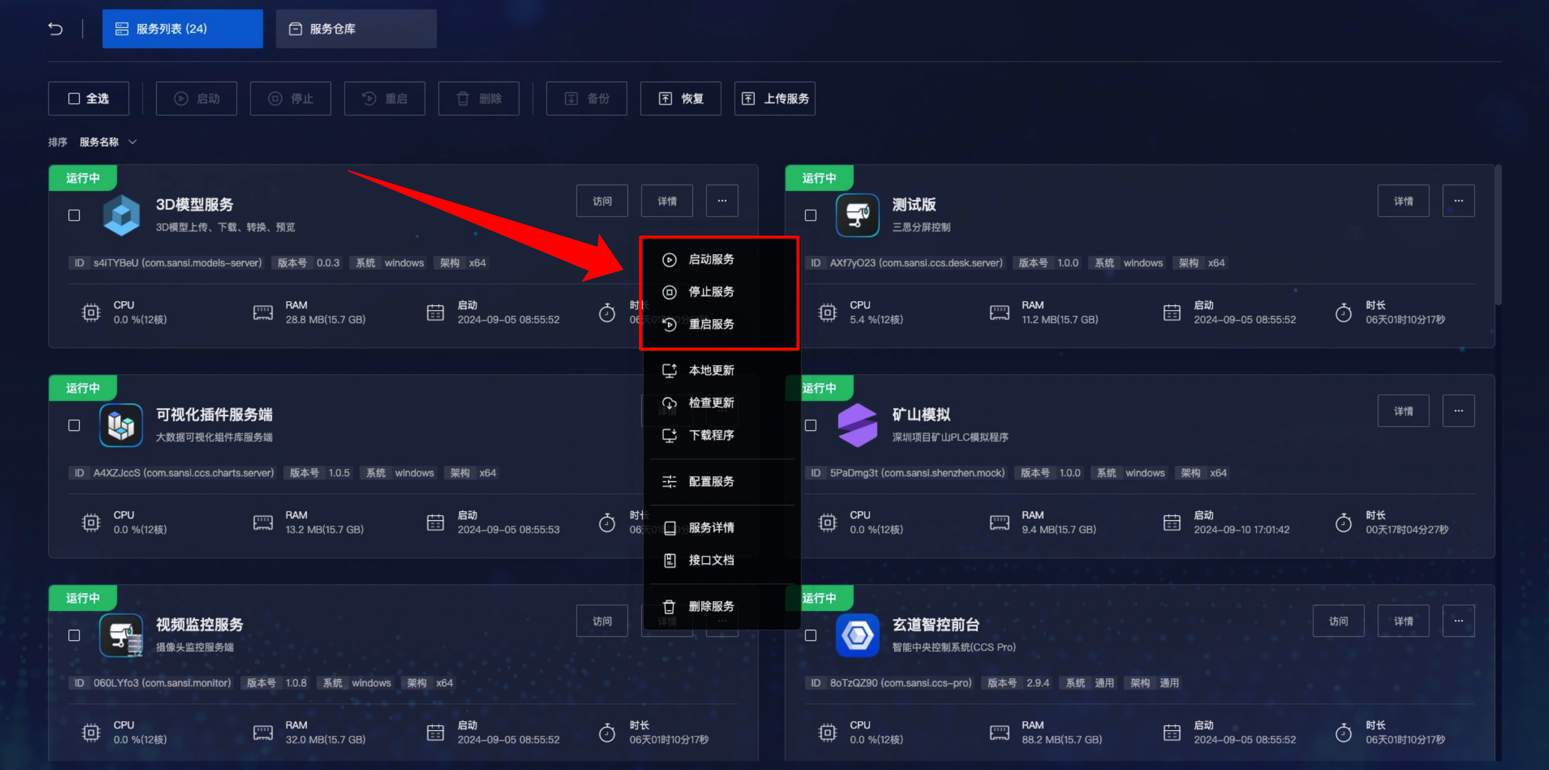
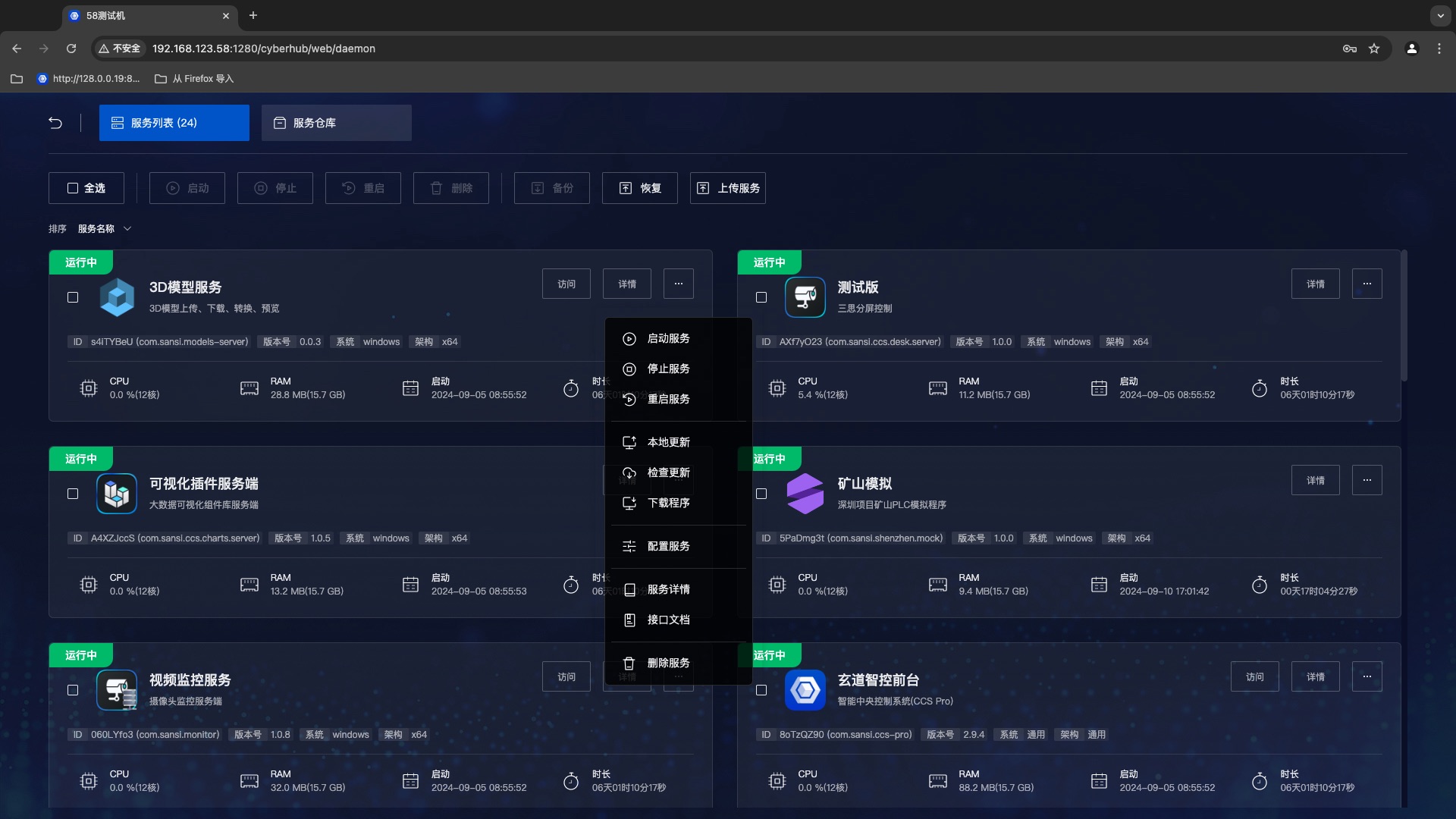 Function List:
- Restart Service
- Stop Service
- Restart Service
- Local Update
- Check for Updates
- Download Program
- Configure Service
- Service Details
- API Documentation
- Delete Service
Service Control - Start/Stop/Restart Service
Single Operation
Single operations are controlled through the service operation panel.
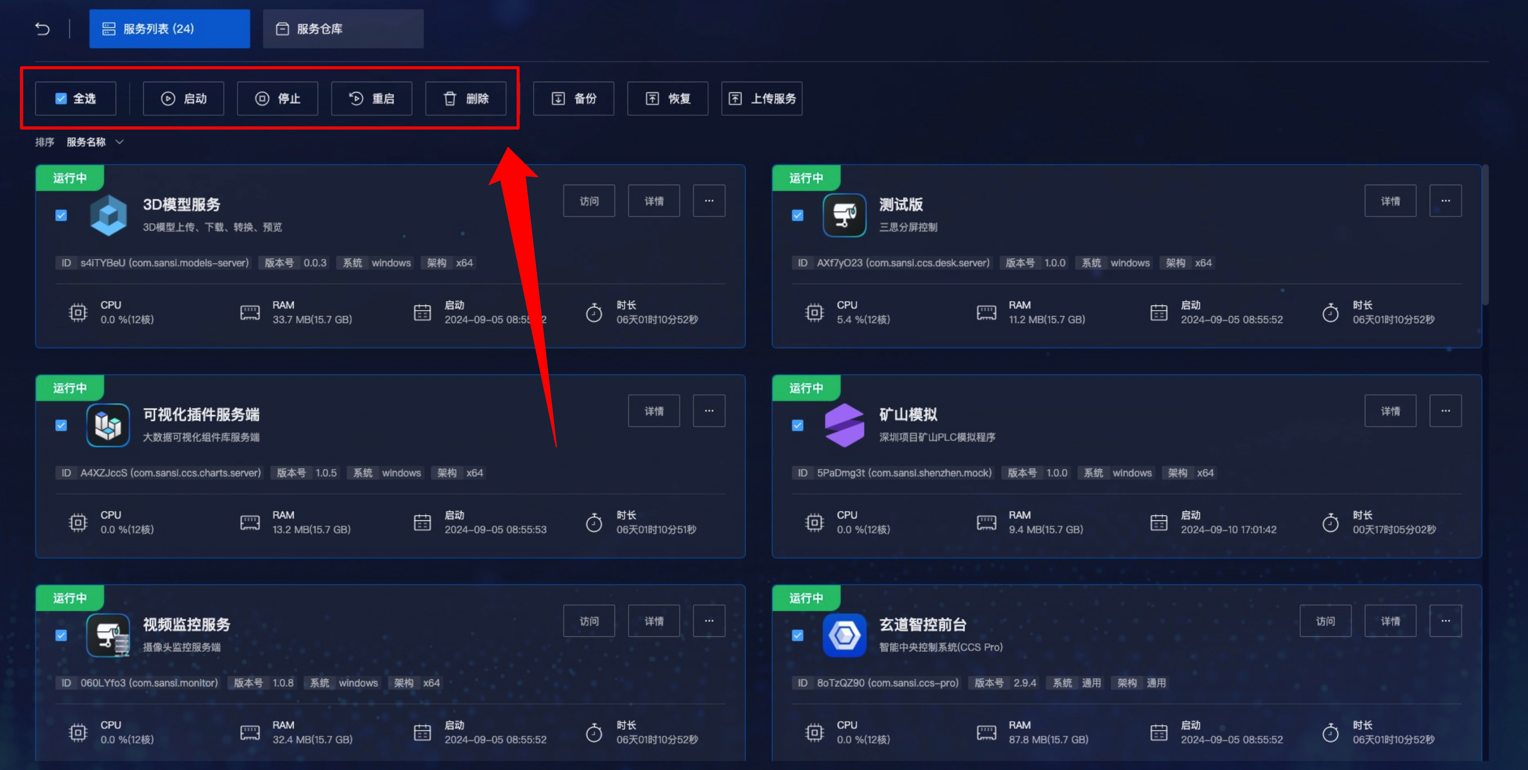
Batch Operation
Batch operations are controlled via the selection box in the upper right corner of the service card. After selecting, control through the top menu.
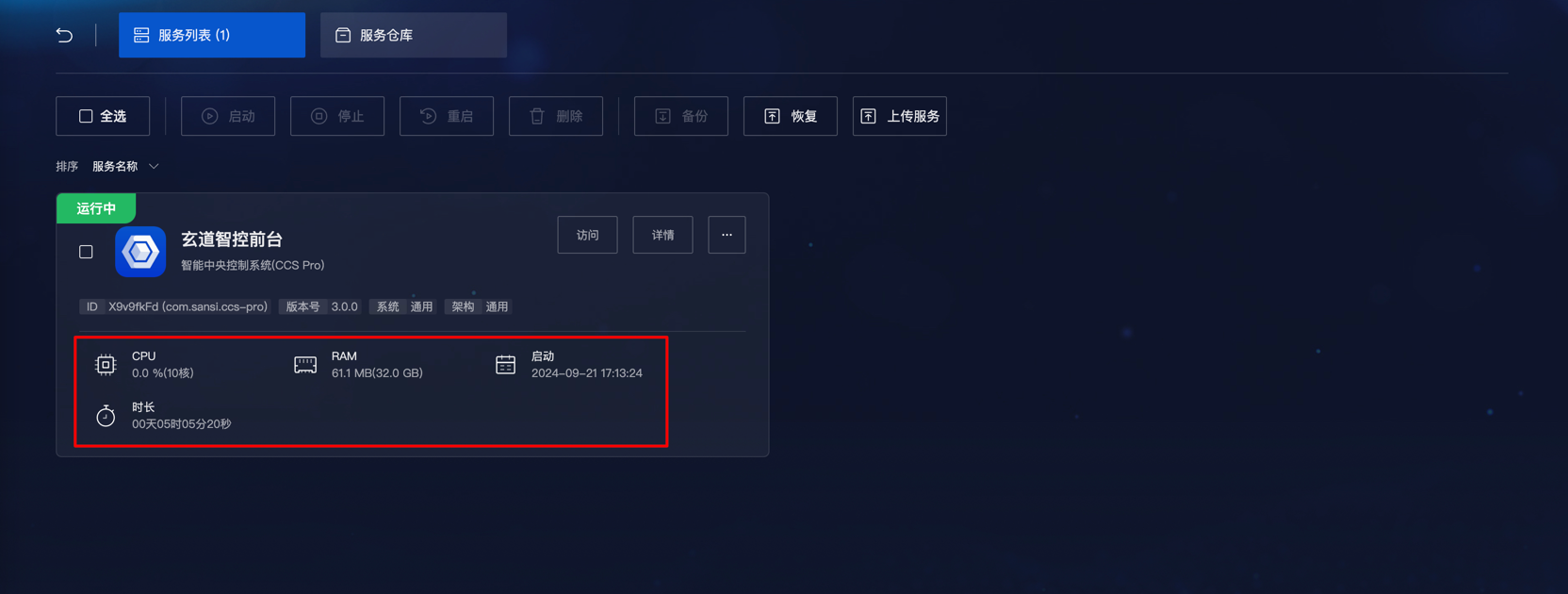
Service Control - Status Monitoring
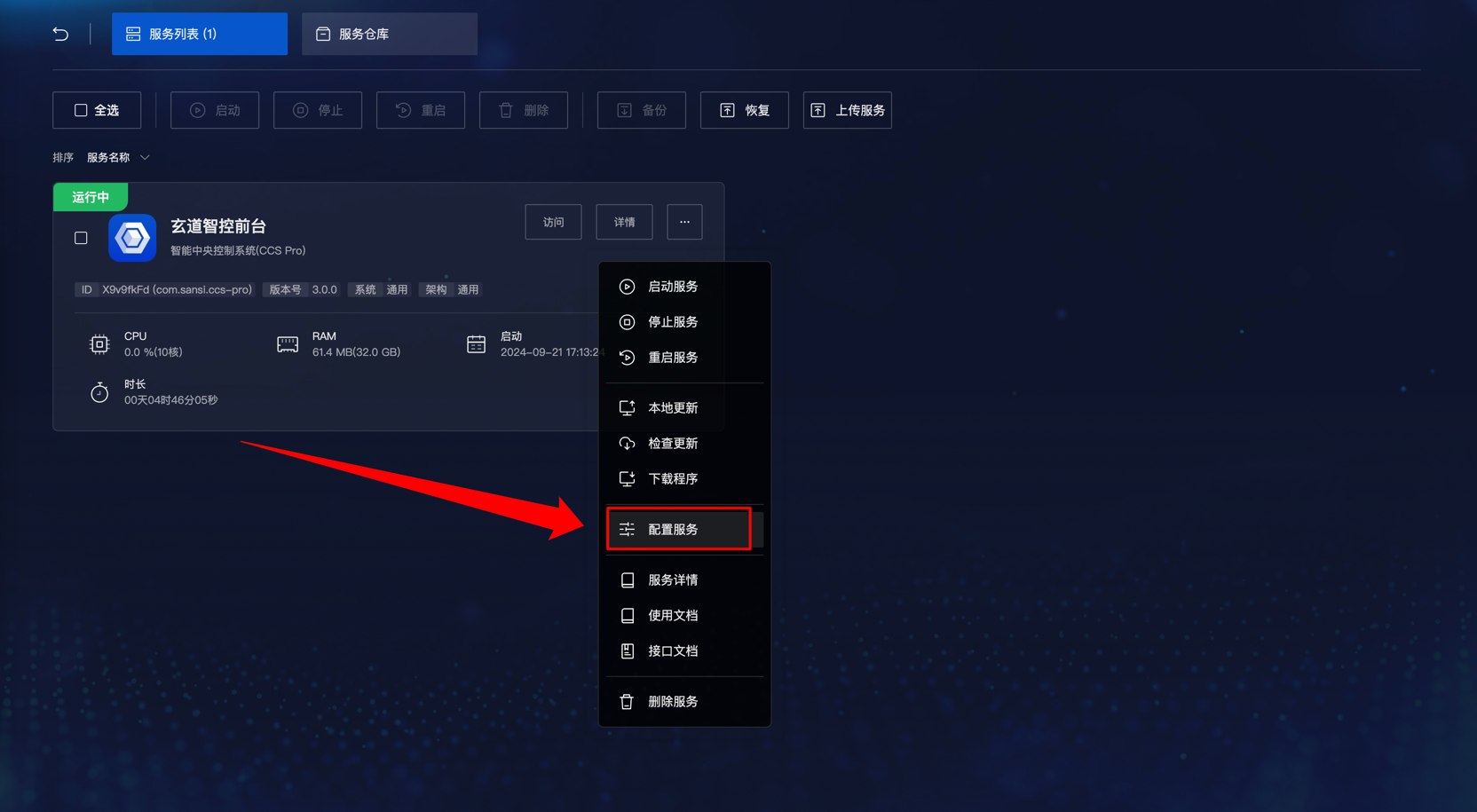
Service Control - Configure Service
Select the service operation panel, then click 【Configure Service】 to enter the configuration page.
Service Control - Basic Configuration
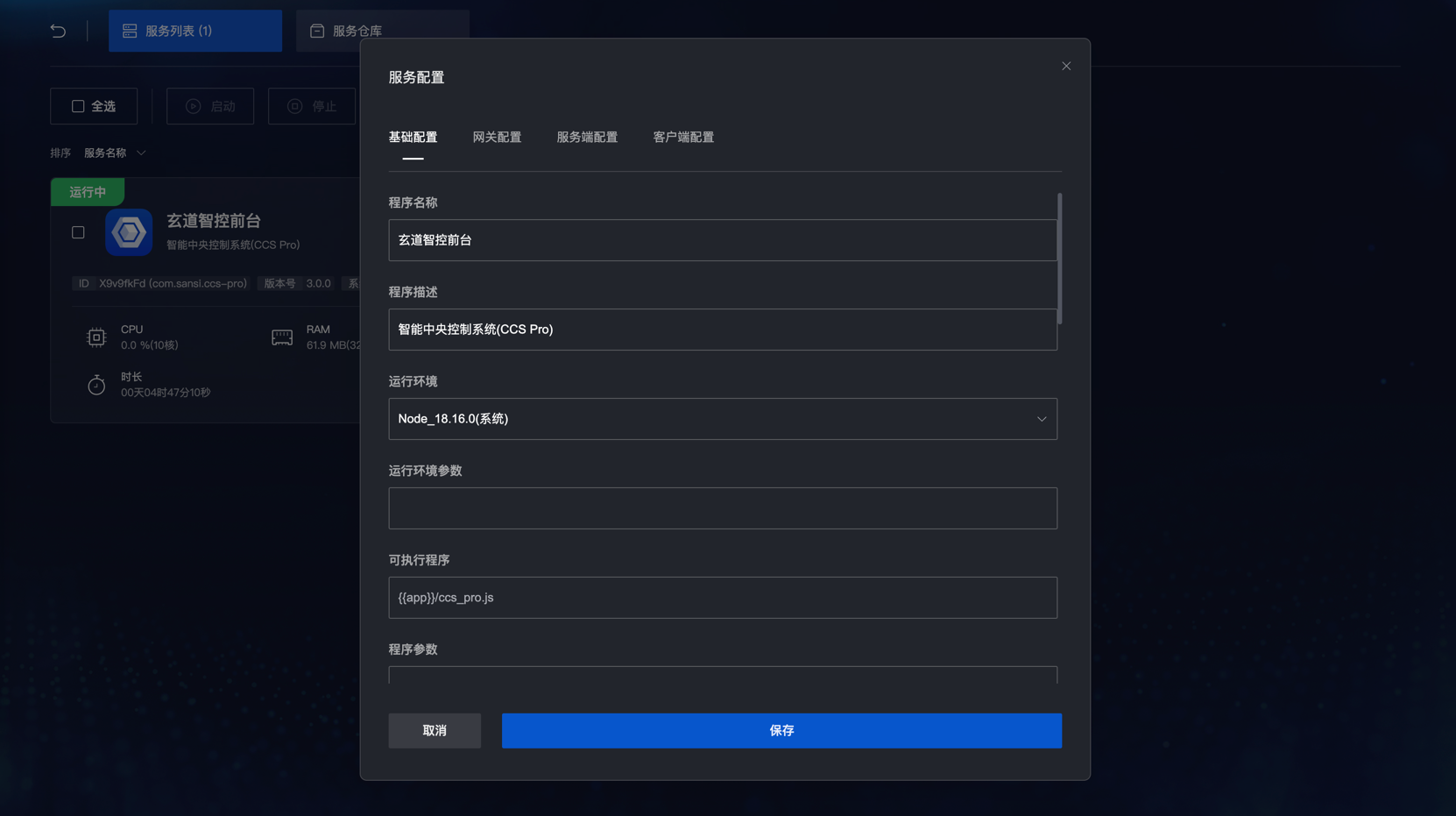
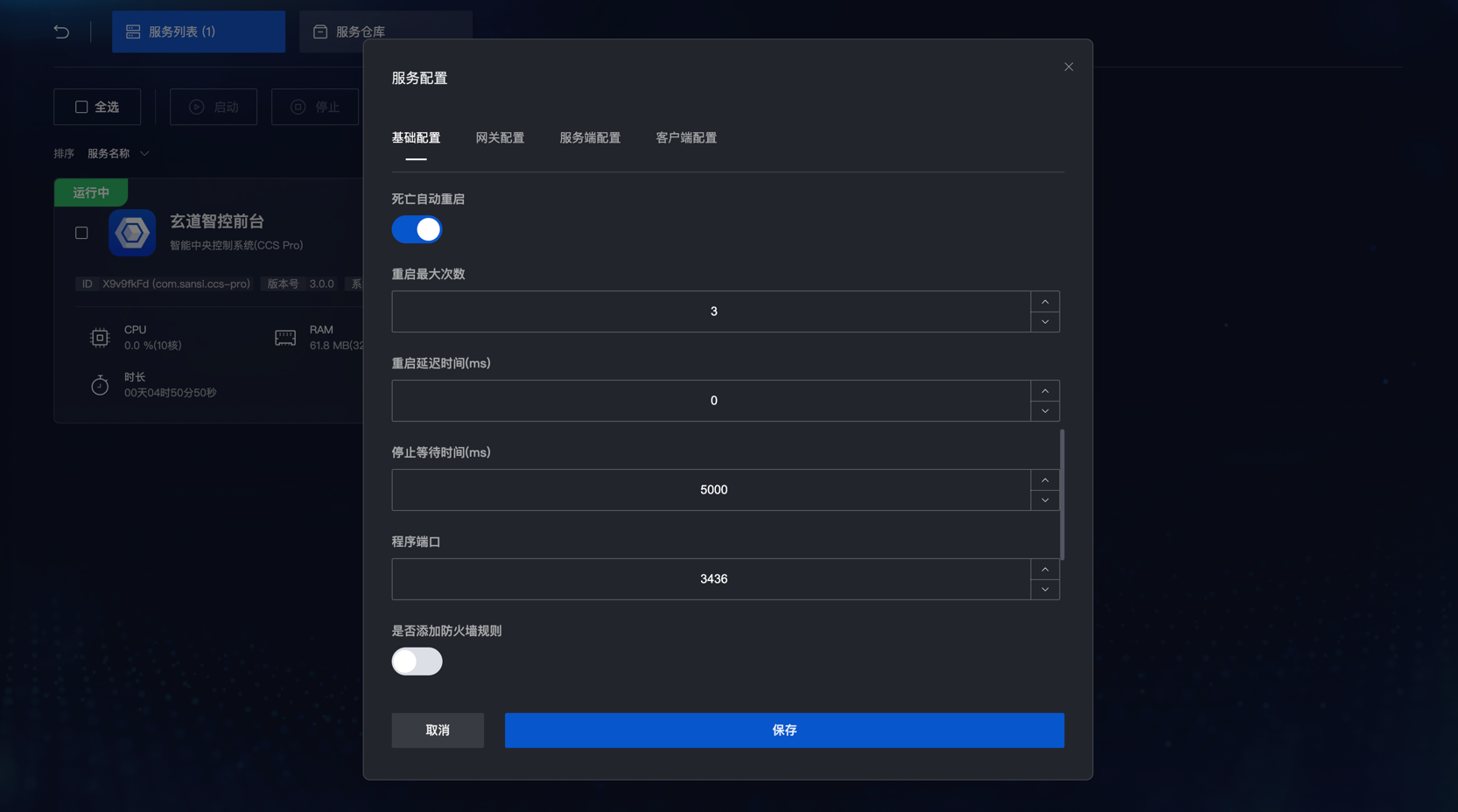
Here you can configure the service properties, with the most common configuration being the runtime environment. Select the appropriate runtime environment in the runtime environment selection box.
Service Control - Gateway Configuration
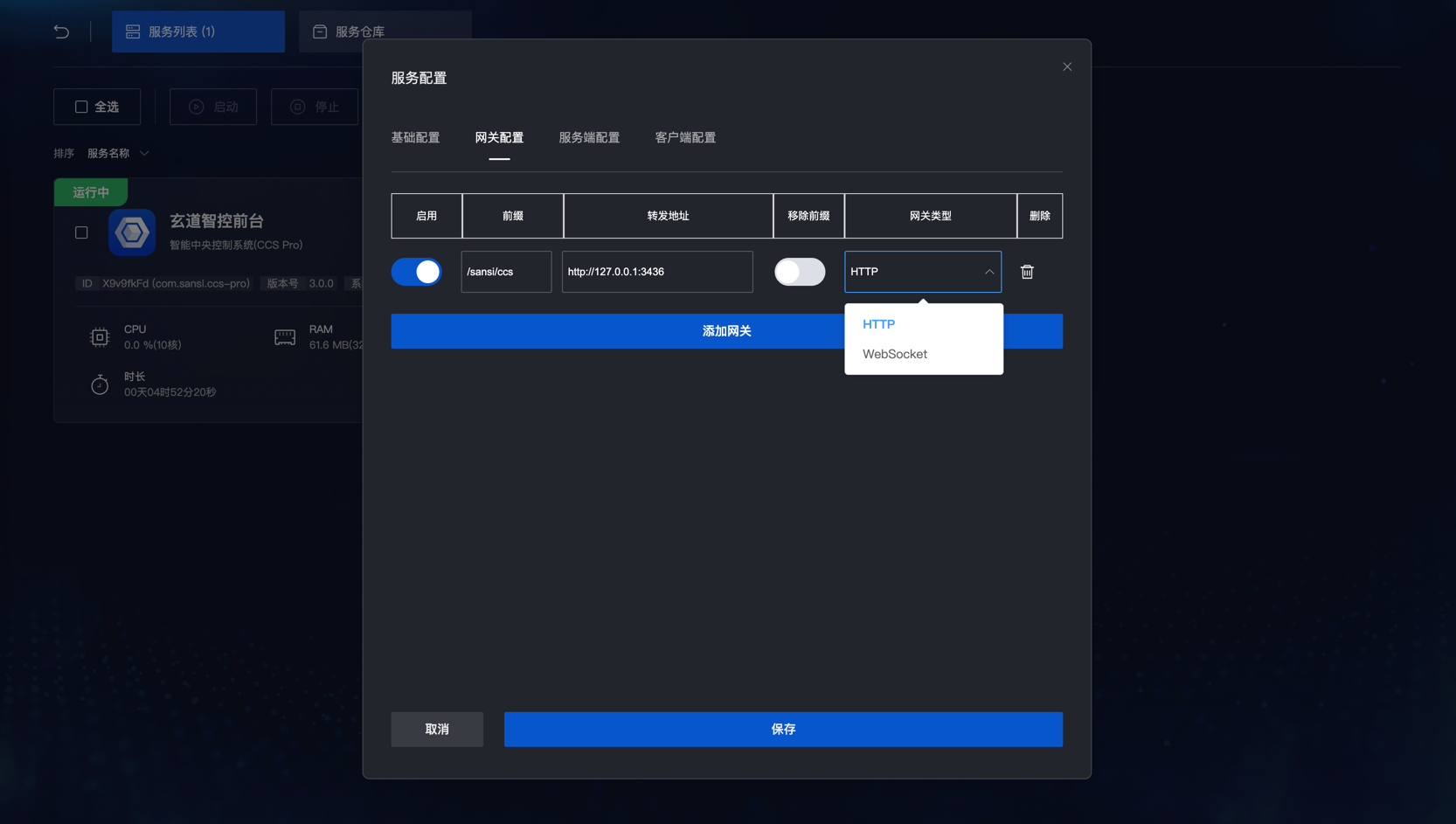
Gateway configuration can set backend service proxies to complete request forwarding.
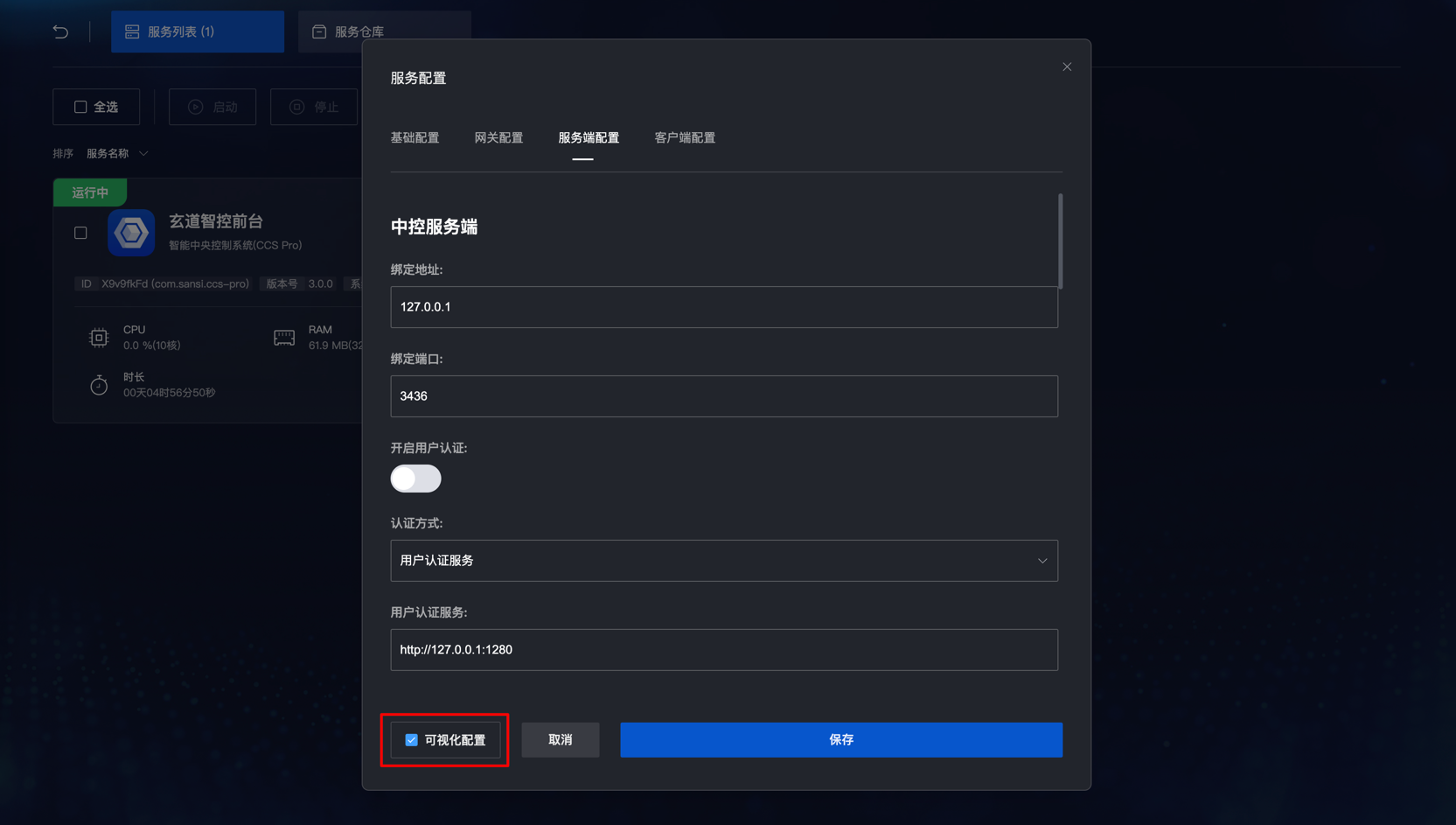
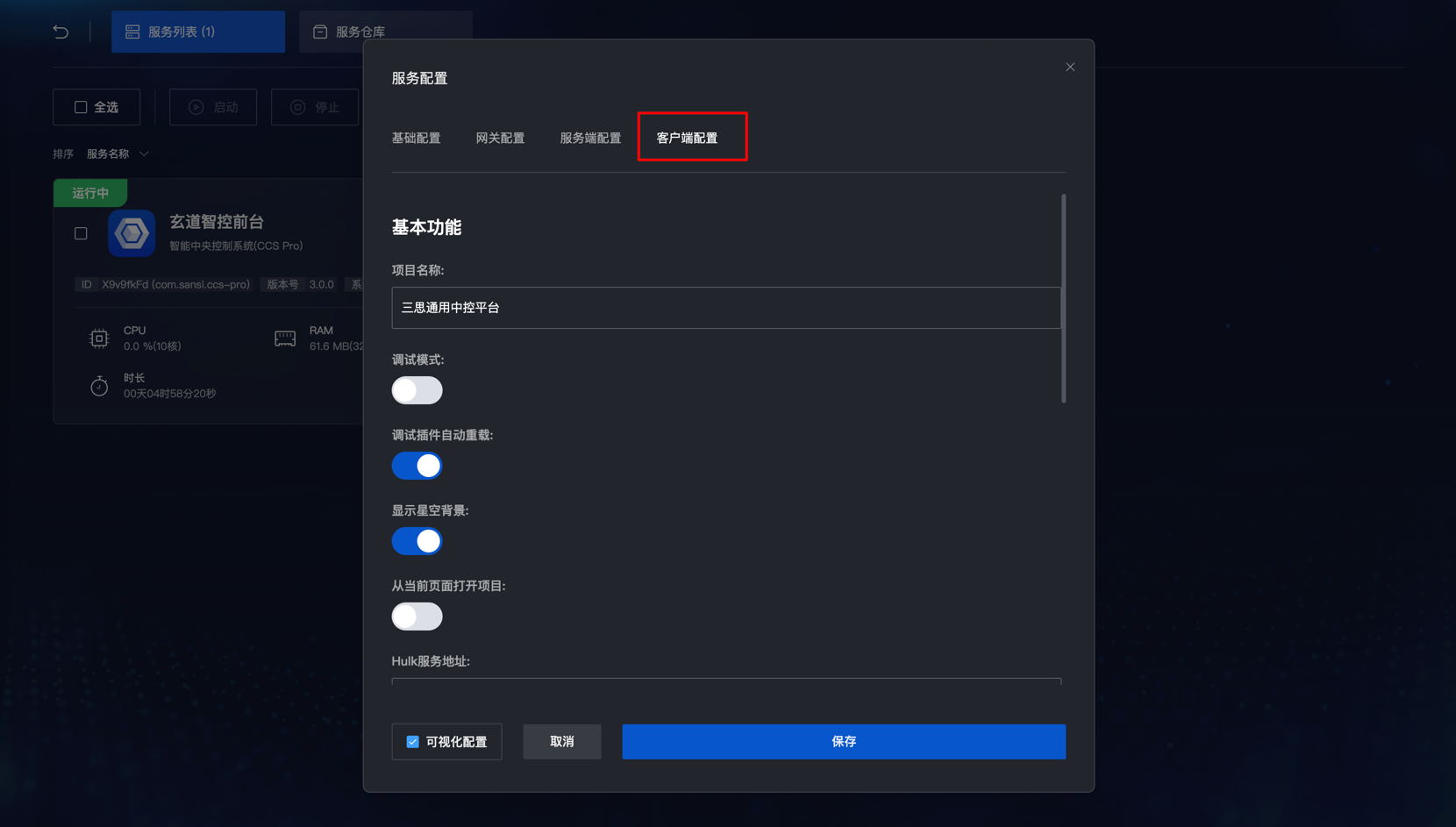
Service Control - Configuration Visualization (json, ini)
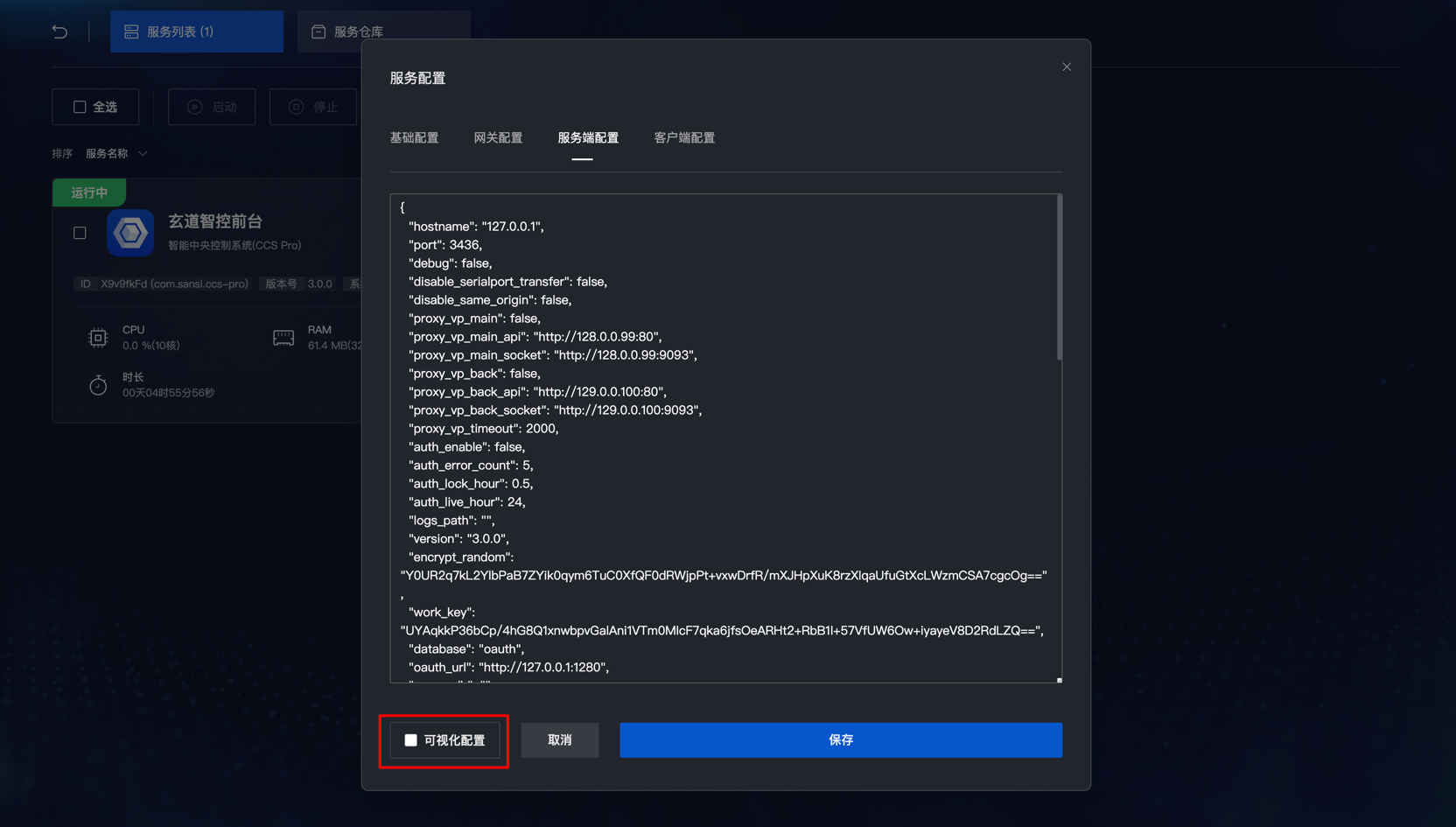
Other Configurations
If the service has declared other configuration items, you can select the relevant configuration items for the service at the top.
After editing the configuration, click on the error prompt at the bottom right, and after configuration changes, the service will automatically restart to load the new configuration items.
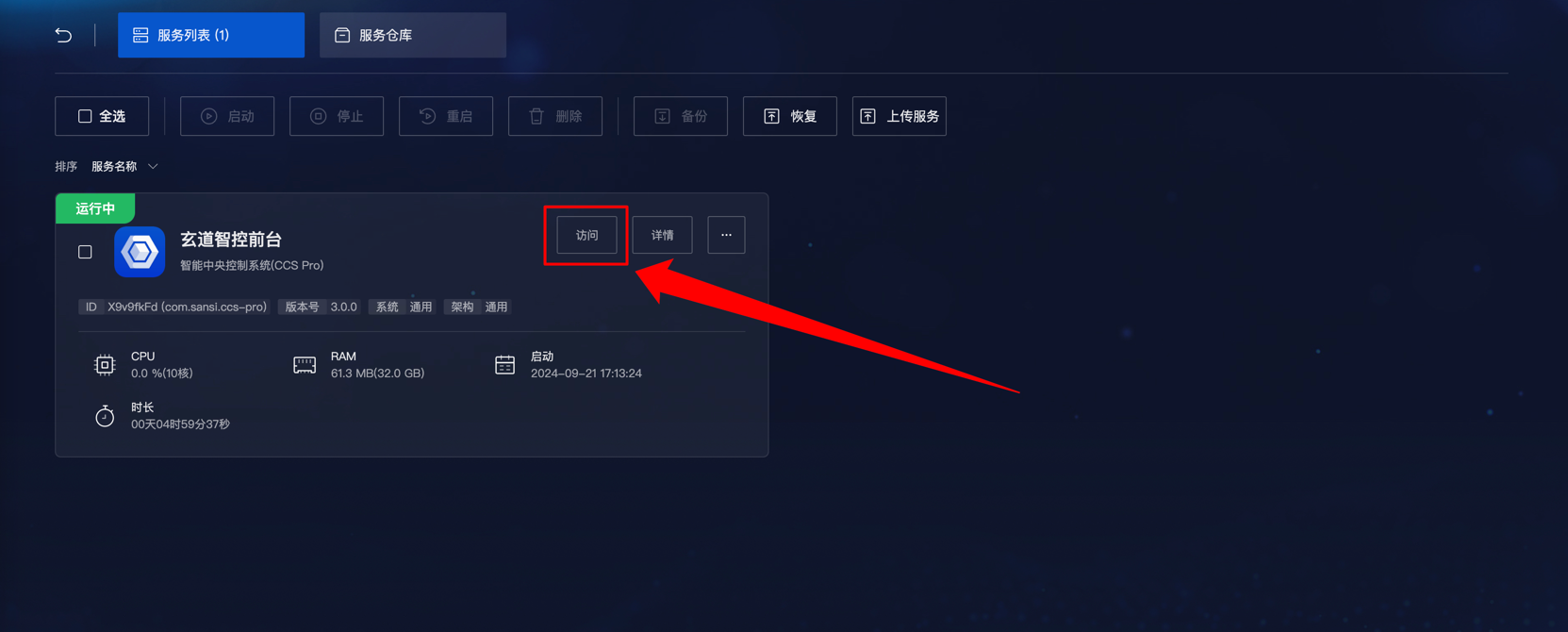
Service Control - Access Service
If the service declares a homepage, you can view it through the access function on the service card.
Service Control - Delete Service
Local Deletion
Local deletion can be done through the operation panel by clicking the delete service button. 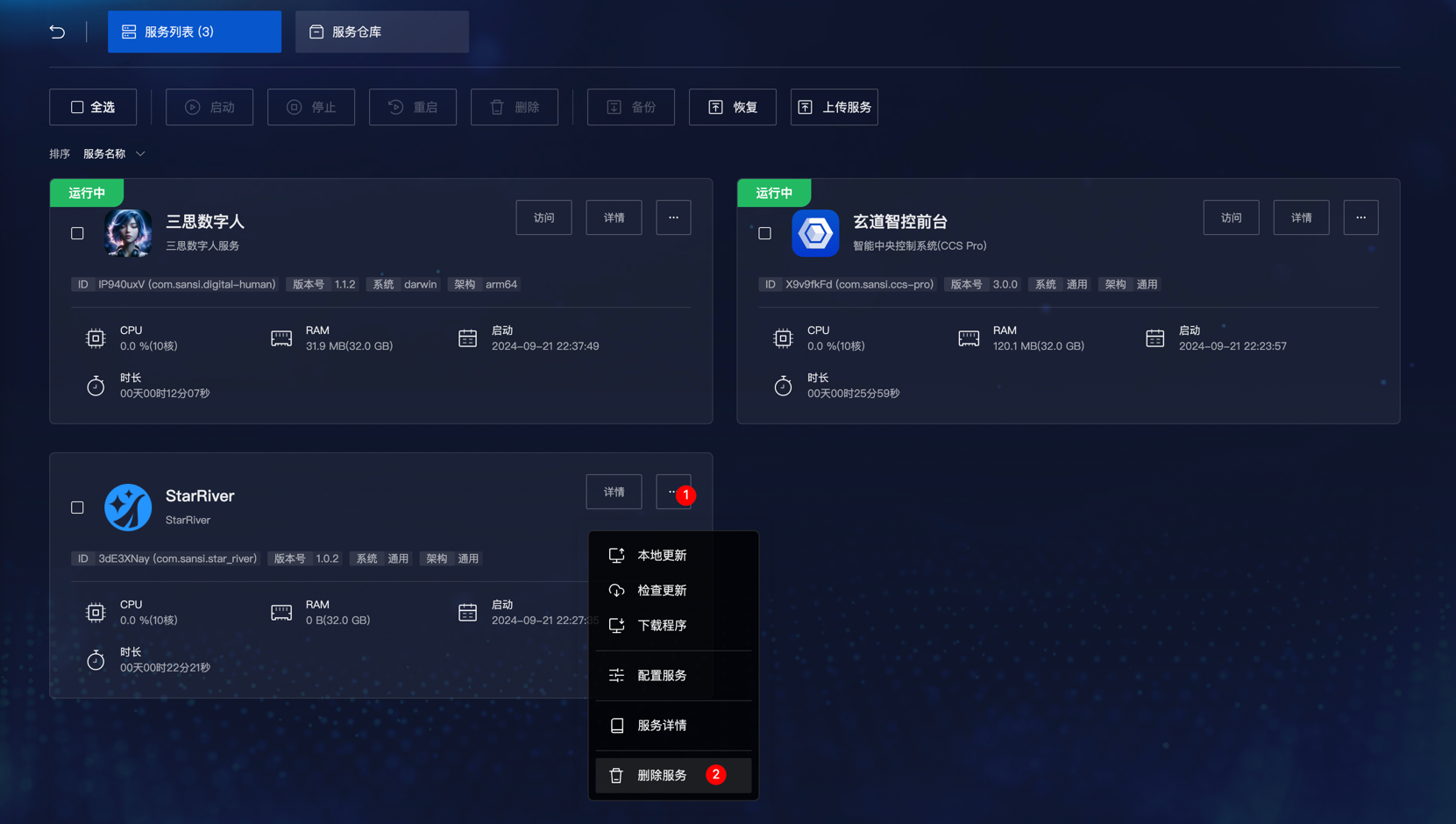
Batch Deletion
If multiple services need to be deleted, you can select them using the selection box in the upper right corner of the service panel, then click the delete button at the top.
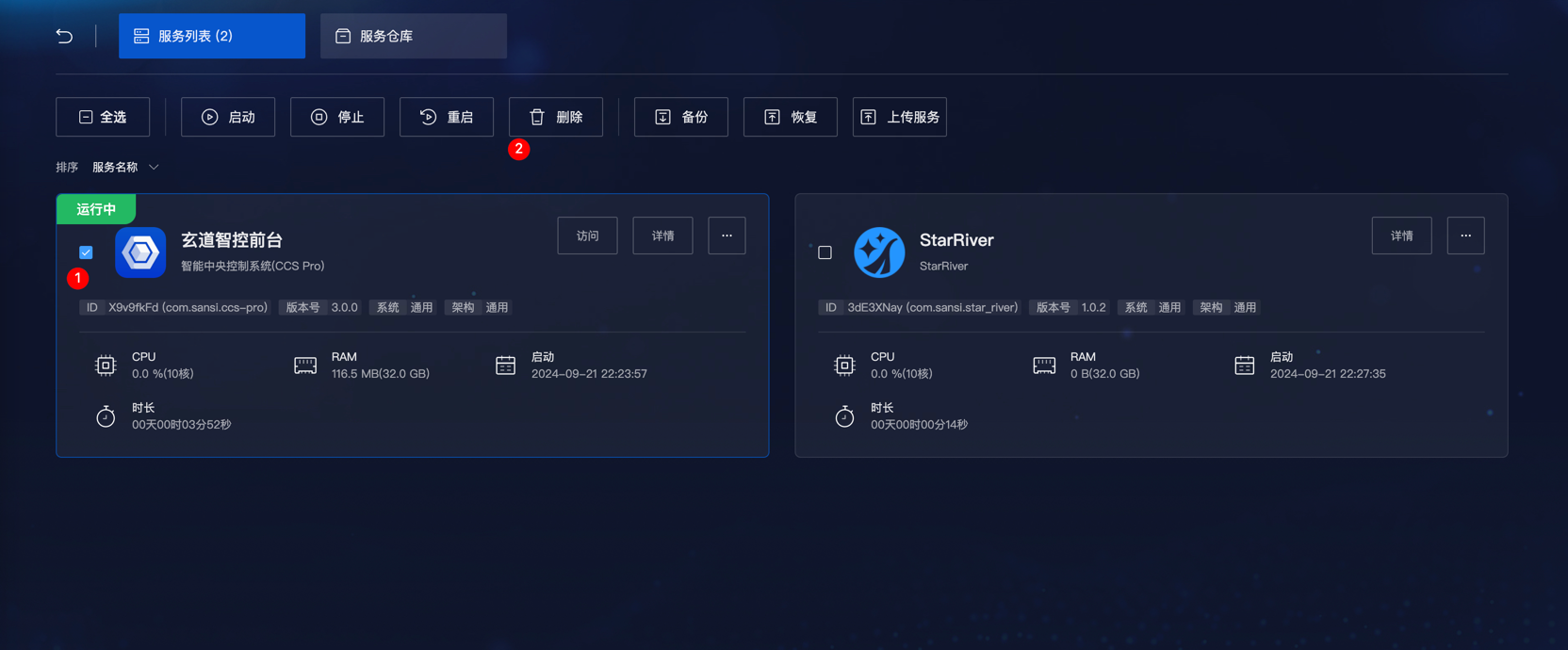
Service Details
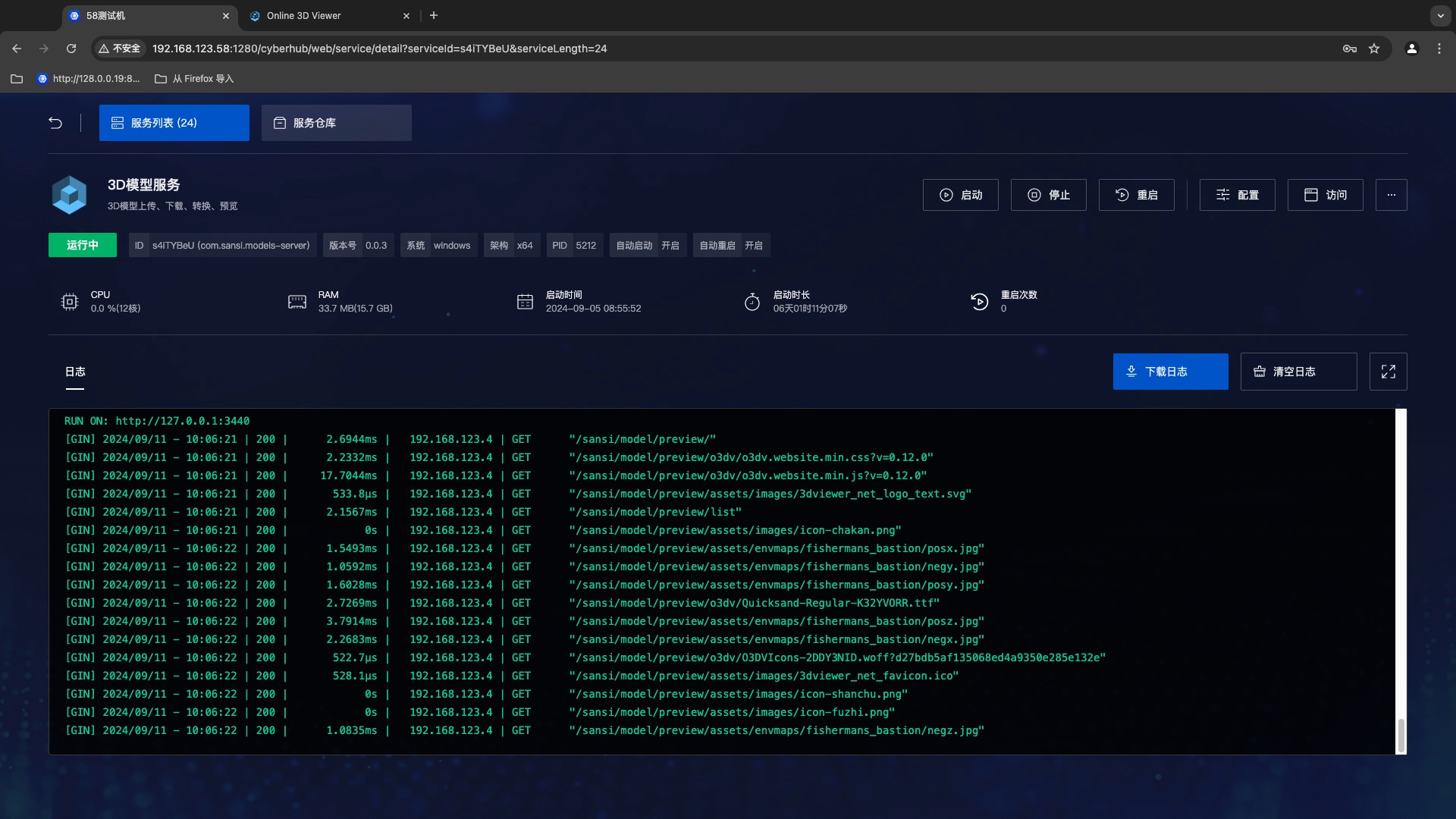
Function List:
- View service running status, CPU usage, RAM memory usage, startup time, startup duration, restart count
- View logs, download logs, clear logs
- Environment overview, view system version, architecture
- Start, stop, restart service
- Configuration, basic configuration, gateway configuration
Service Details - More Settings
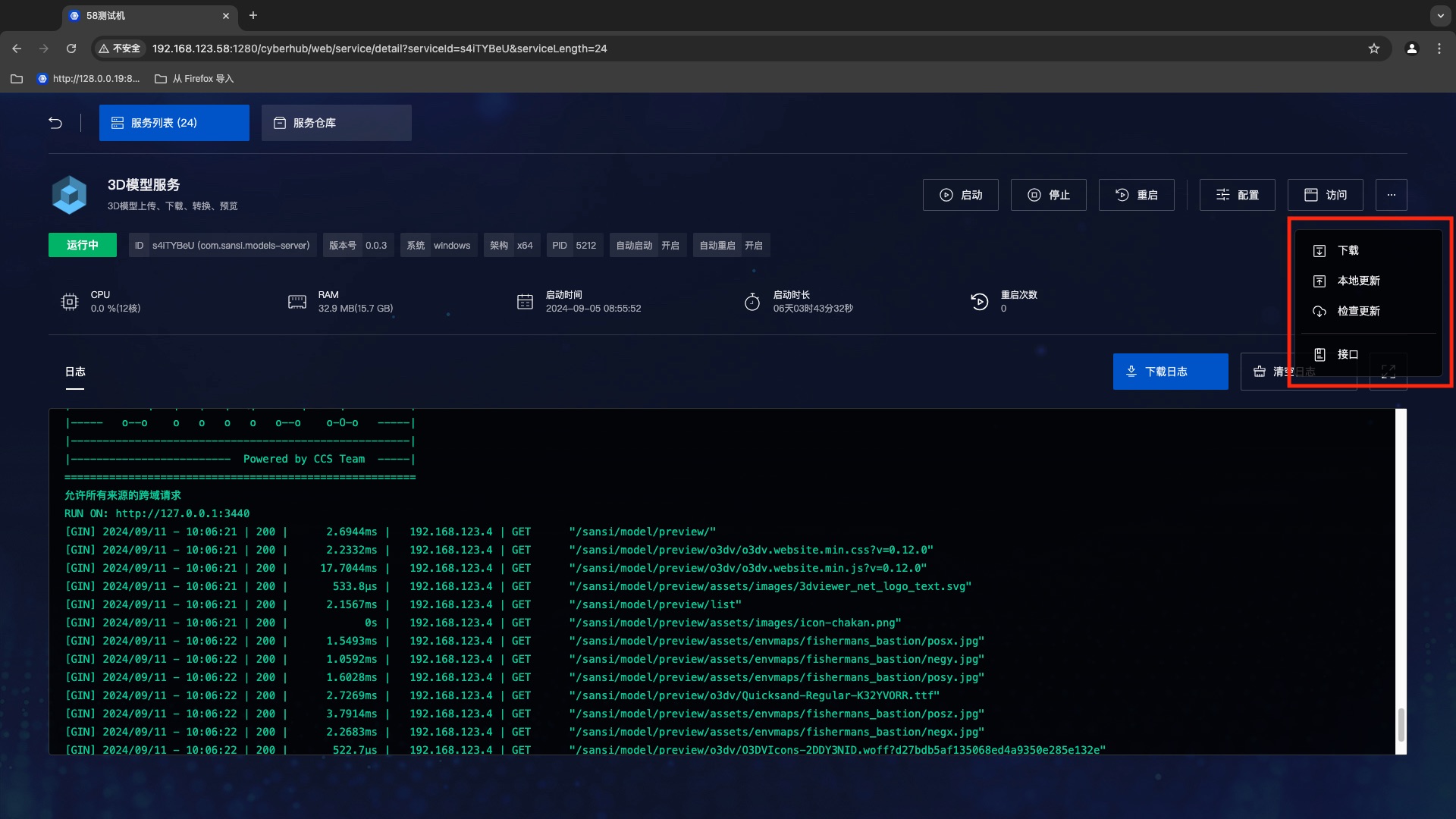
Function List:
- Service download functionality
- Local update service
- Cloud update service functionality
- Interface functionality, view the interface page of this service
Service Details - Log Viewing
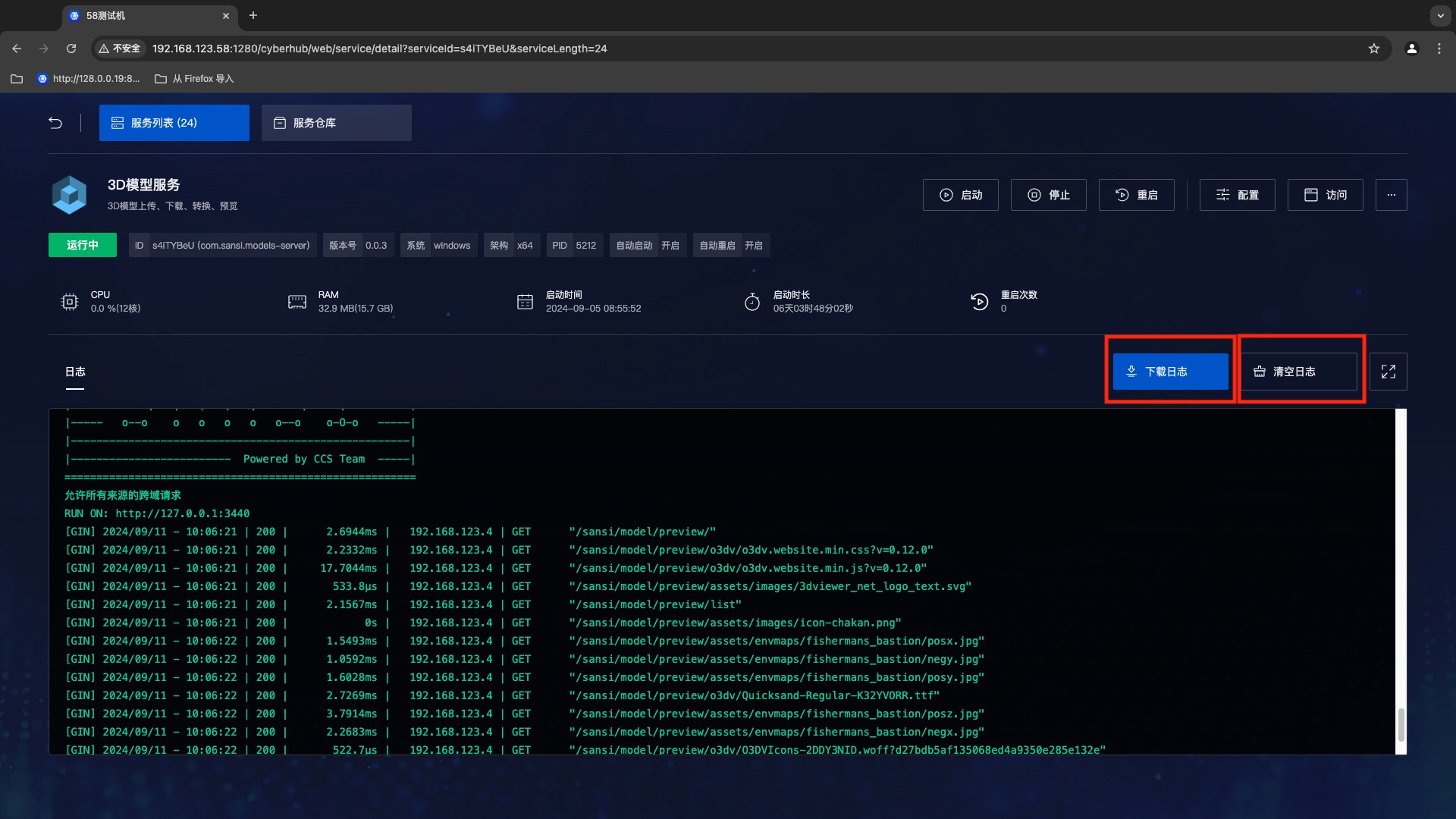
Function List:
- Download logs
- Clear logs
Service Repository
The service repository connects to the 【Sansi Cloud Platform】, showcasing services and environments that are compatible with the current system.
- Downloadable Services
- Installed Services
- Downloadable Environments
- Installed Environments
Service Repository - Cloud Download Services
In the downloadable services, select the service you need, and you can directly click to install or download the cloud program to your local.
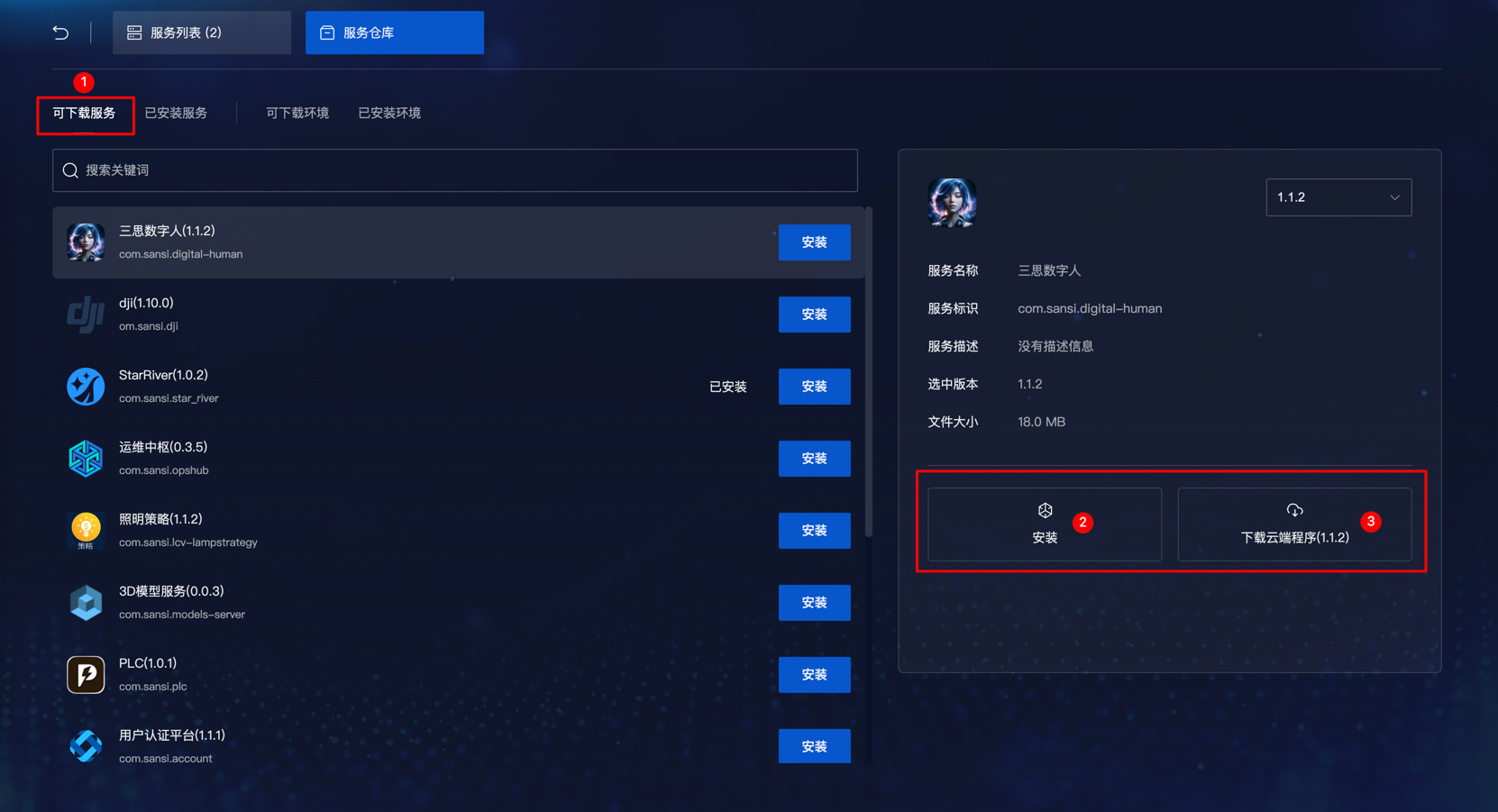
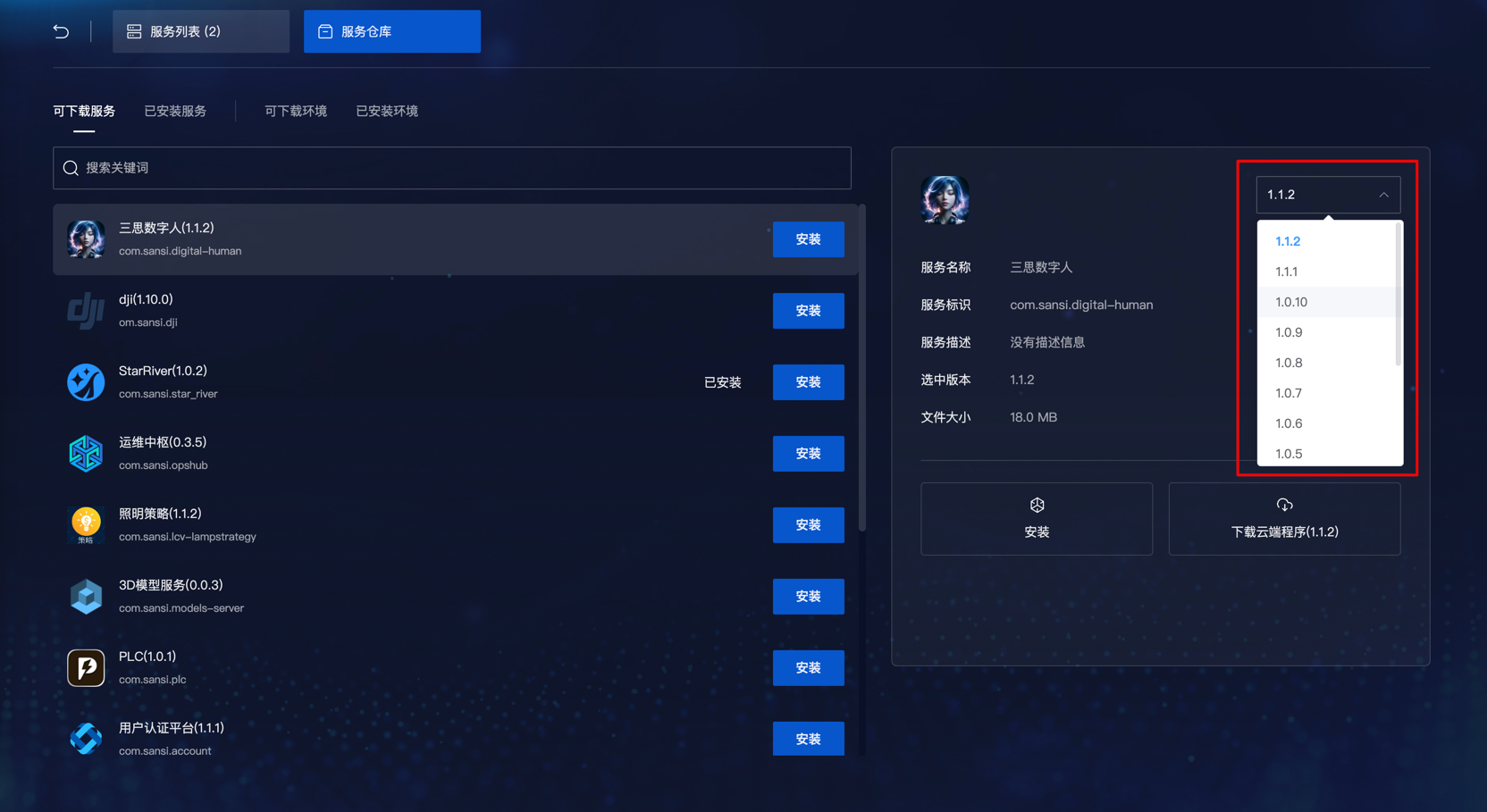
If you need to install a specific version, you can select the corresponding version on the right before installation.
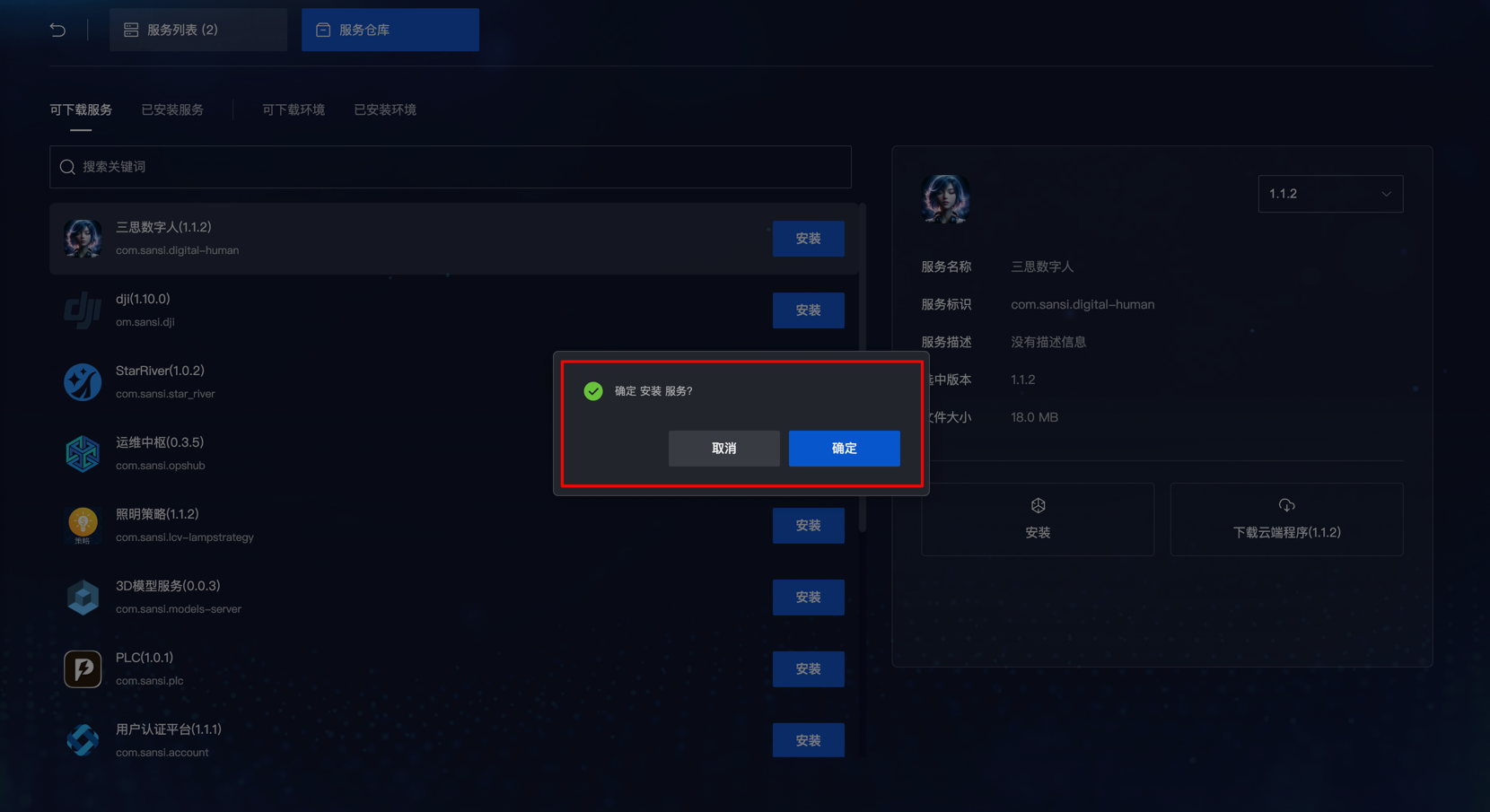
After clicking install, a confirmation window will pop up; click confirm to install.
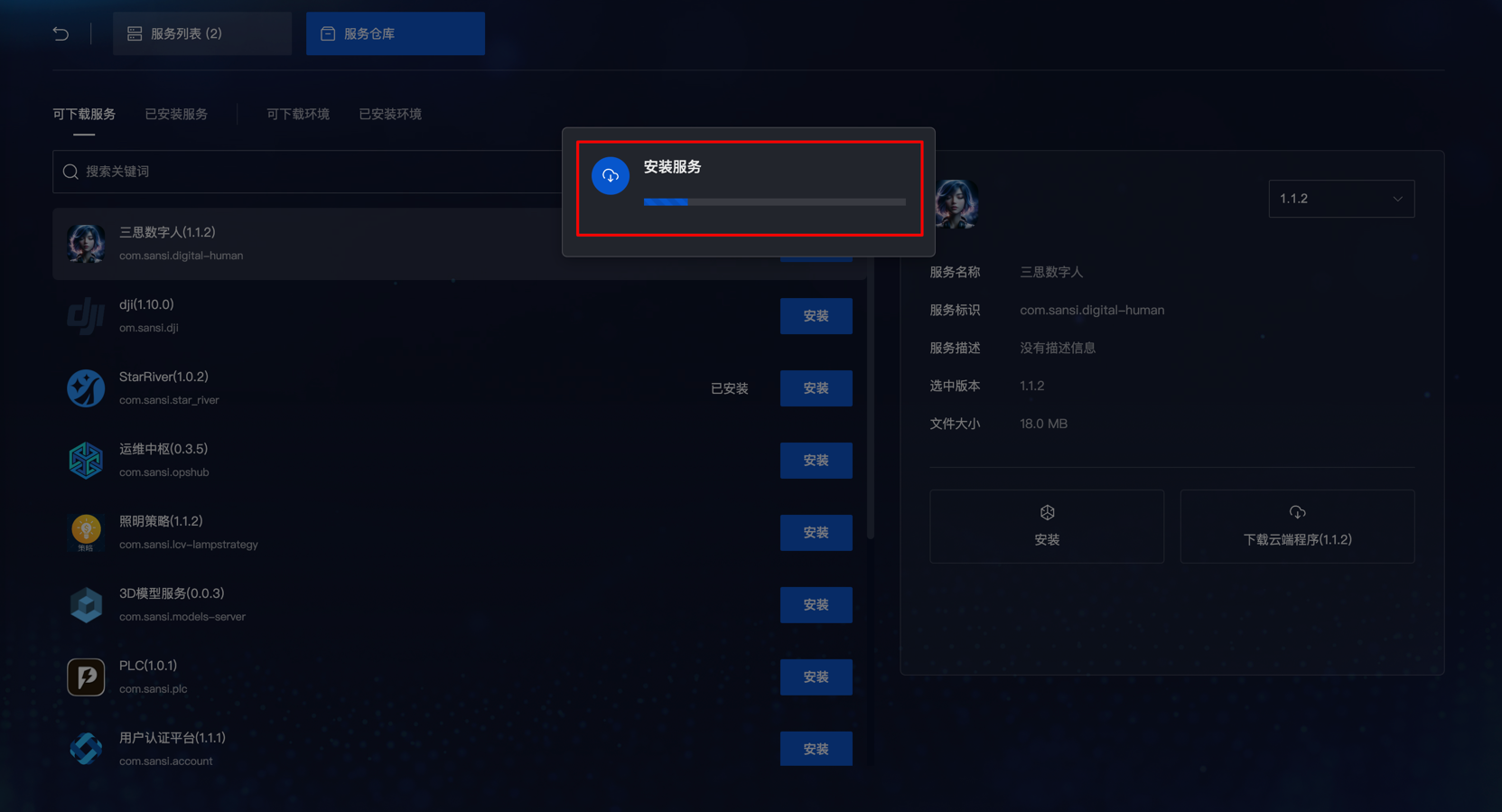
During the installation, a progress window will pop up; wait for the progress to finish to complete the installation.
After the installation is complete, return to the homepage, and you will see the application you just installed.
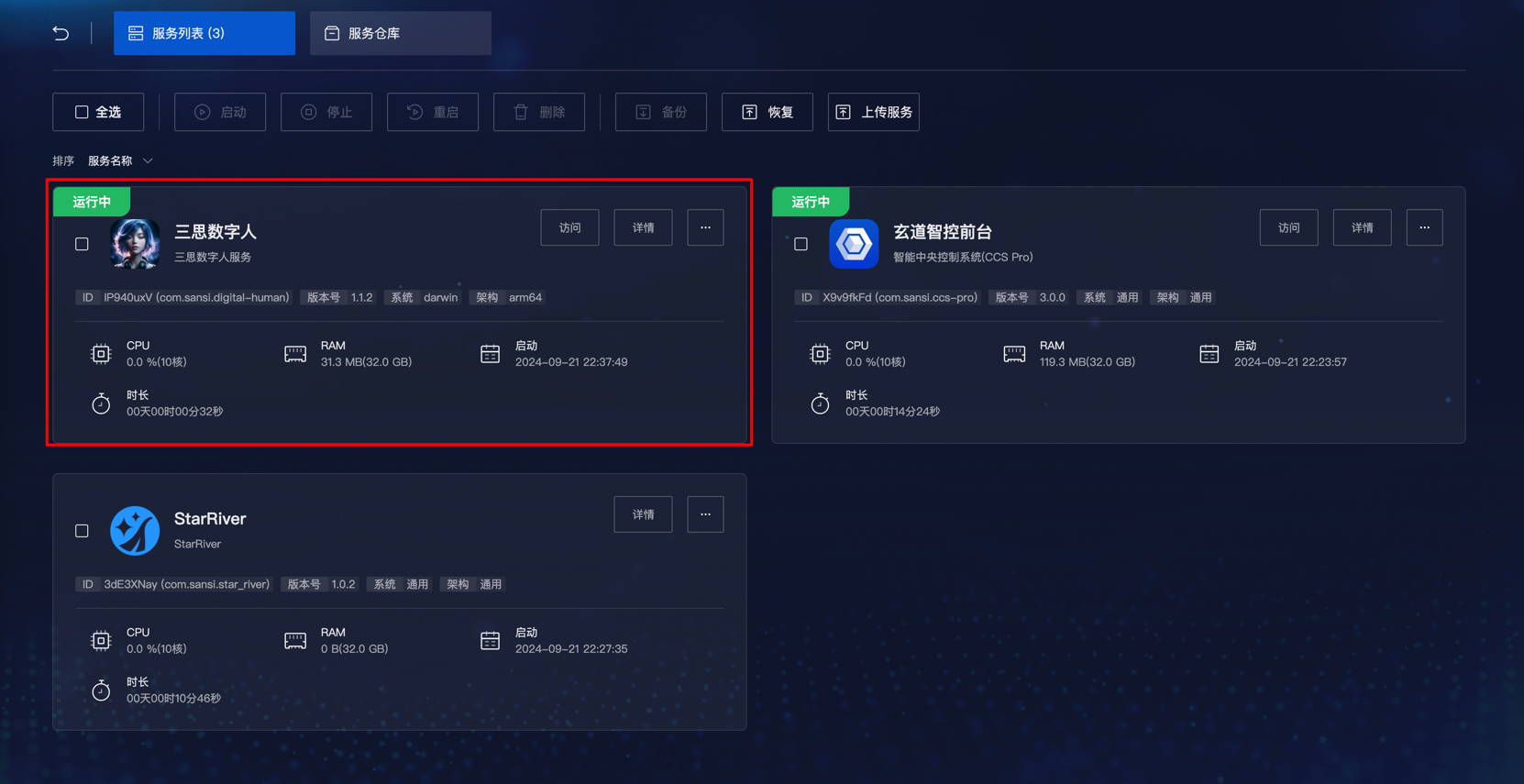
Service Repository - Local Upload Service
Local installation is done by clicking the Upload Service button. When uploading locally, ensure to select services that are compatible with the system architecture.
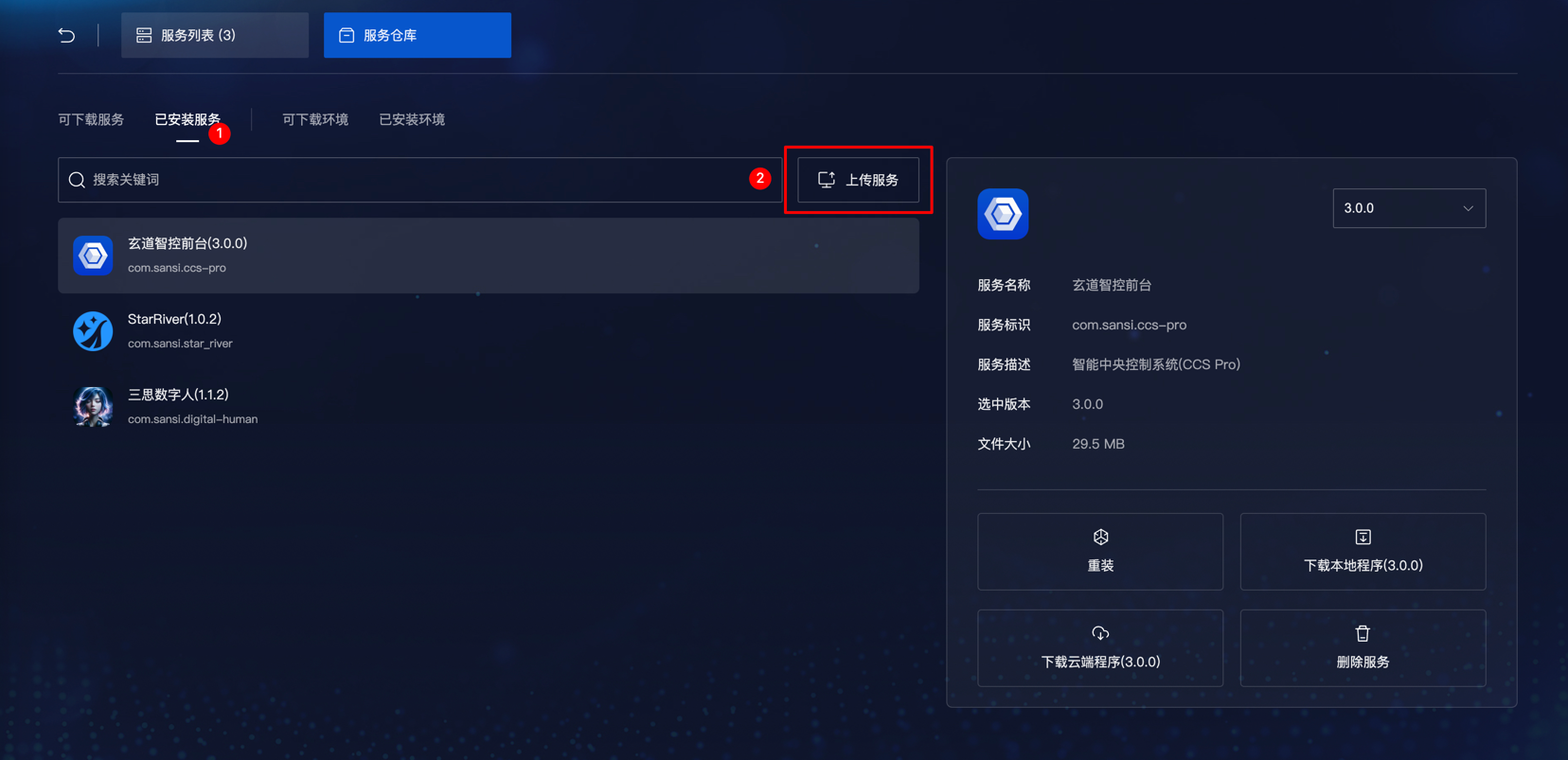
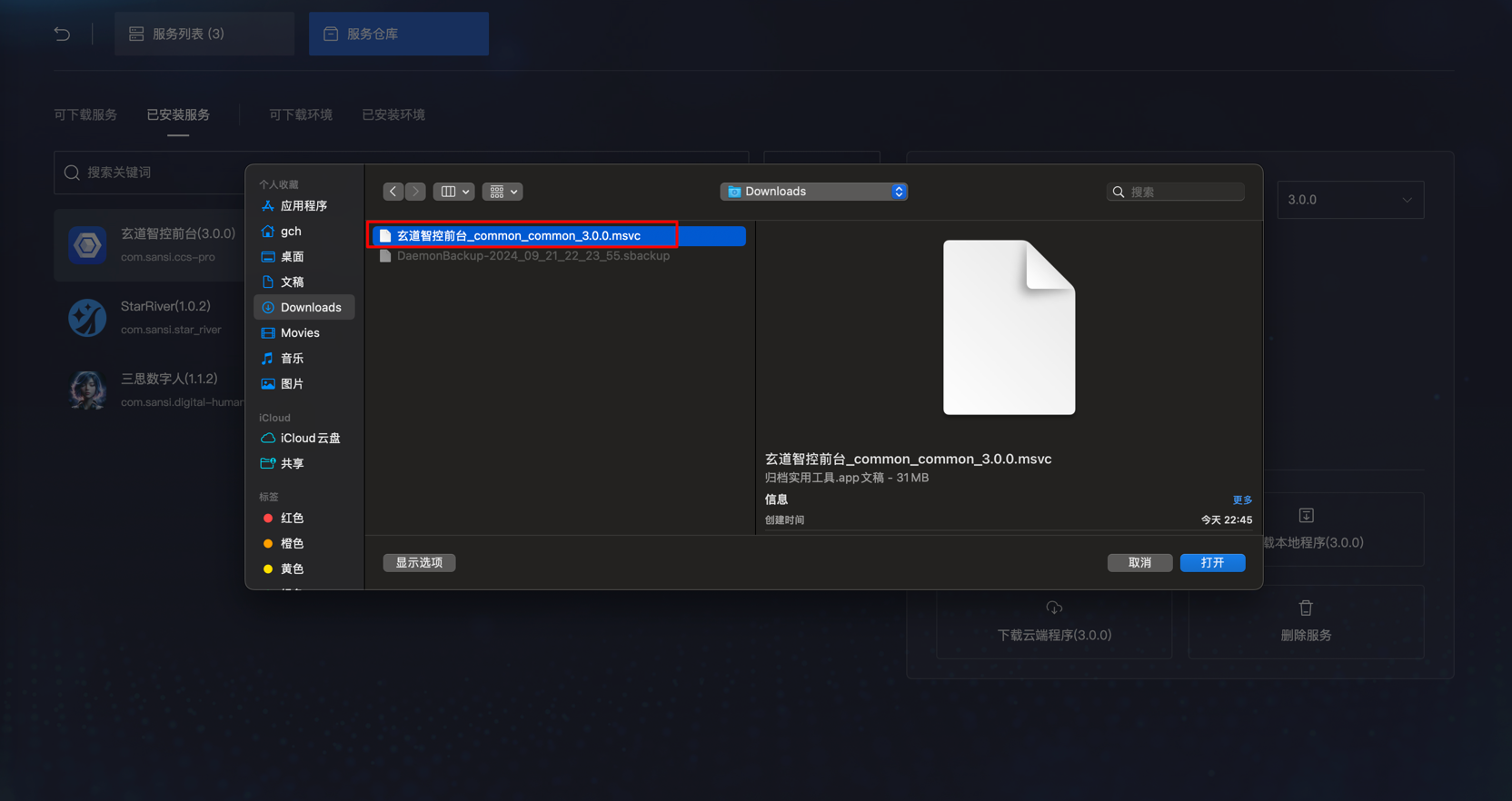
The installation package suffix for local service plugins is .msvc. In actual projects, you can transfer service plugin files through local networks, USBs, CDs, etc., to internal network devices, and install them through this method.
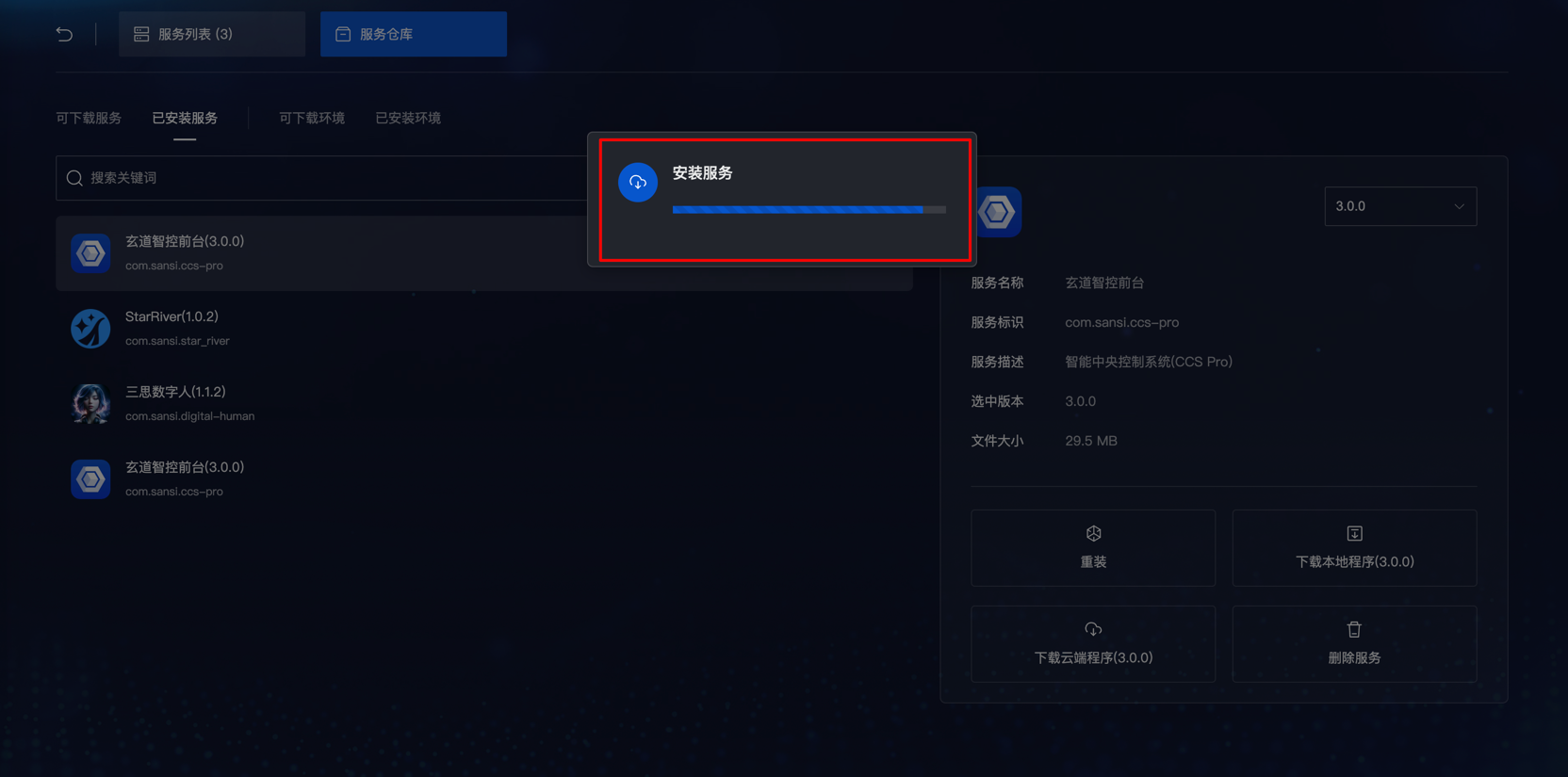
Service Repository - Installed Services
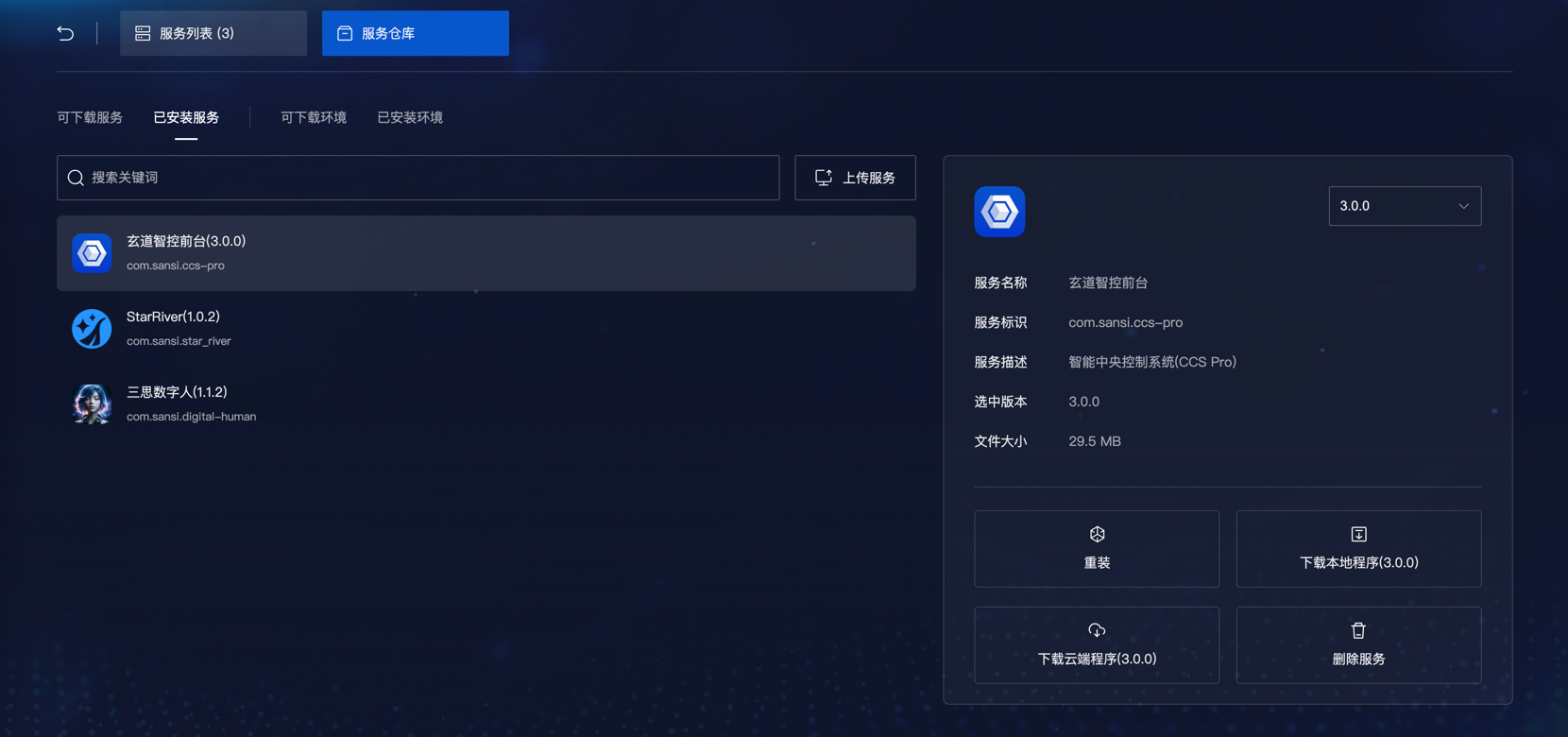
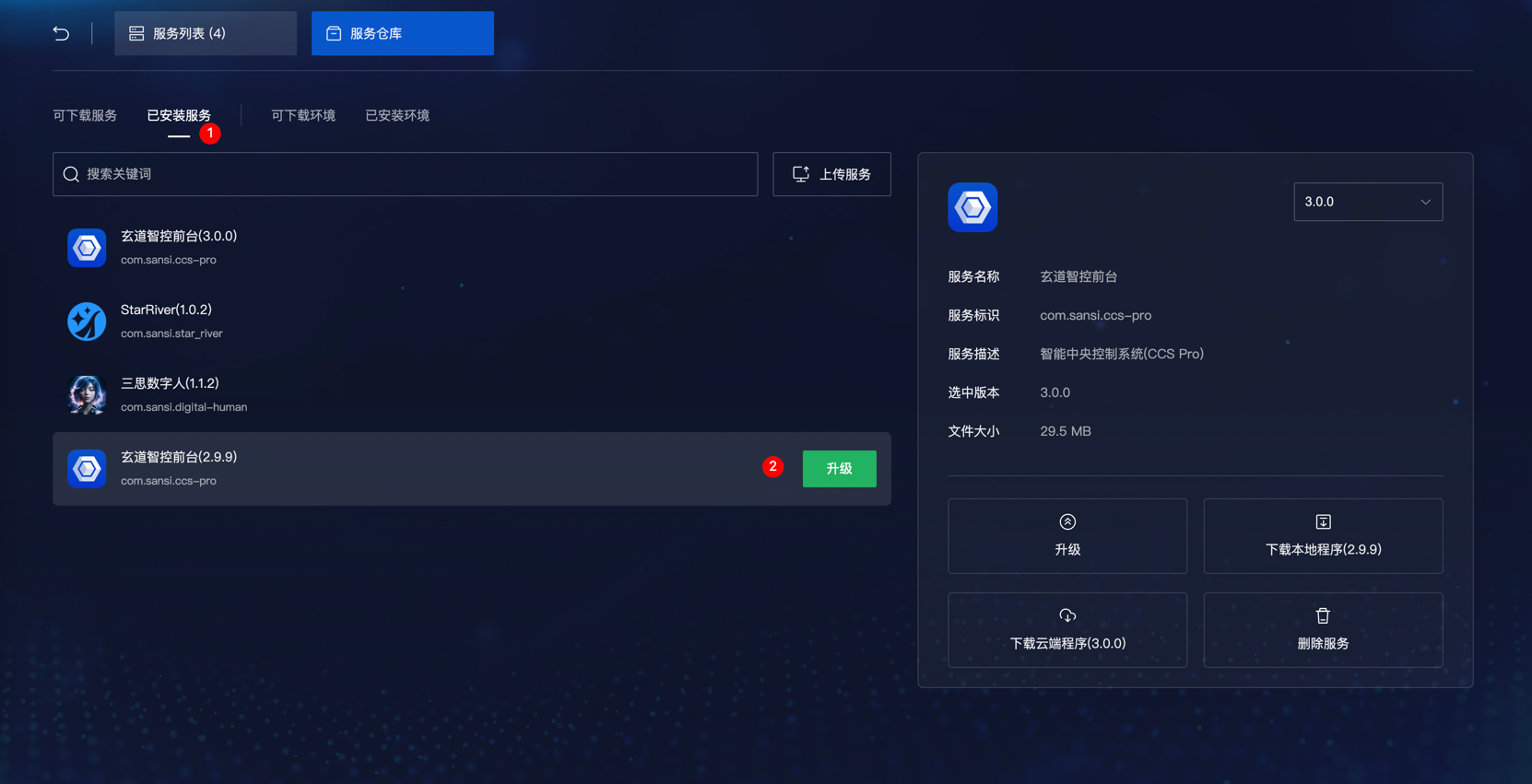
Service Repository - Cloud Update Services
In the list of downloaded services in the service repository, select the service you need to upgrade and click the upgrade button to update the service.
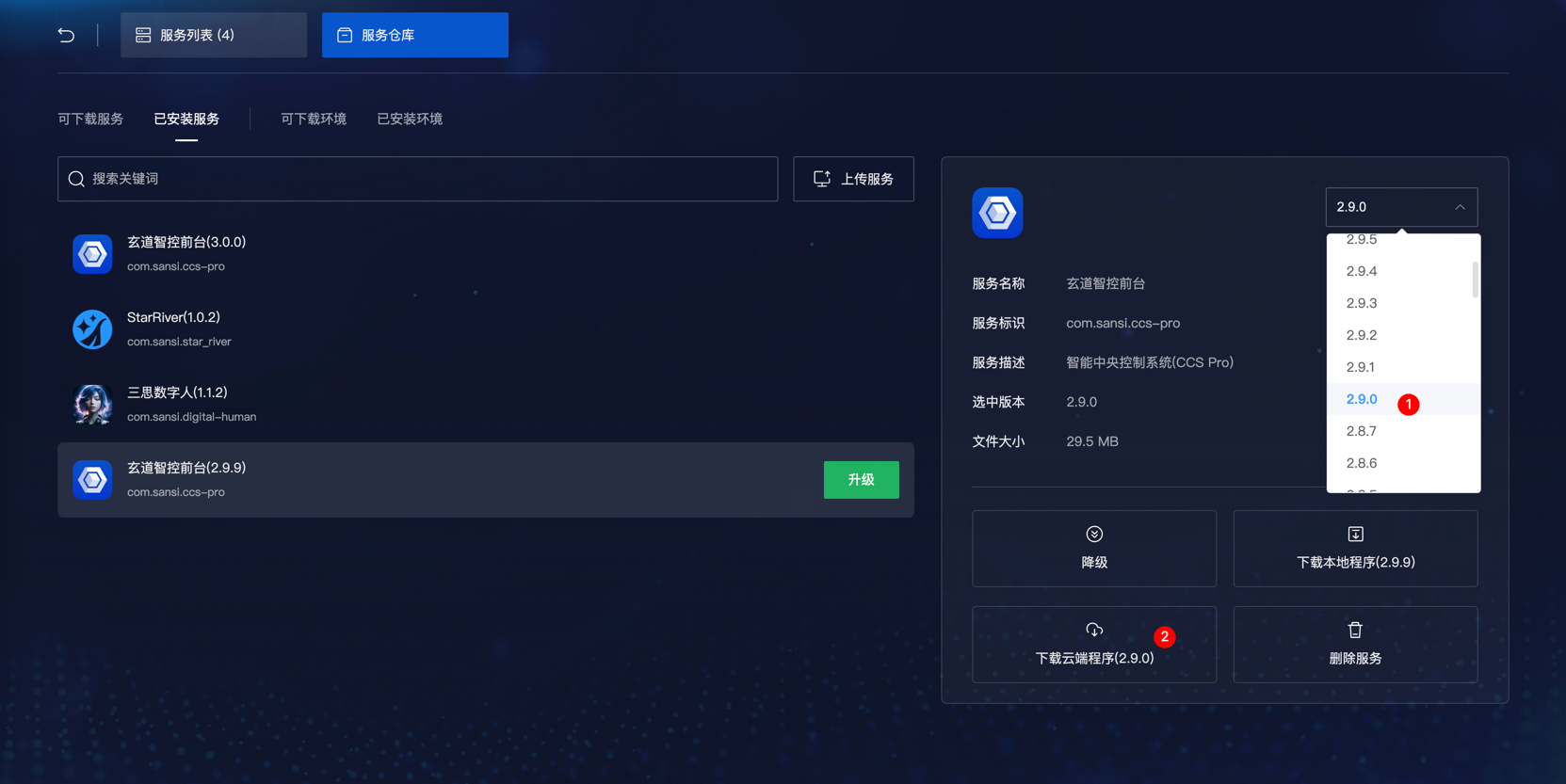
You can also use the version selection feature at the top right to select a lower version for downgrading.
If the same version is chosen, the service of that version will be reinstalled. 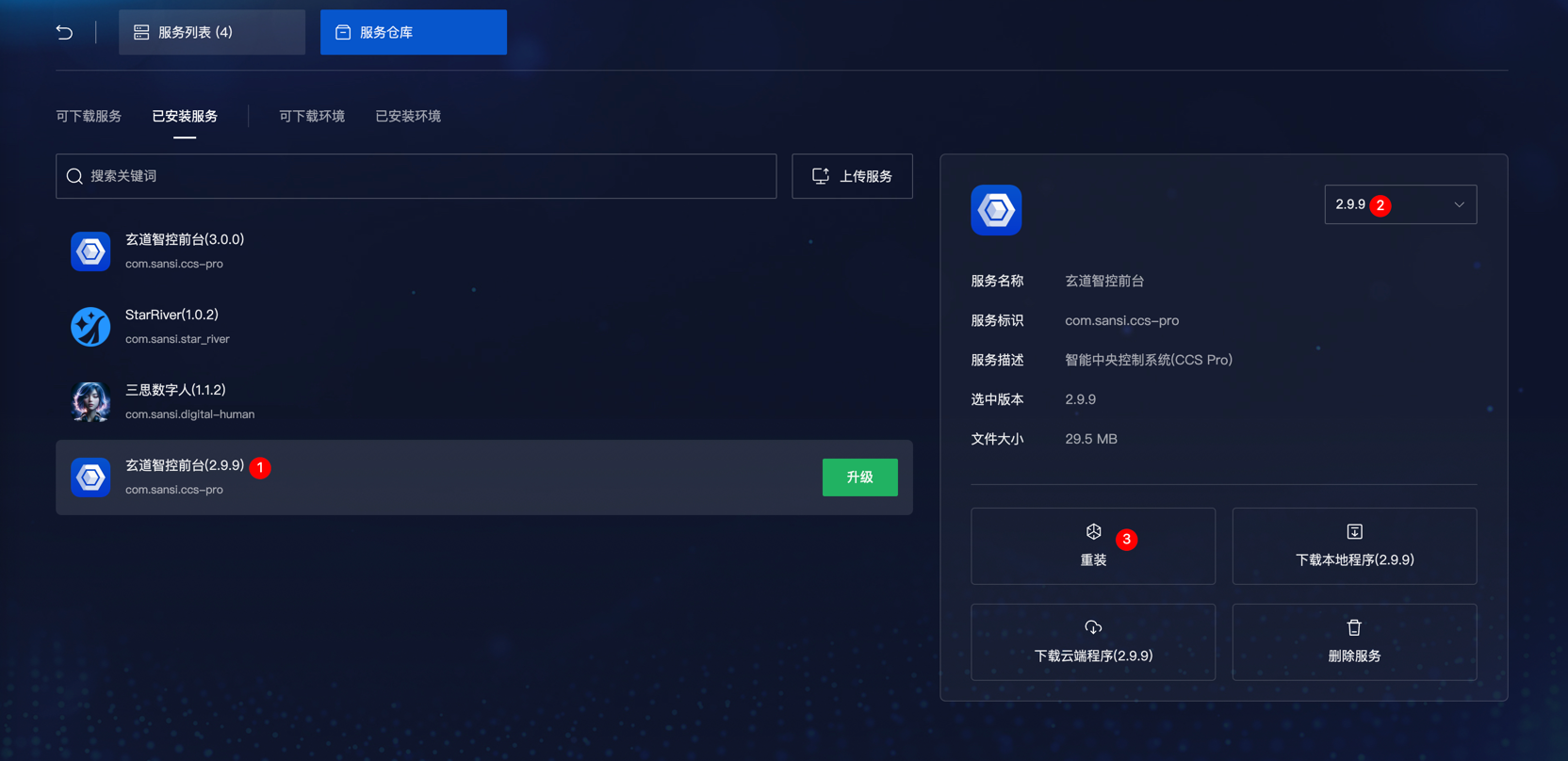
Local Update
Local updates are carried out through the service operation functionalities. Hover the mouse over the operation button and select the update program from the pop-up menu.
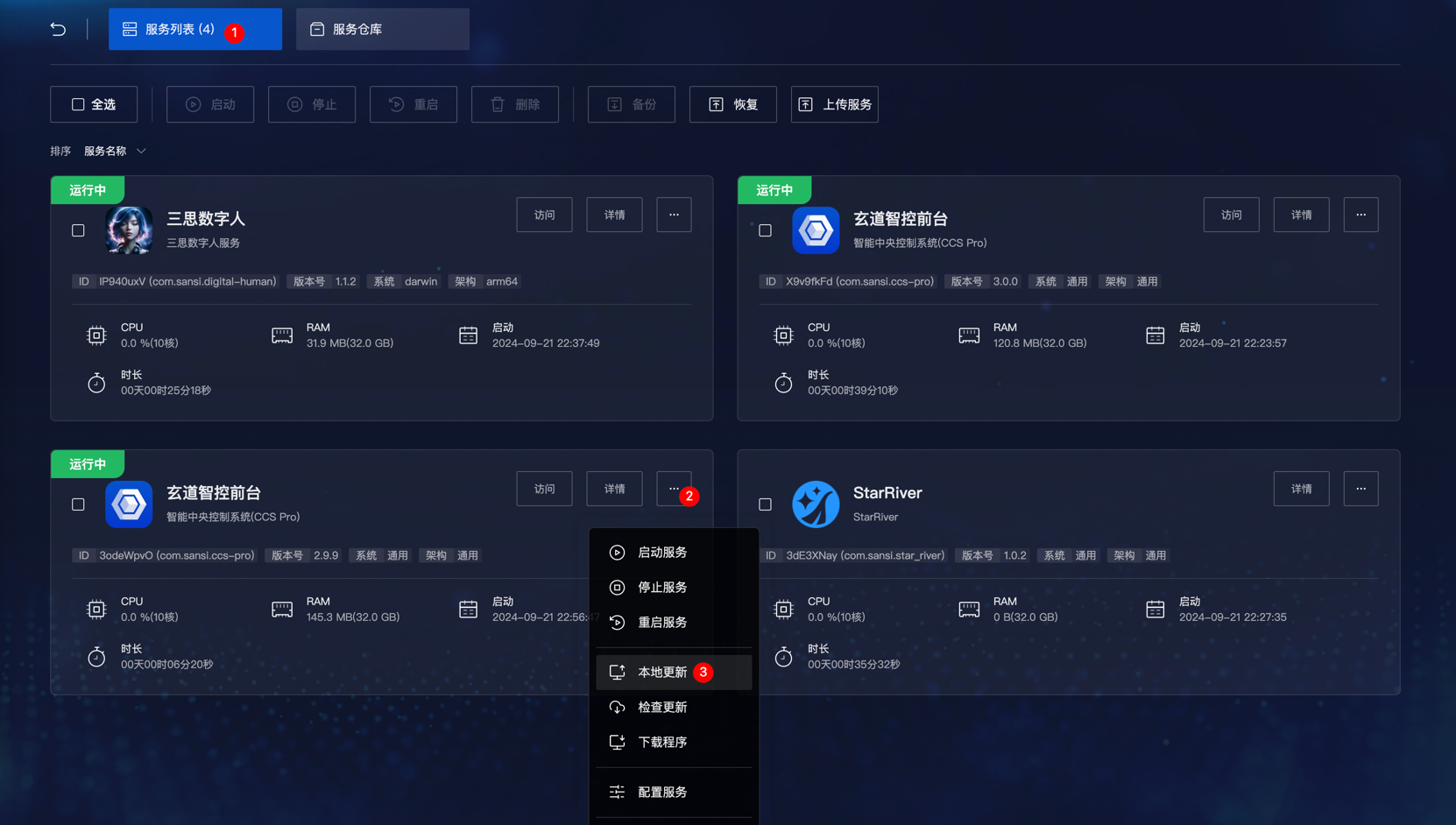
In the pop-up file selection window, choose the corresponding service and click confirm. Wait for the upload progress to finish to complete the update.
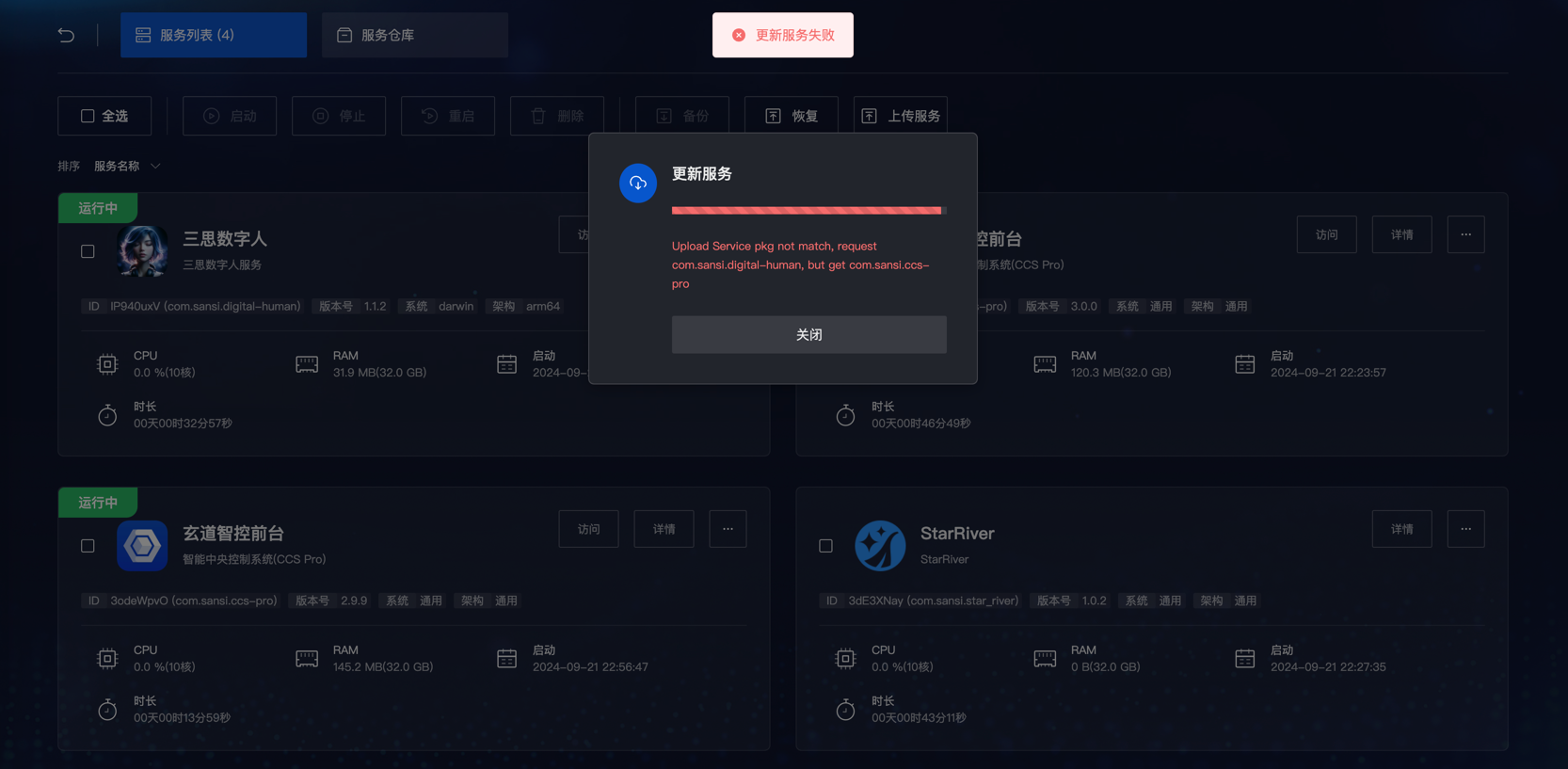
⚠Note:When updating locally, you must choose a service of the same type. If different types of services are selected, the update will fail. The failure effect is shown below.
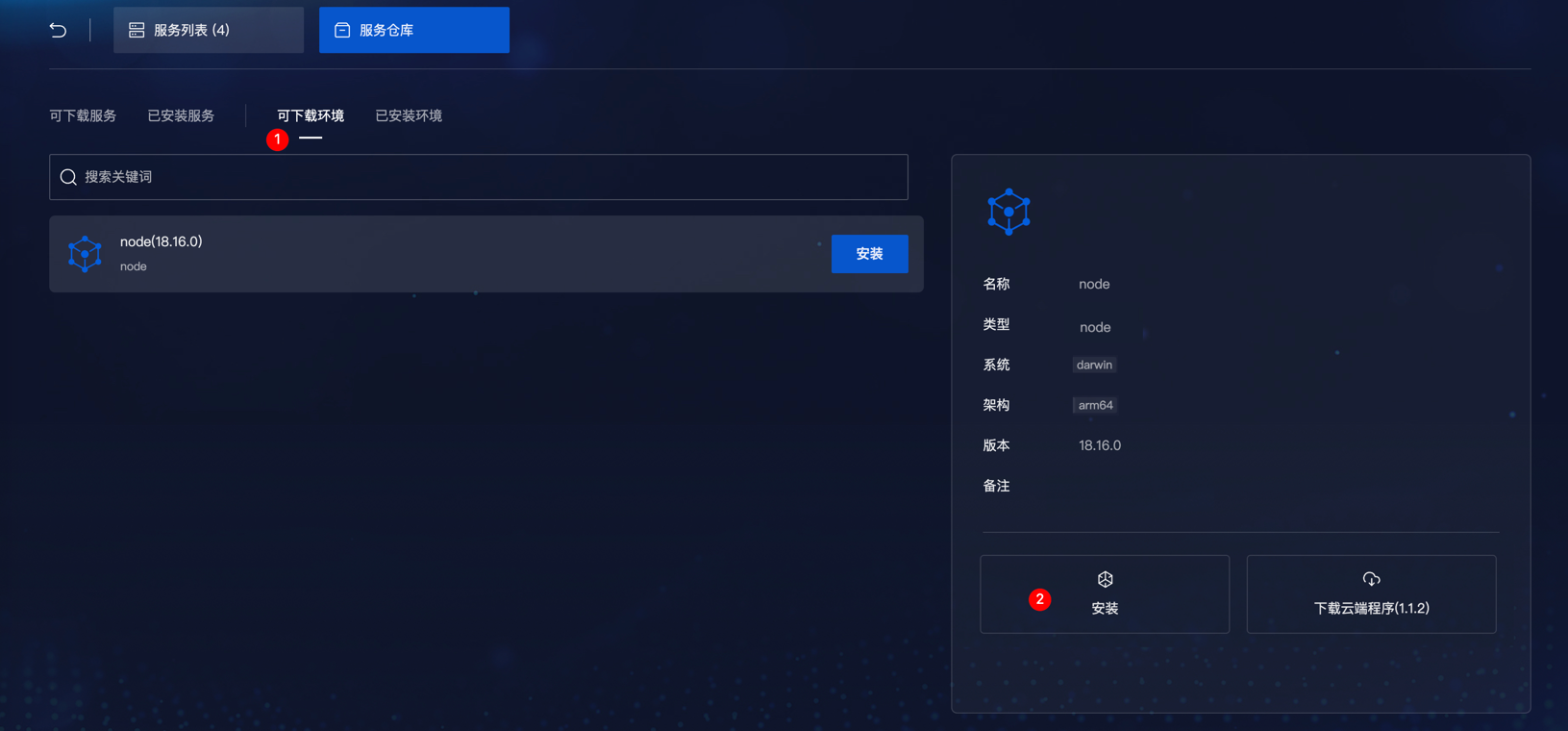
Service Repository - Cloud Install Runtime Environments
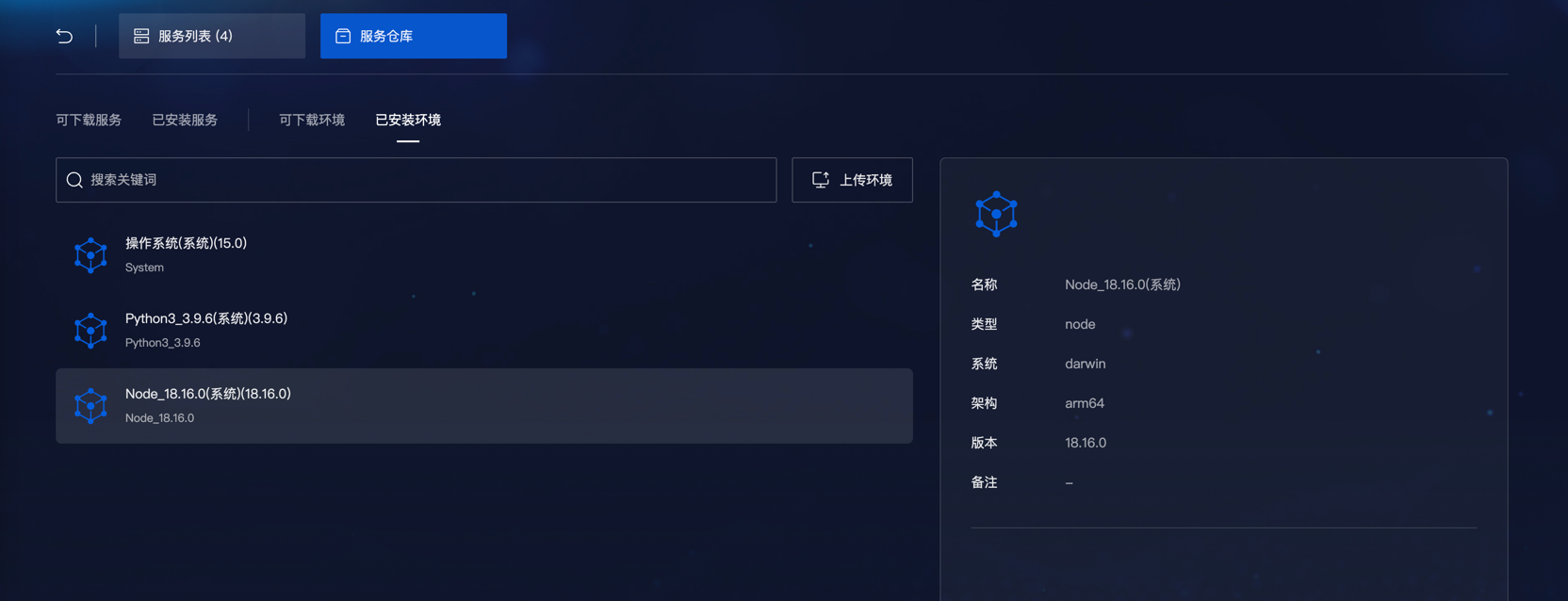
Click on the upper right corner to view all current runtime environments.
Service Repository - Local Install Runtime Environments
Click 【Upload Environment】 to add a new runtime environment.
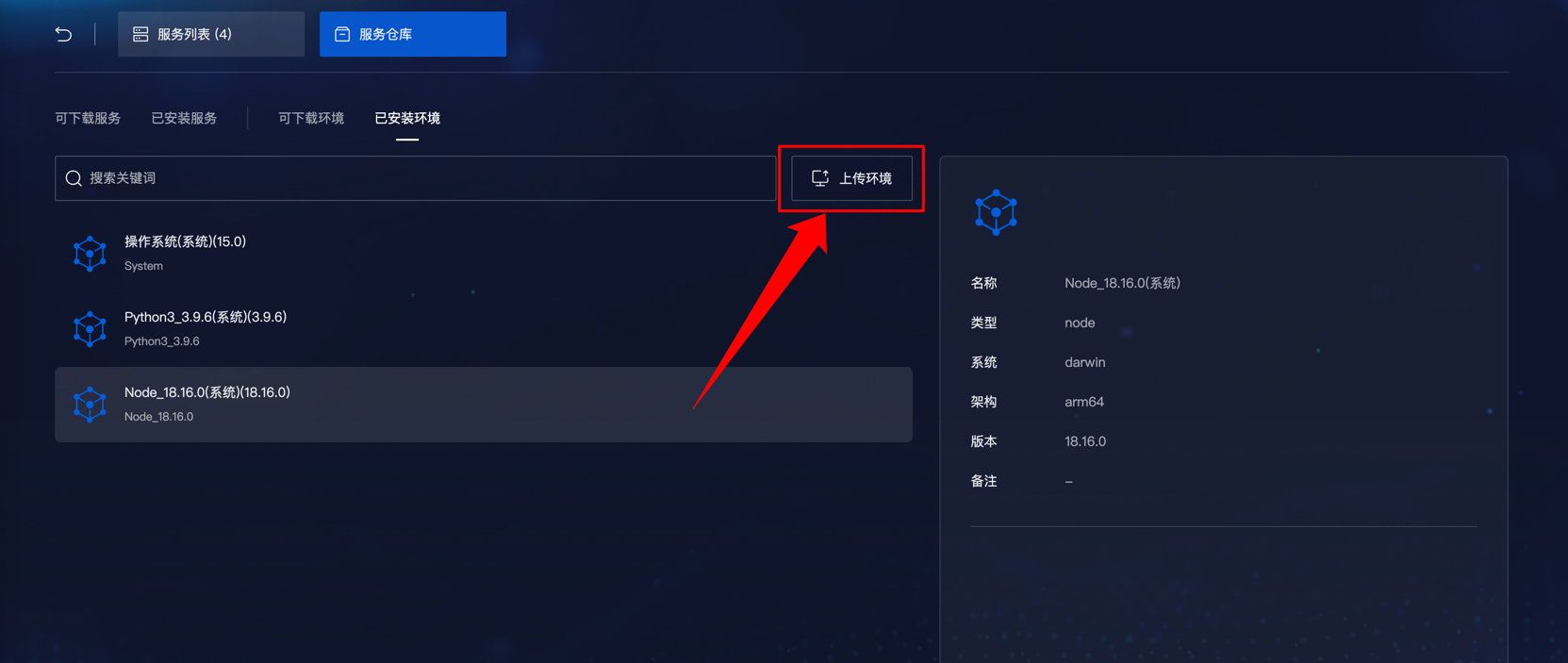
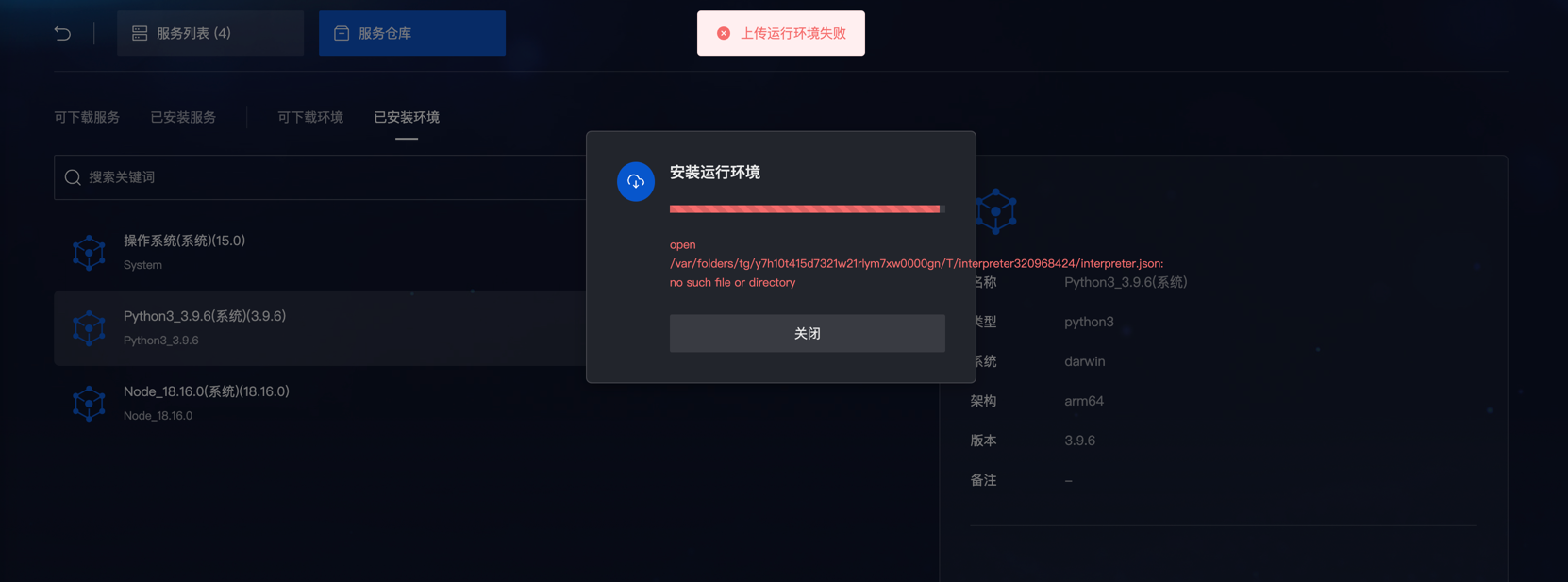
Select the .interp runtime environment file suitable for the current operating system. After waiting for the upload to complete, it will be available for use.
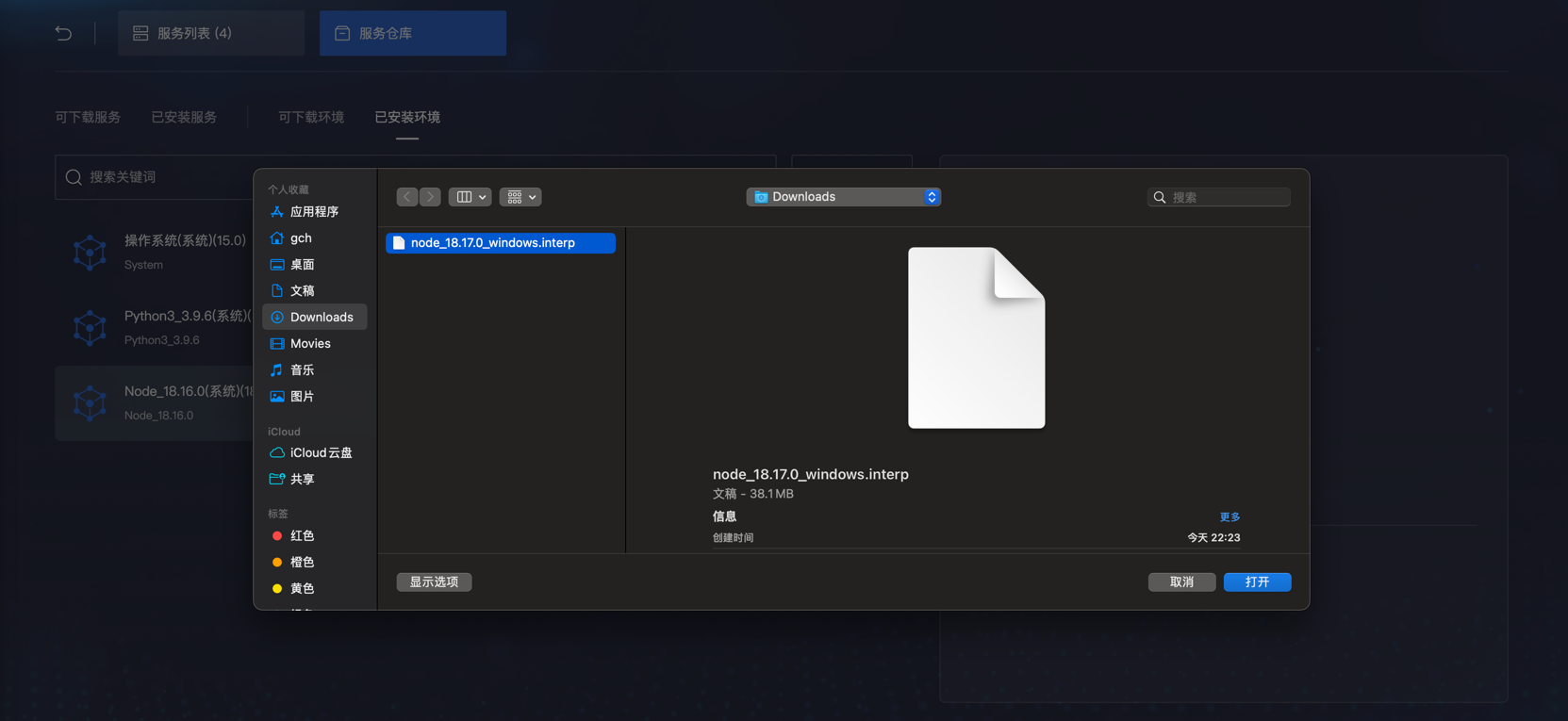
Note that if the uploaded runtime environment does not match the architecture of the current operating system, a reminder "architecture not compatible" will be displayed in the notes area.
Service Repository - Installed Runtime Environments
Service Repository - Delete Runtime Environments
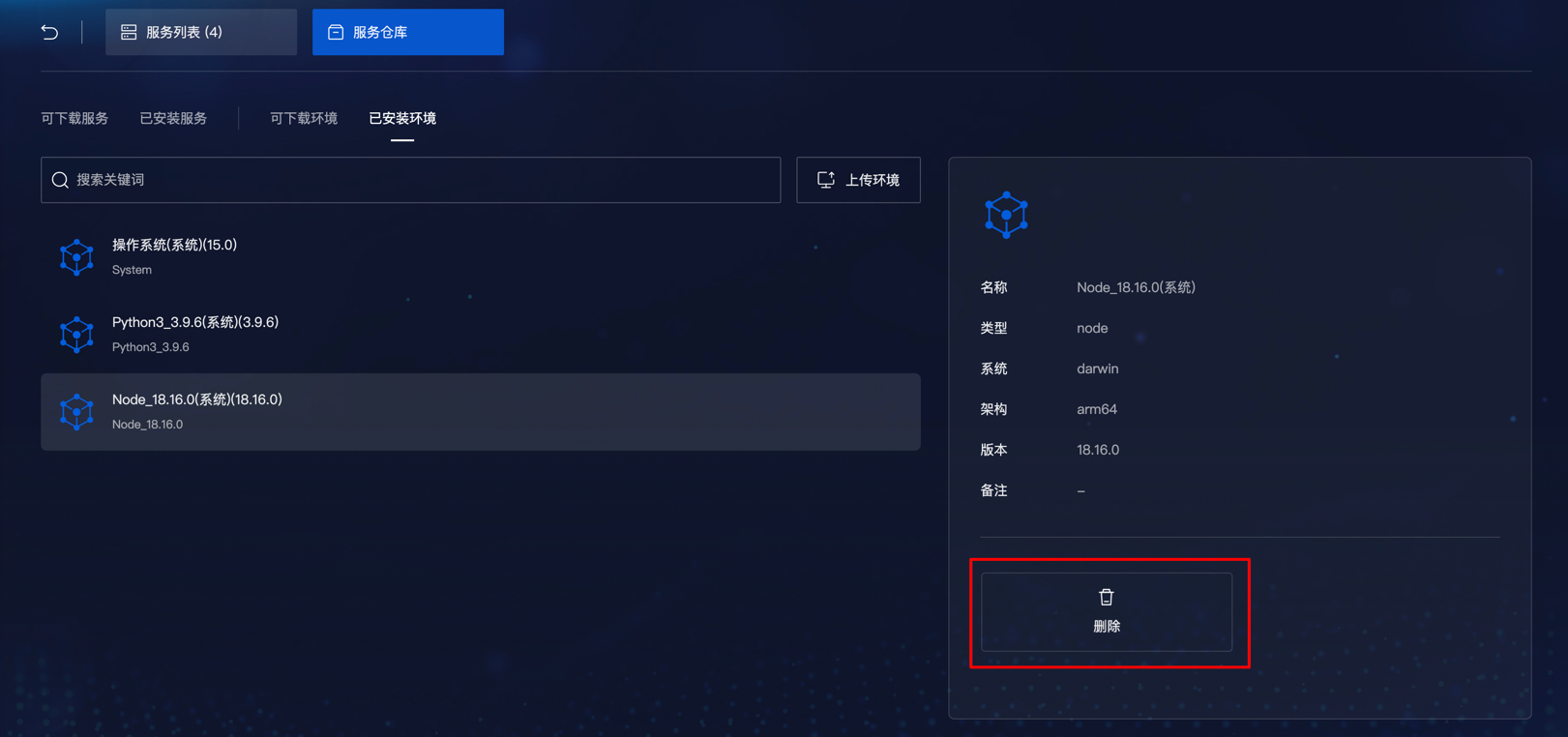
Installed runtime environments in the operating system cannot be deleted.
In the service management program, there is a delete button; clicking the delete button will allow you to delete the runtime environment.
Backup Service
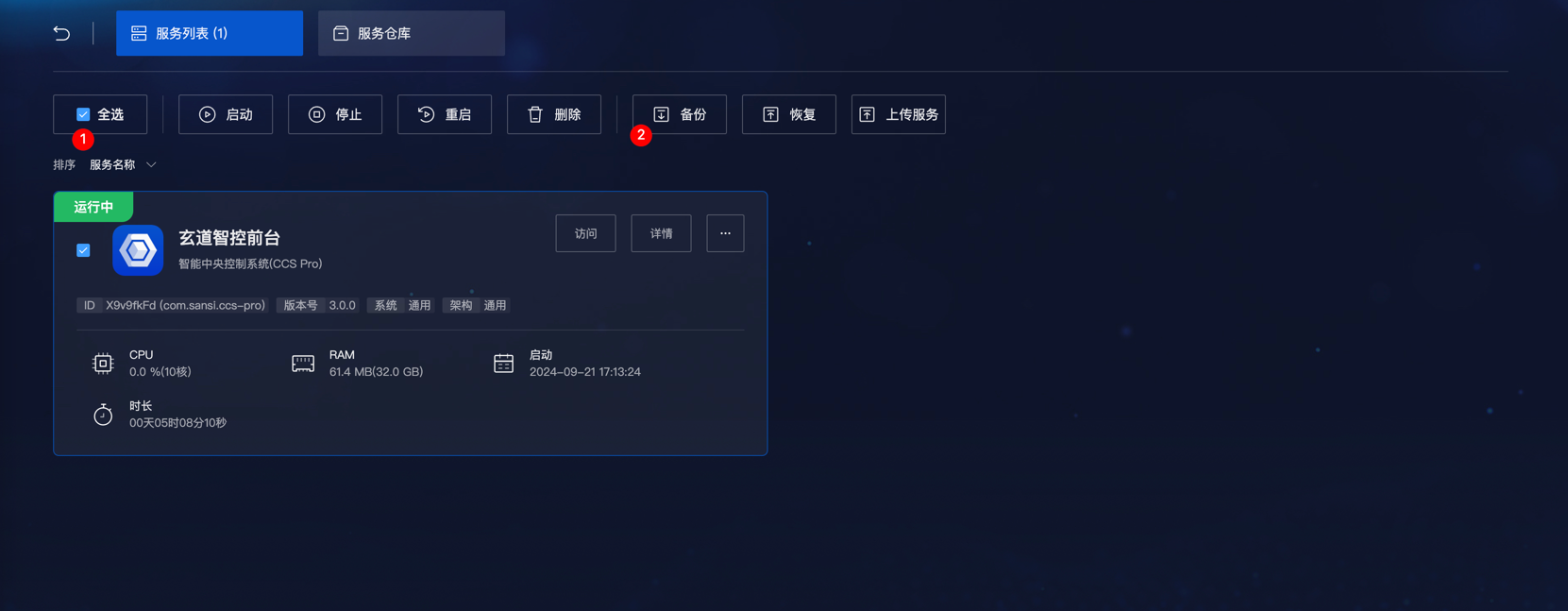
备份Backup services can be initiated by selecting the service card and clicking backup. Selecting multiple services will package them into the same backup file.
Restore Service
Restoring a service can be done to the same type of device or to a different type of device. However, when restoring to a different type of device, the cross-platform capability of the service itself may need to be considered.
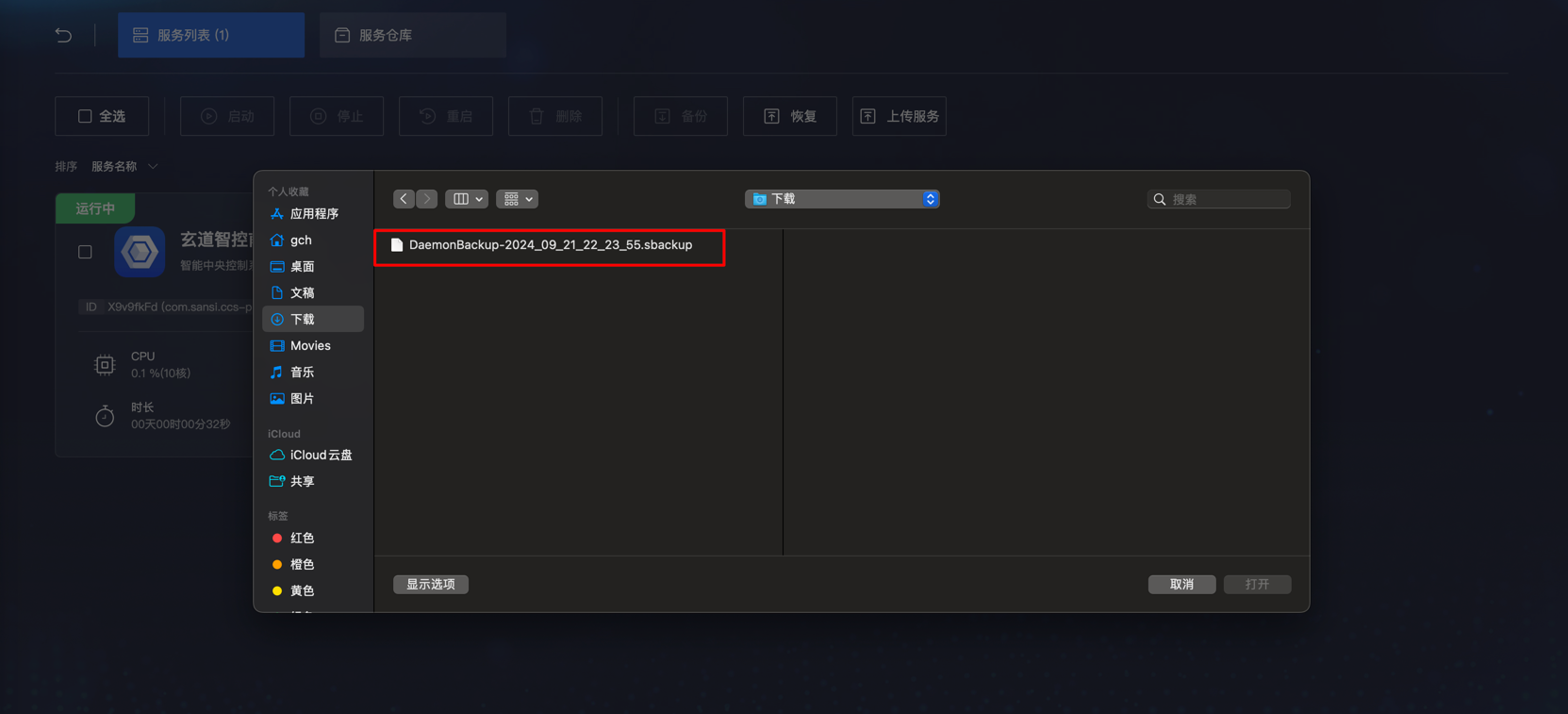
Service restoration usually occurs on the same platform; for example, after configuring a project, exporting a backup file and uploading it to the Sansi configuration platform, if there are issues with devices at the project site, you can find the corresponding backup file using the contract number. After downloading the backup file, you can install the service management on a similar computer and upload the backup file to restore it.
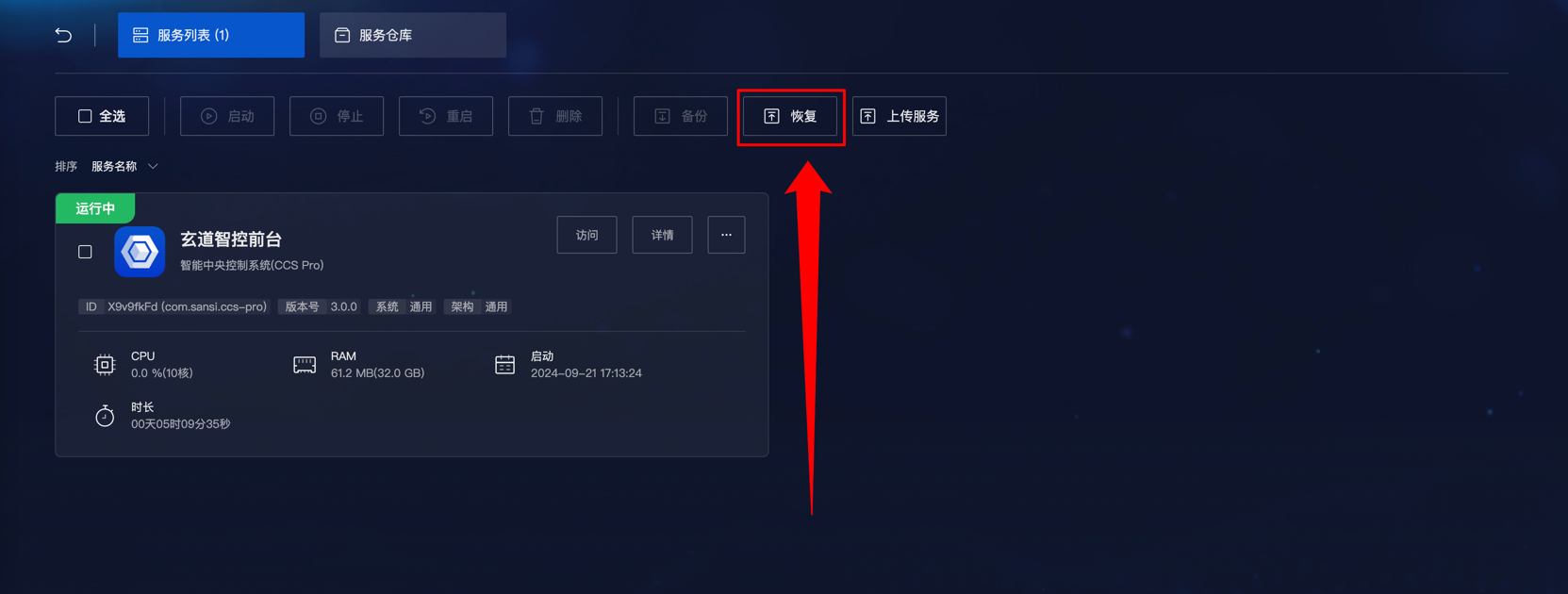
In the pop-up file selection window, choose the backup file. Once selected, wait for the file upload to complete.