Audio Matrix Control Plug-in
Deployment Manual
| Document Version | Content Revision | Revised By | Revision Date |
|---|---|---|---|
| Audio Matrix Plugin | V1.0.0 | wangjiale | 2025.01.02 |
Audio equipment brands and model support
ITC Device
- TS-DP1616(16 input 16 output)
- TS-DP1212(12 input 12 output)
- TS-DP880(8 input 8 output)
- TS-DP440(4 input 4 output)
HuShan
- HuShan Audio Matrix Processor
- HuShan1608(12 input 9 output)
Front-end plug-in deployment
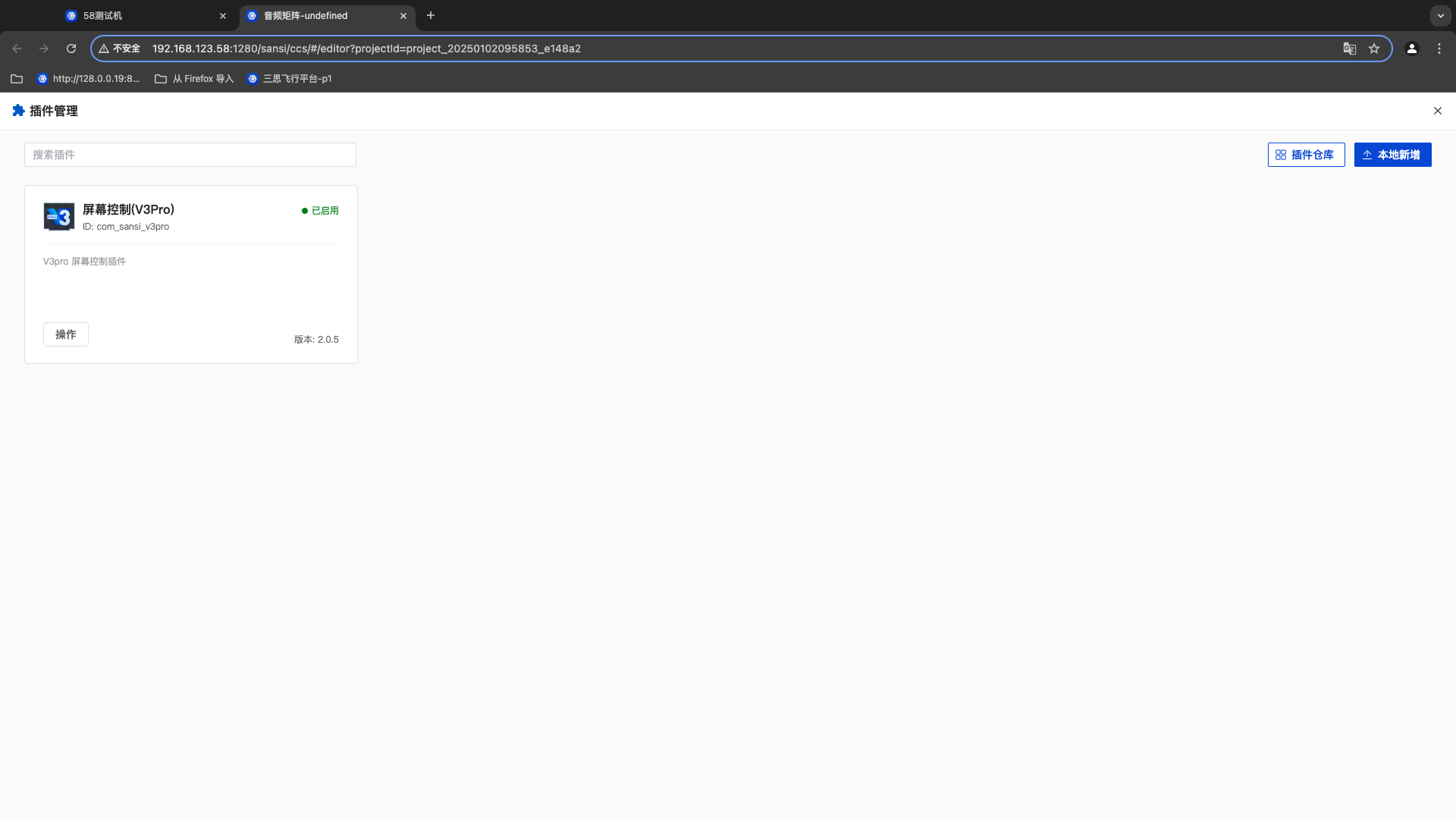
- Open the front-end plug-in management interface of CyberHub
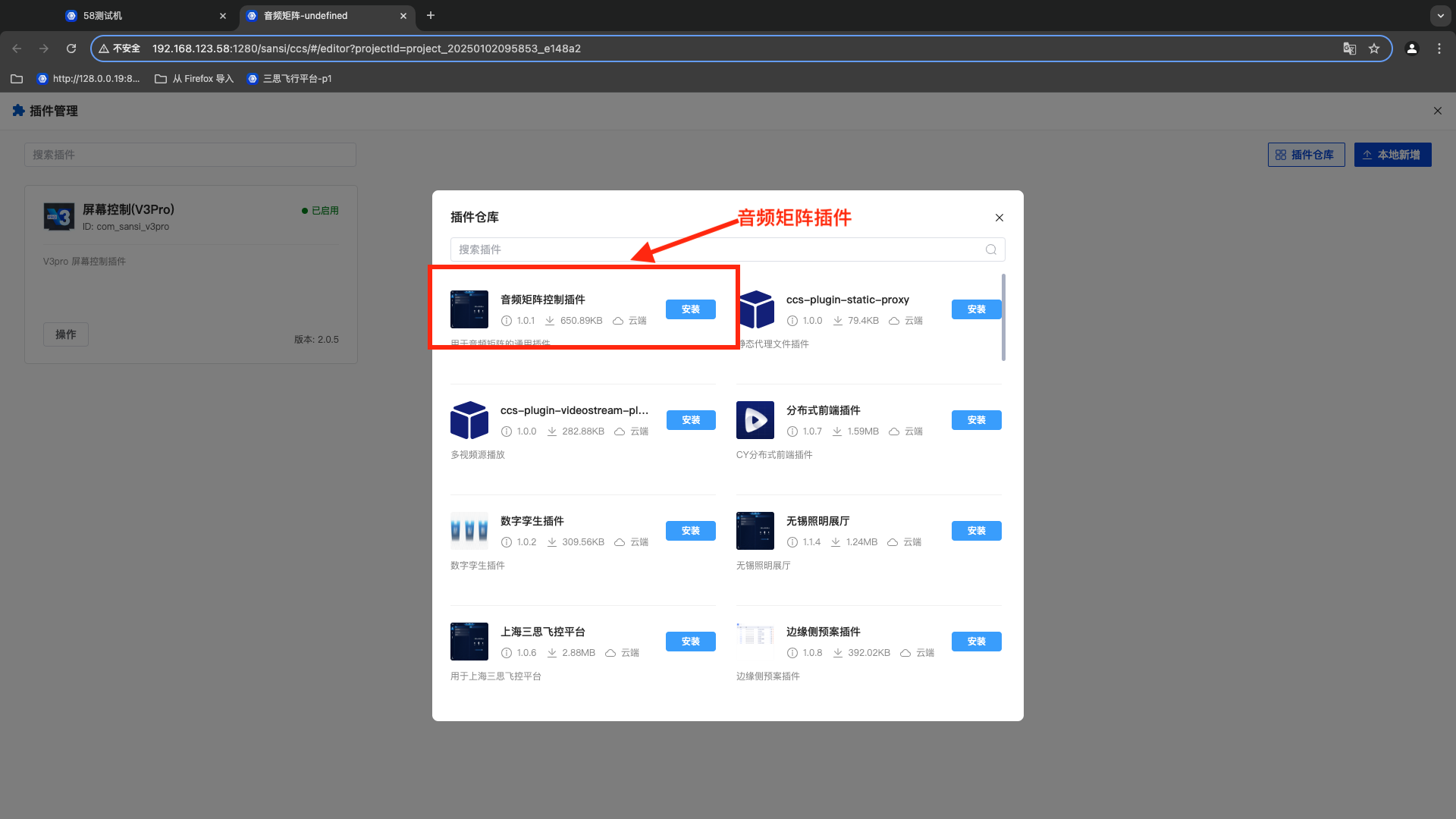
- Find the audio matrix control plug-in and click on "Install".
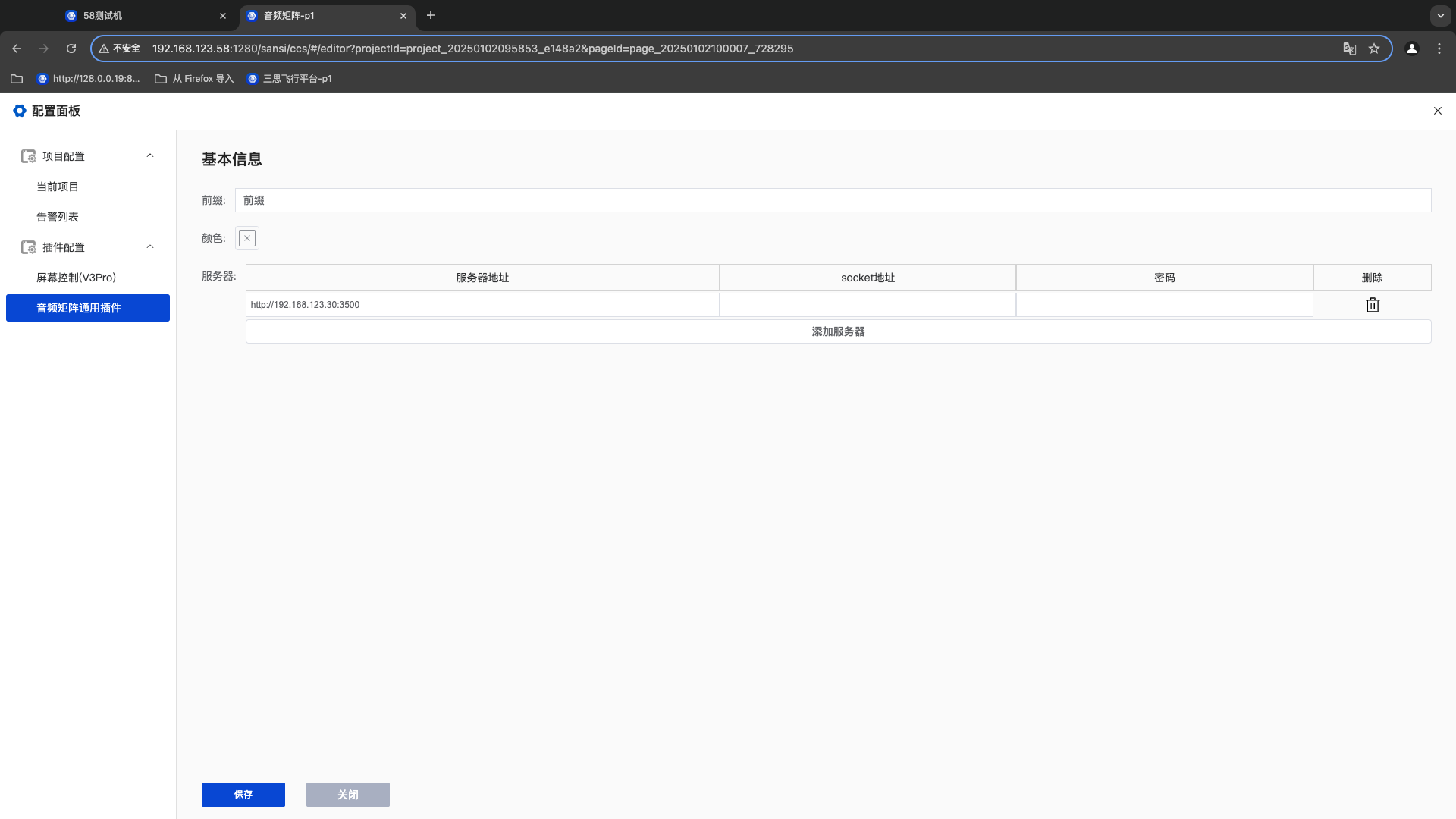
- Modify the connection service address in the plug-in configuration.
Server-side deployment
- Server-side list => Audio matrix control plug-in => Click on "Install".
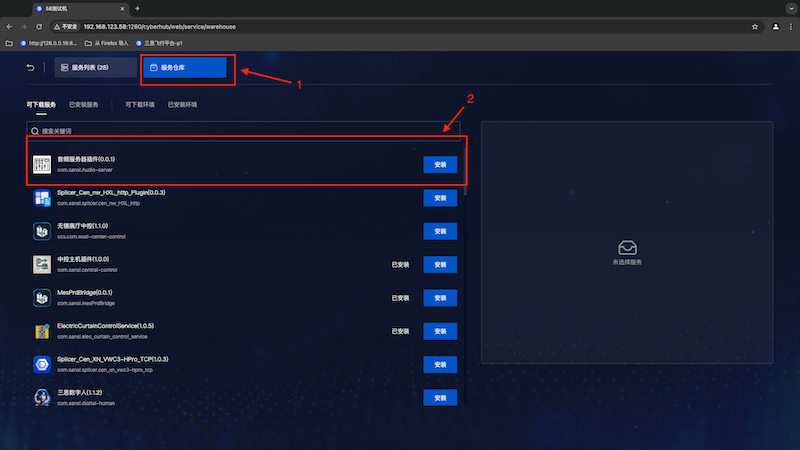
- The configuration file is as follows:
json
{
  "port": 3500,
  "cors": true,
  "baud": 9600,
  "com": "COM7",
  "defaultTimeOut": 500
}
User Manual
| User Manual | Version | Compiled by | Date |
|---|---|---|---|
| Audio Matrix Control Plug-in | V1.0.0 | Wang Jiale | January 2, 2025 |
- Create a new page
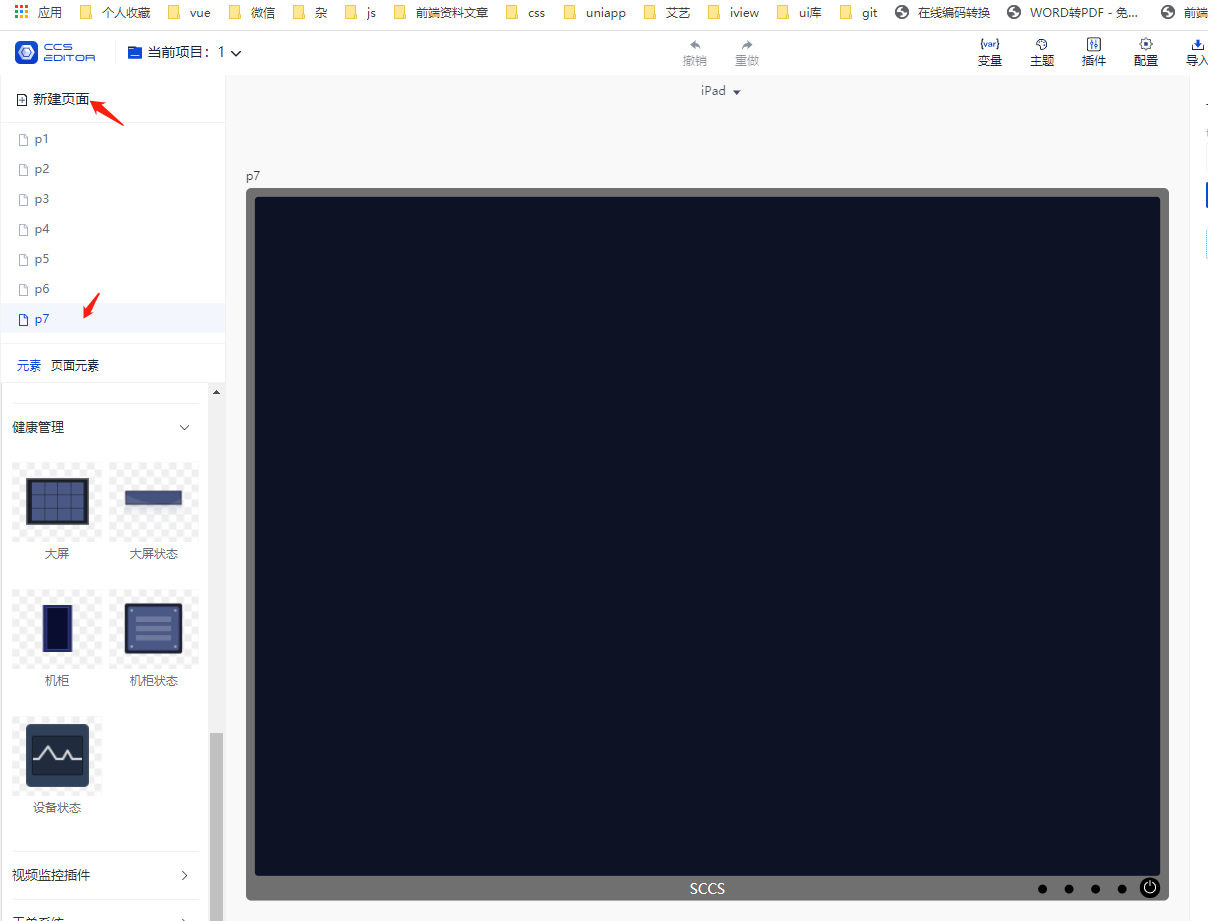
Input and Output List Plug-in
- Drag the audio channel list component onto the page.
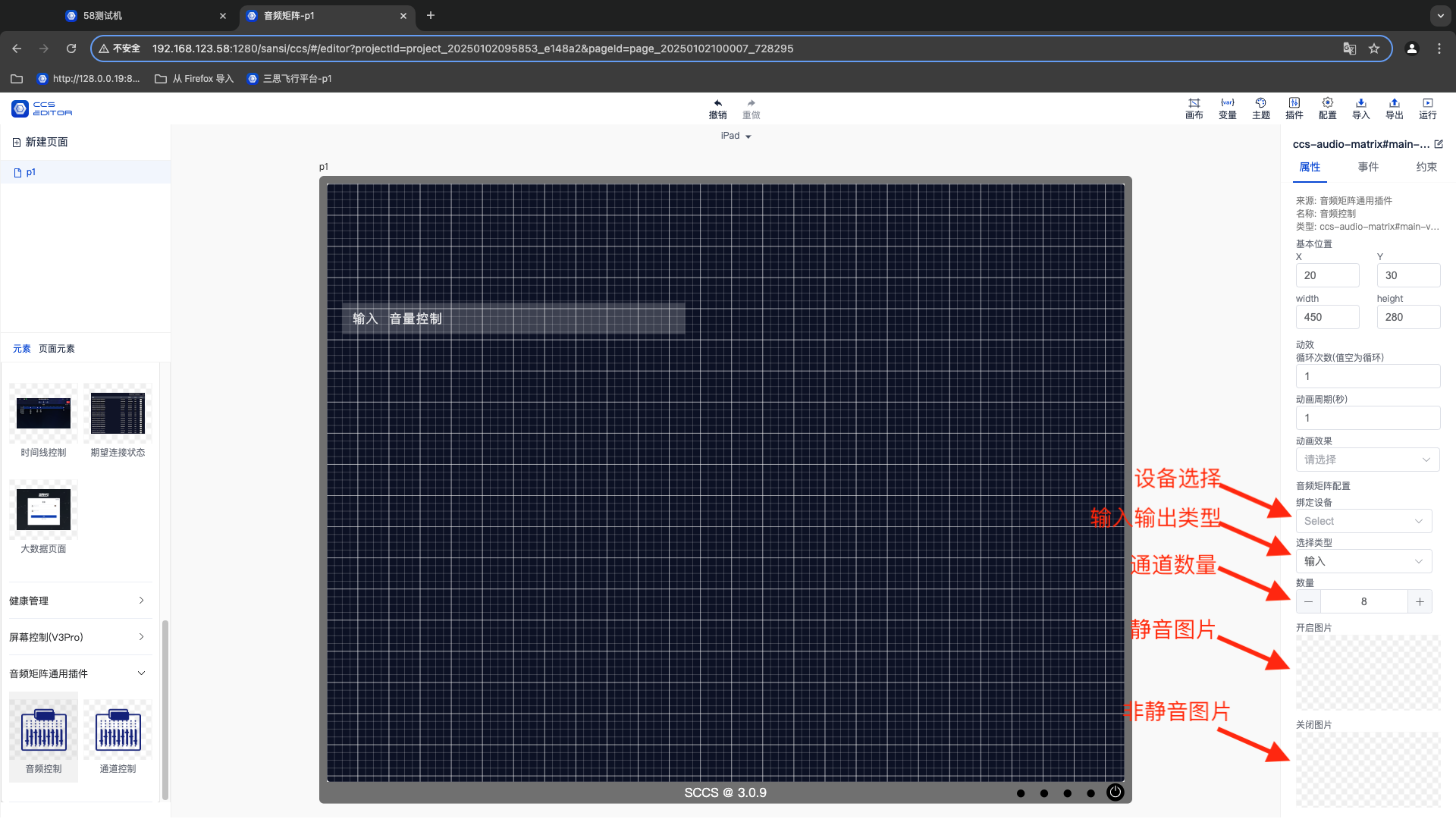
- Select the plug-in.
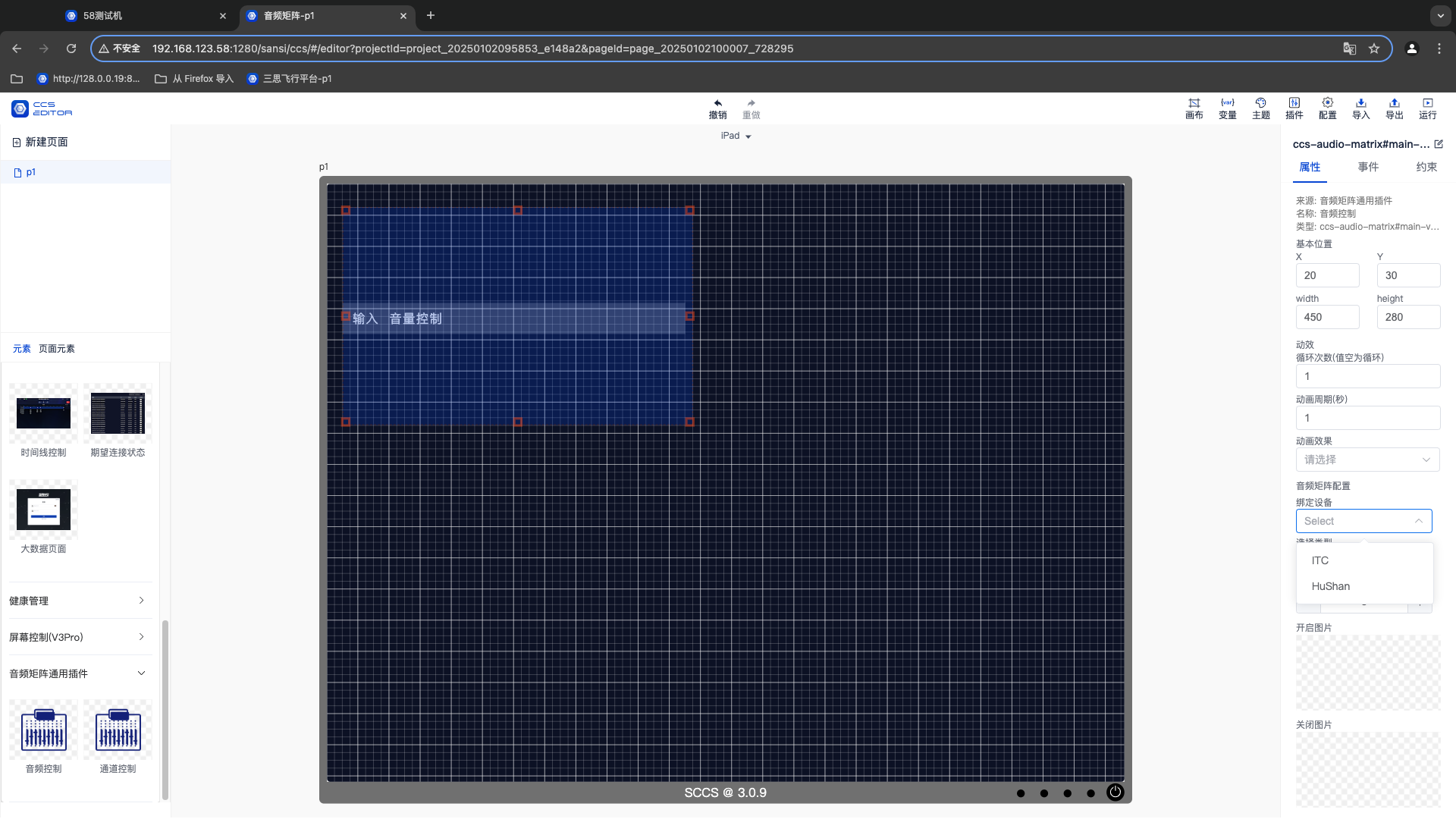
- Select the device.
- Select the input and output.
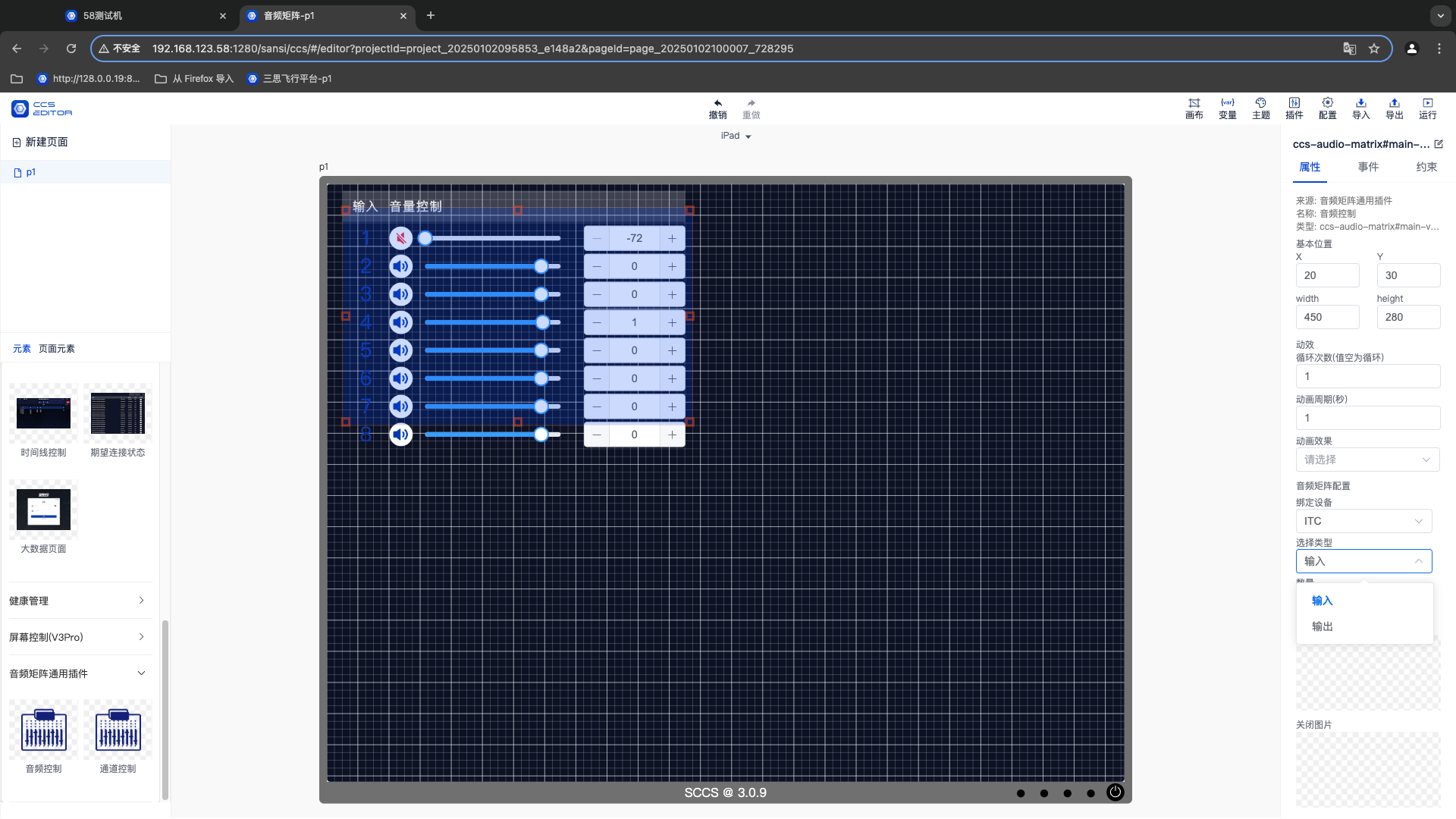
- Select the number of channels.
- Replace the default mute and unmute pictures.
Single Channel Volume Control
- Drag the audio channel component onto the page.
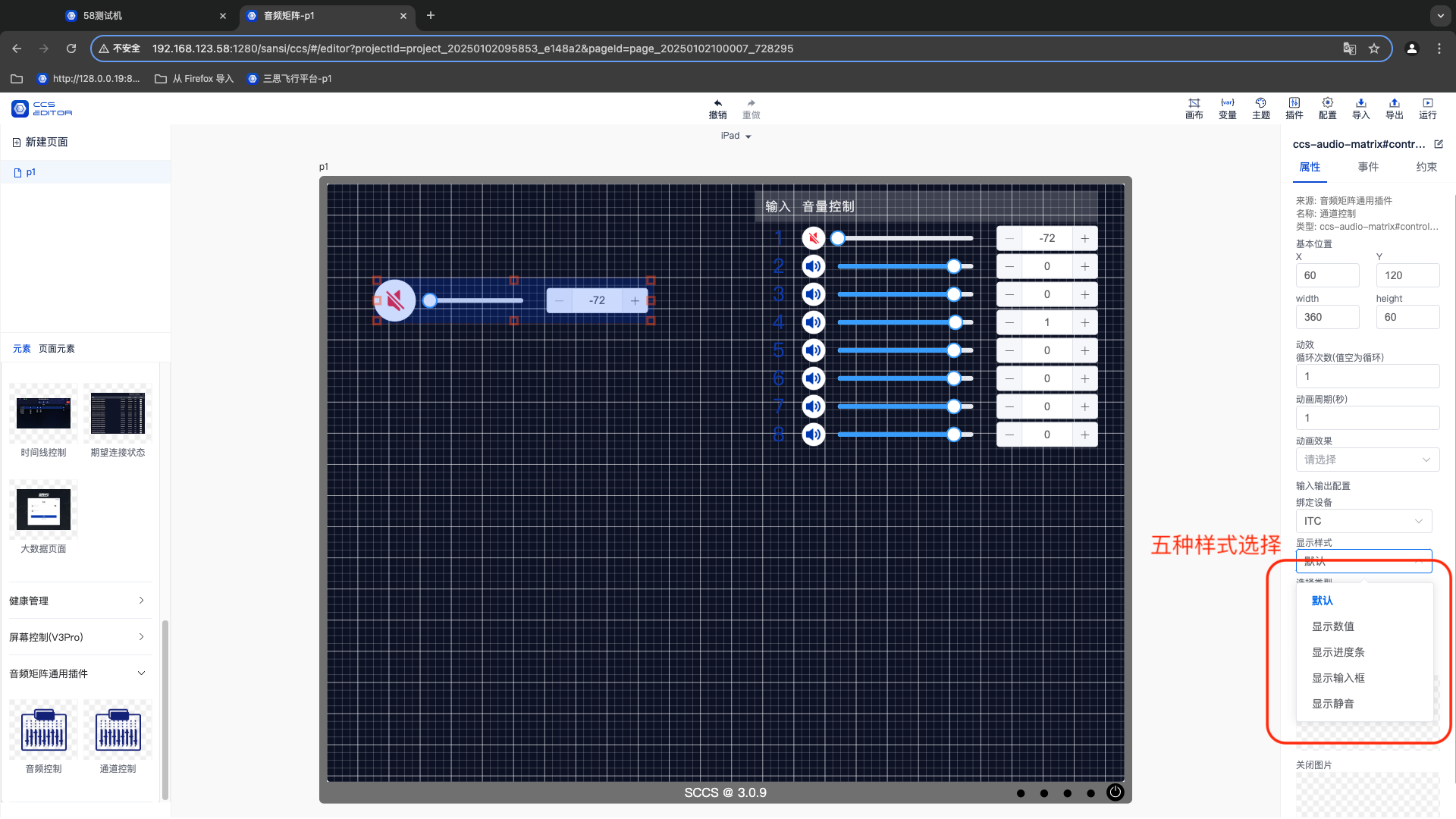
- Select the channel style (configurable in 5 options).
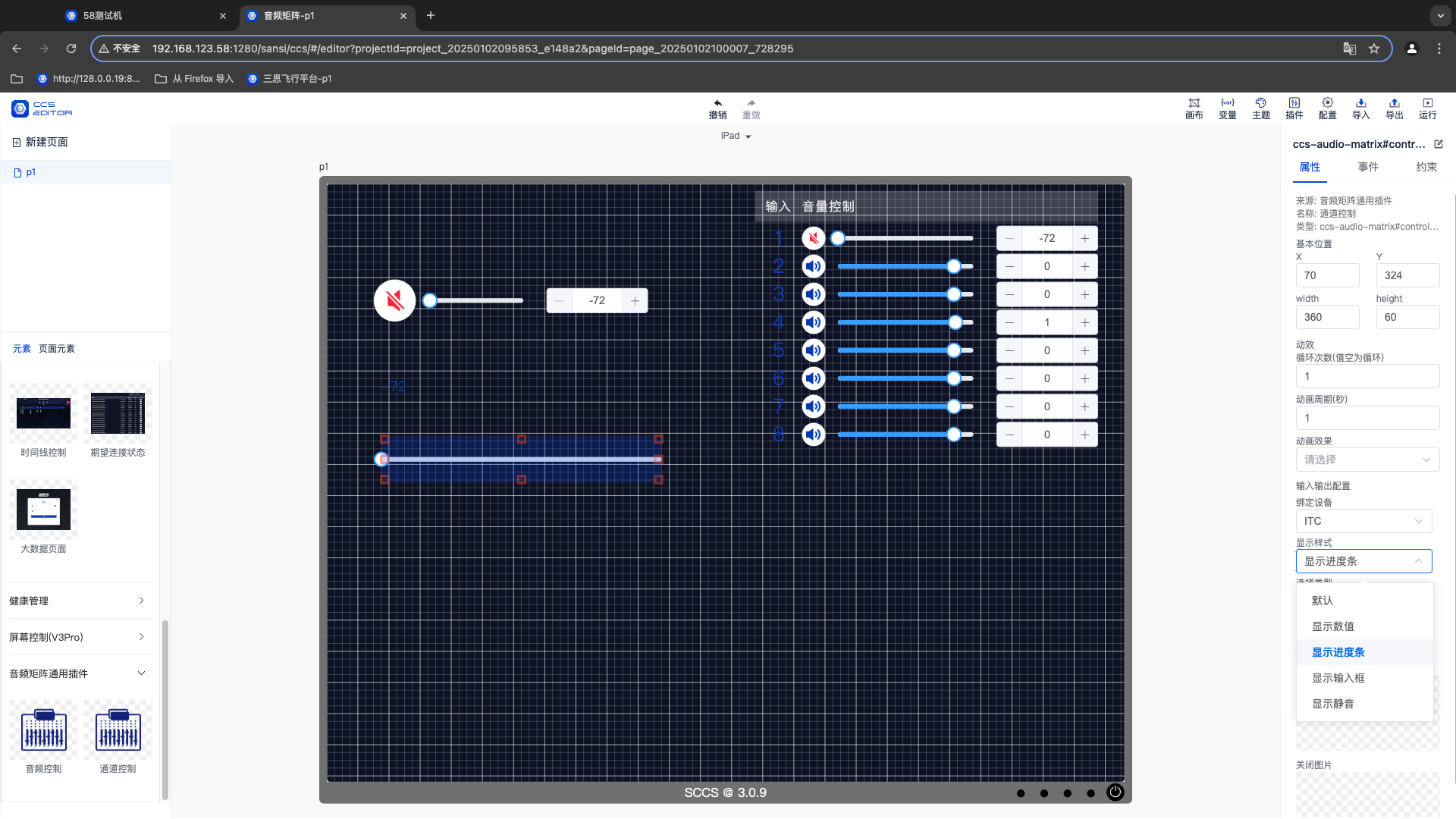
- Select the device.
- Select the bound channel.
- Configure the corresponding style for the single channel according to requirements.
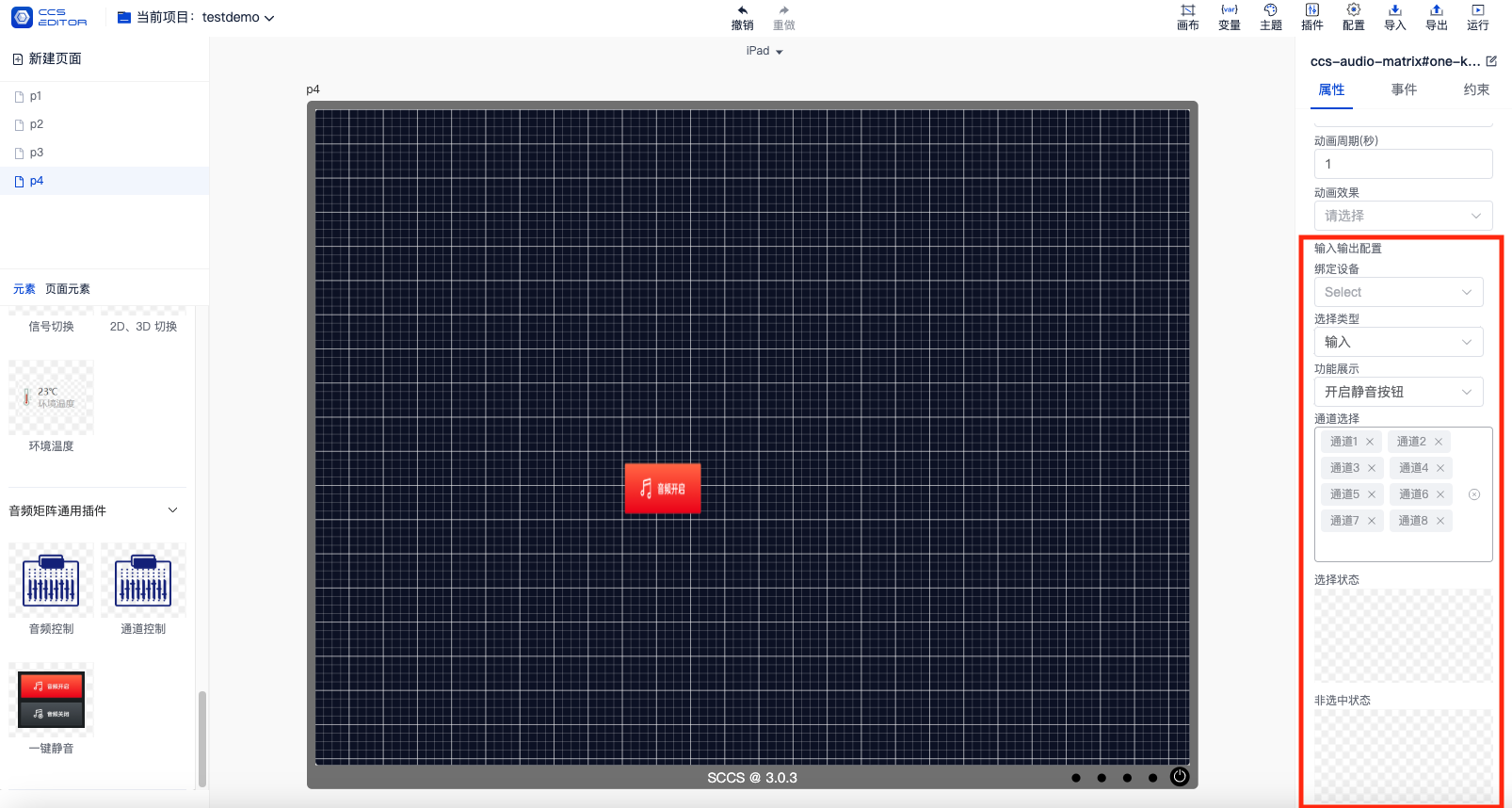
Equipment Mute/Unmute Components
Configure according to the actual on - site usage. For example, if an audio matrix is used on - site and the input channels 1, 2, 3, 4, 5, 6, 7, and 8 of the control input channels are to be controlled, then the input channels 1, 2, 3, 4, 5, 6, 7, and 8 need to be configured.
- Drag the audio channel component to the page.
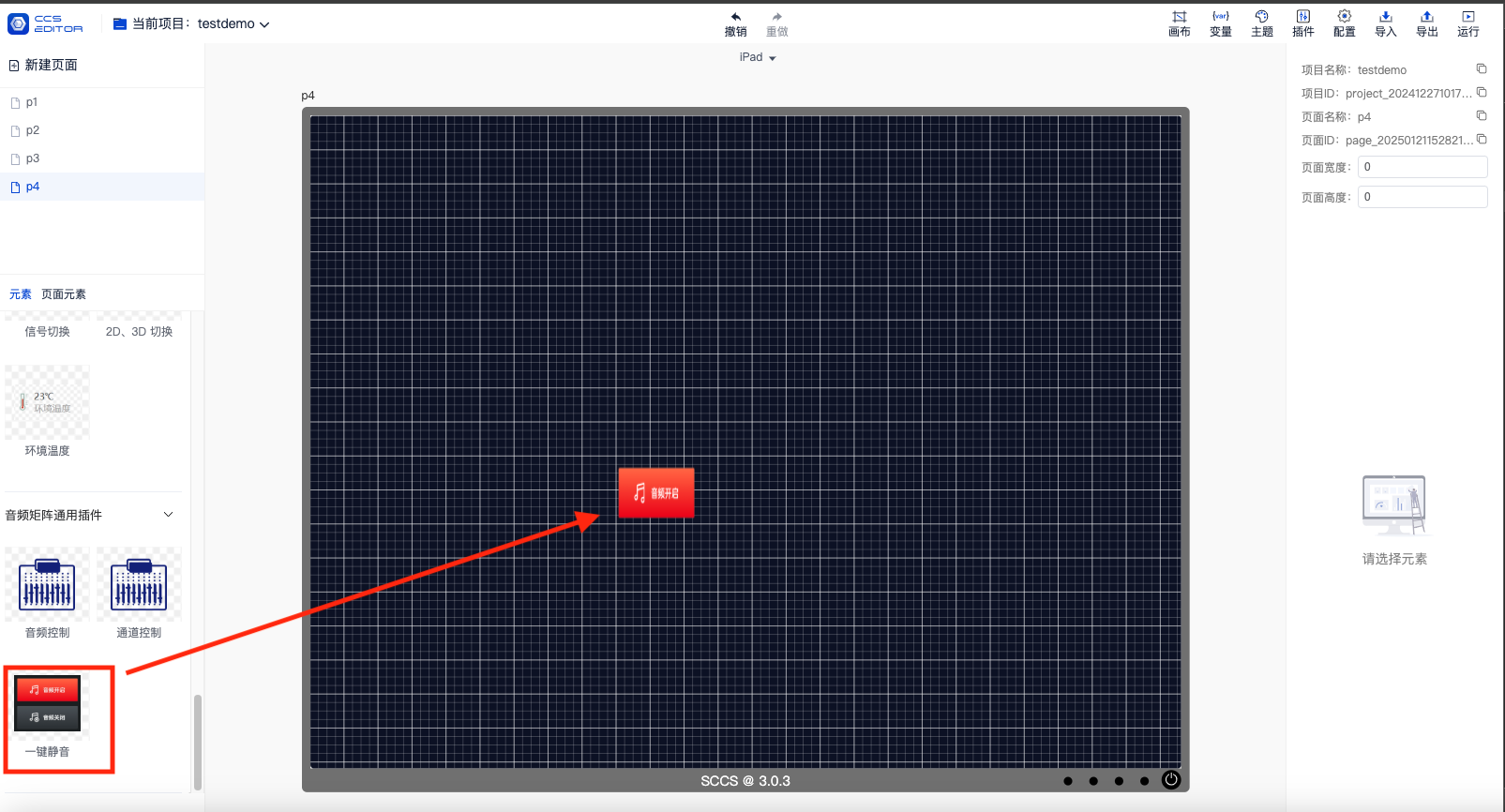
- Select the bound device.
- Select the input/output type.
- Bind the actually used channels.
- Select the button type (on or off button).
- Select the unselected state image (there is a default option available).
Component Configuration Completion Usage Instructions
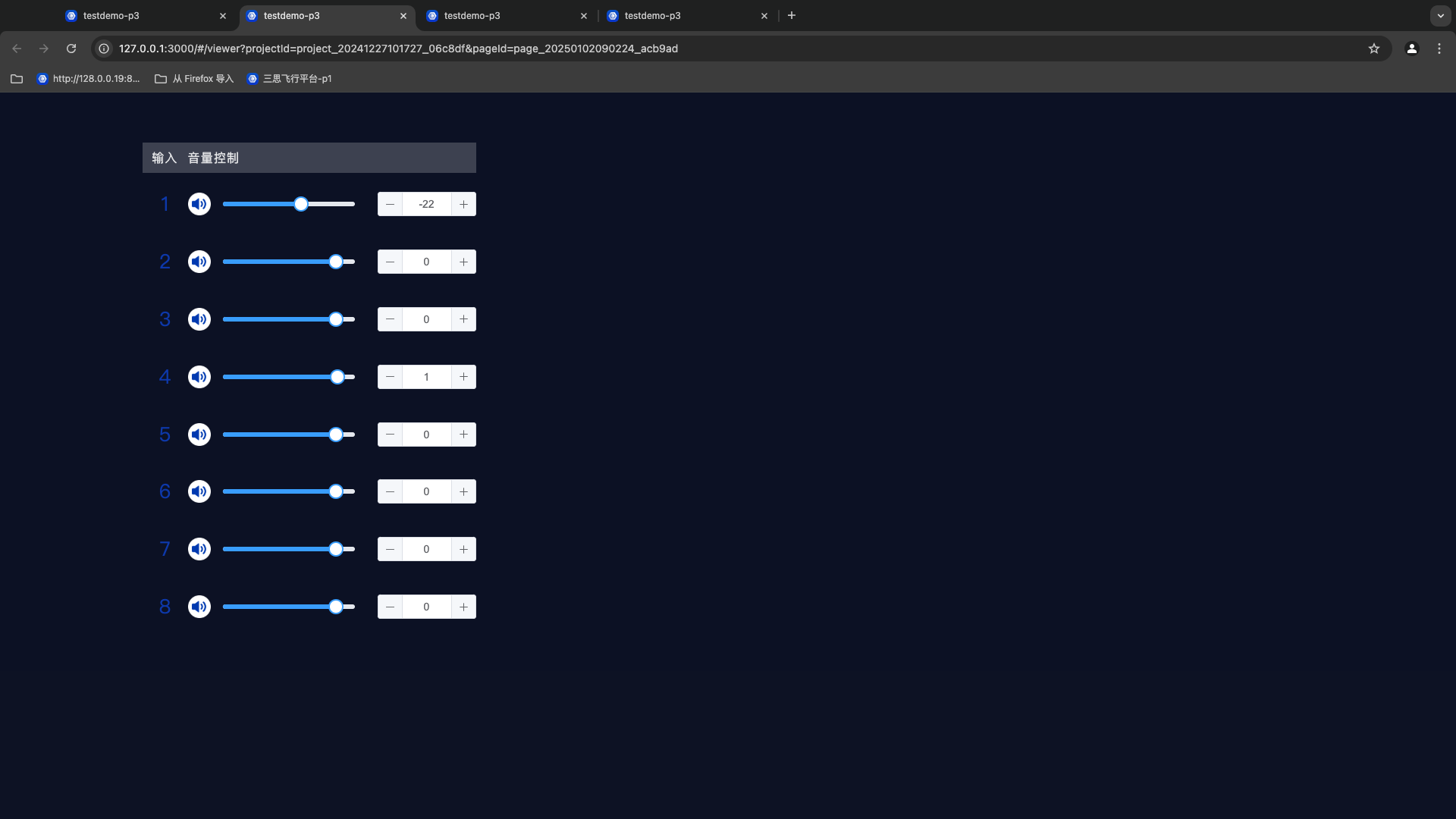
The following is a page bound to ITC audio equipment. The number of channels is bound to the control of input channels from 1 to 8. The available functions are:
- Mute and unmute for 8 channels.
- Volume control for 8 channels.
- Real-time display of the volume of 8 channels.