VLC Video Player Plug-in
Deployment Manual
| Deployment Manual | Version | Compiled By | Date |
|---|---|---|---|
| VLC Remote Control Deployment Manual | V1.0.0 | Wang Jiale | 2024.05.14 |
VLC Client Installation and Configuration
VLC Client Installation (Windows Version)
- Select
vlc-3.0.17.4-win64.exeand click to install.
Download link:VLC Download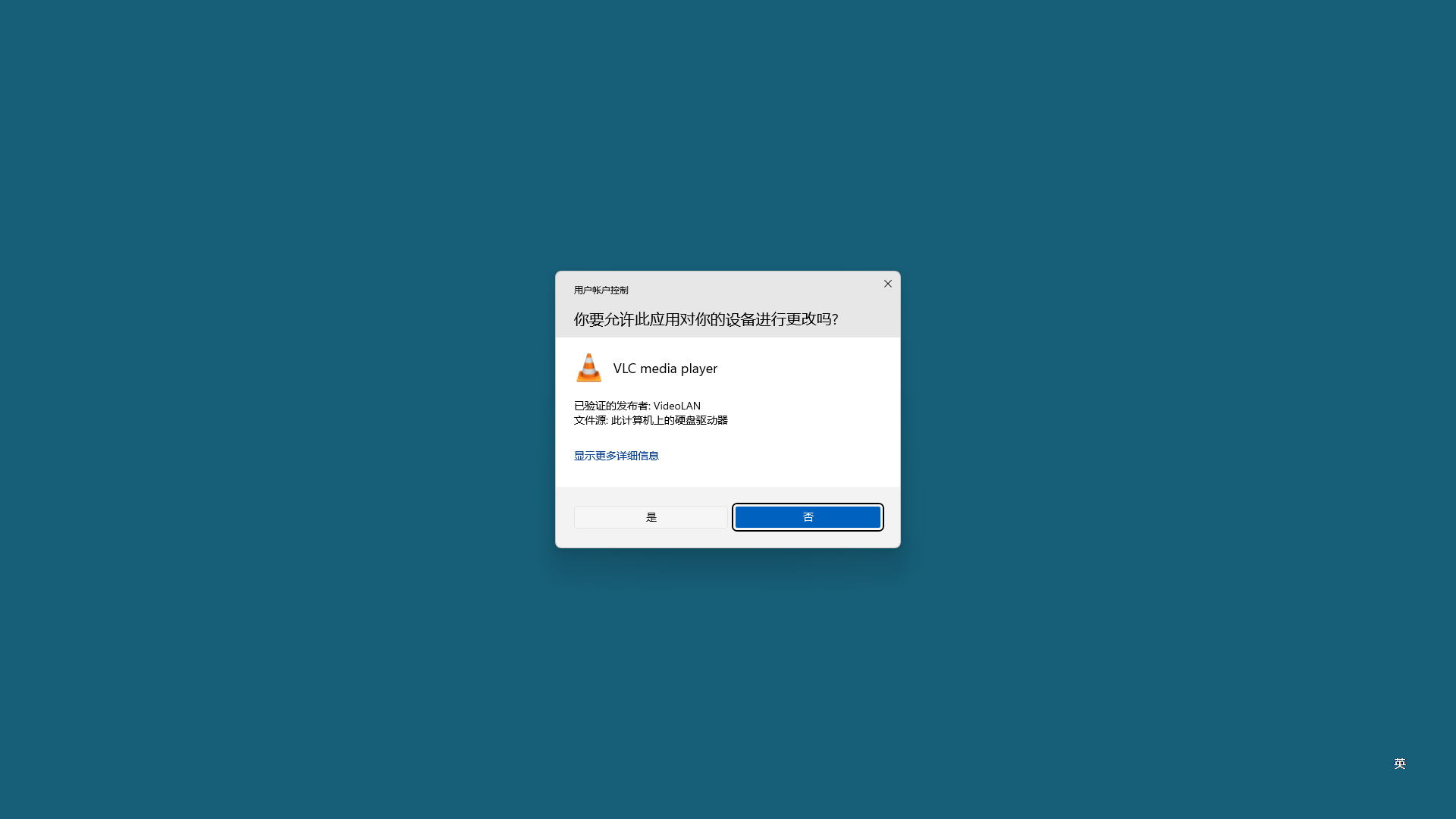
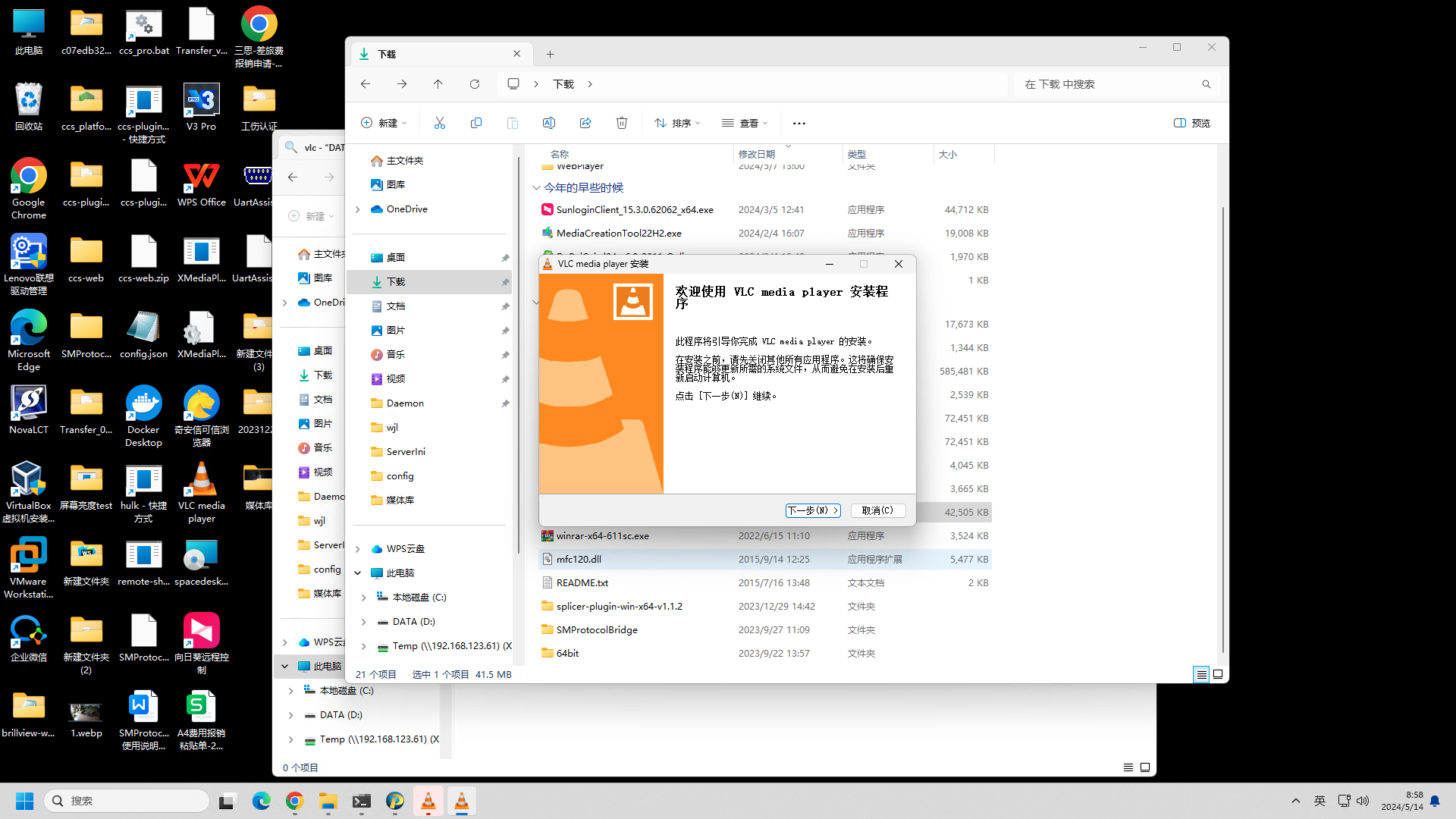
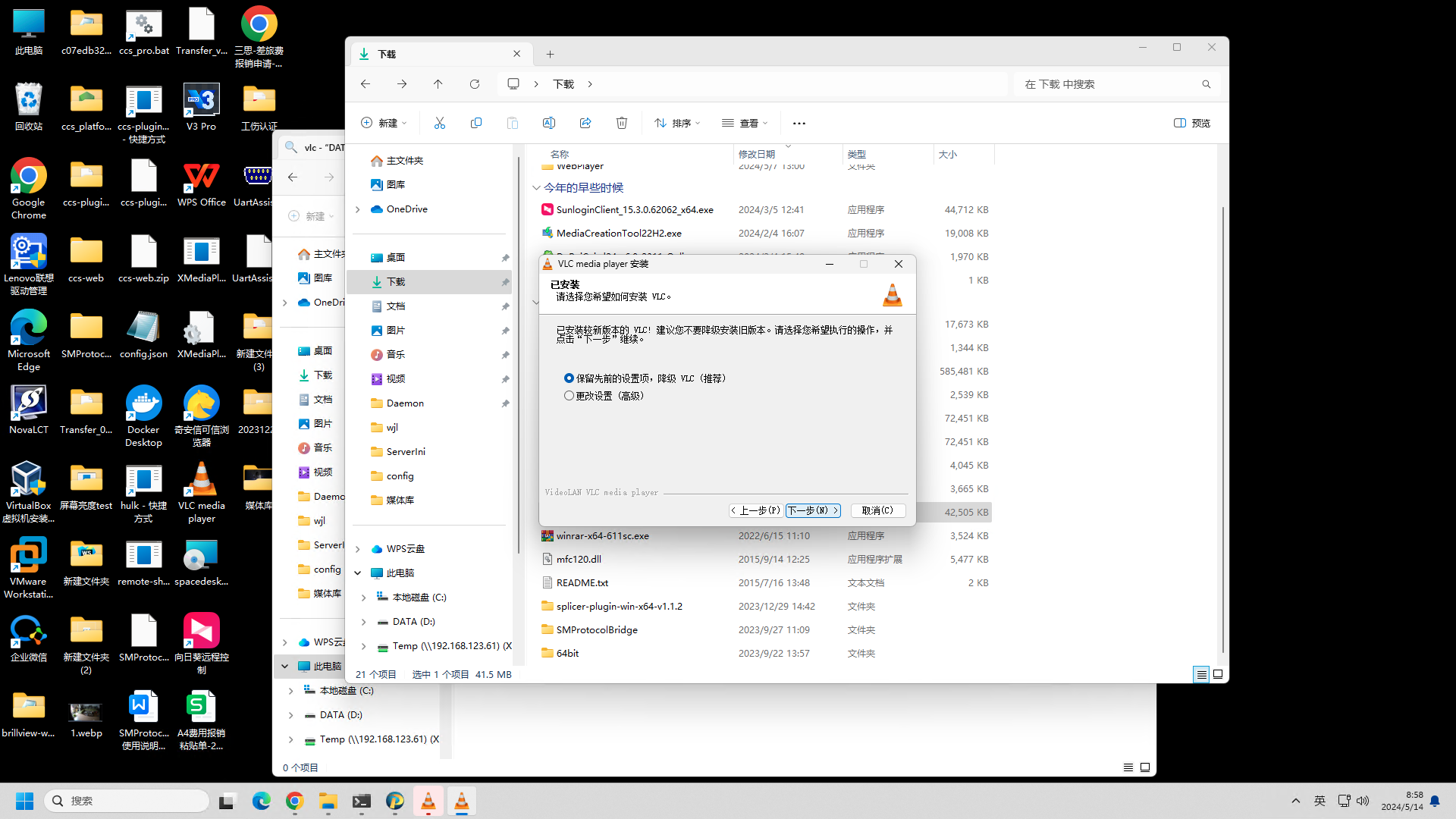
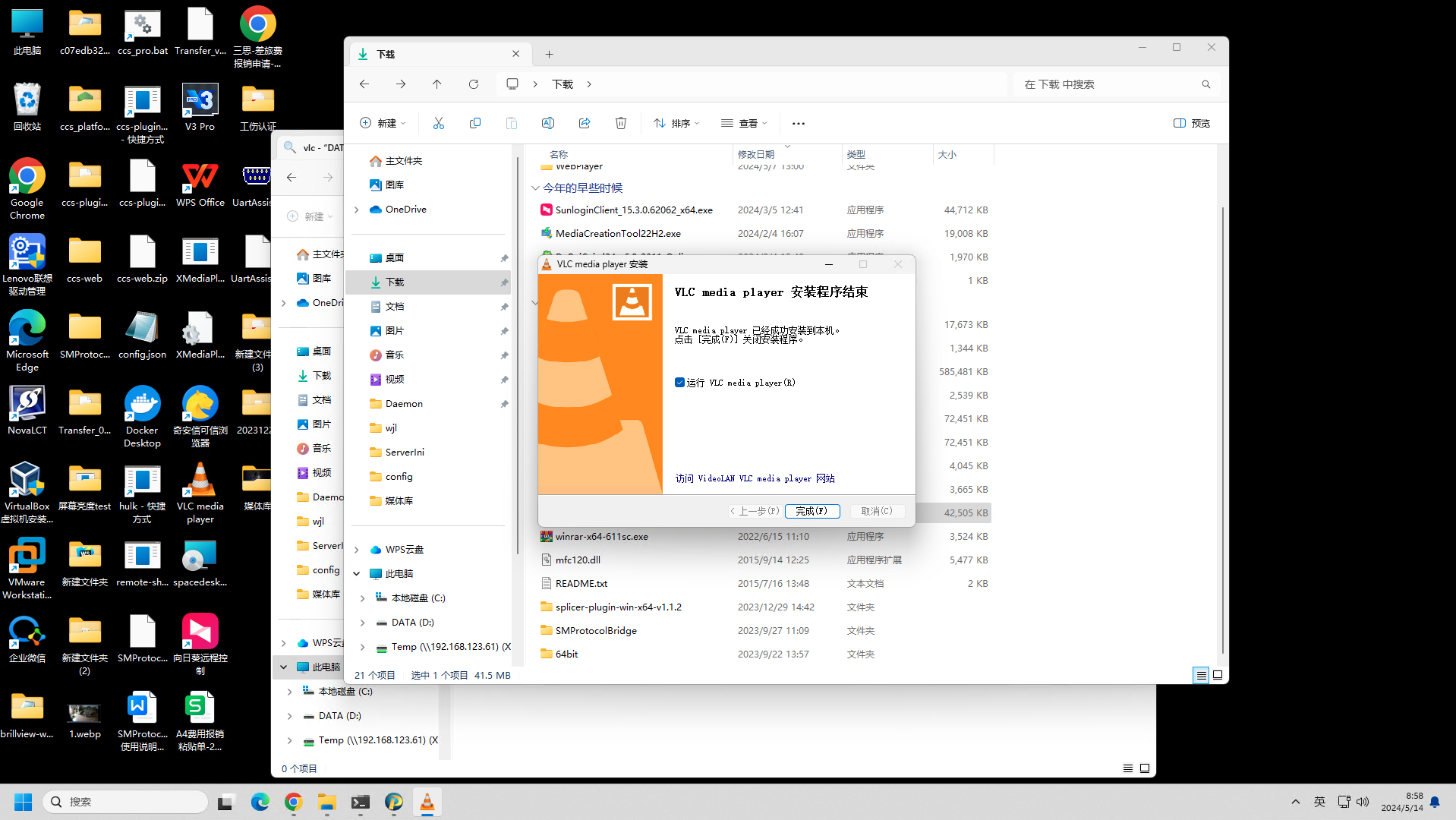
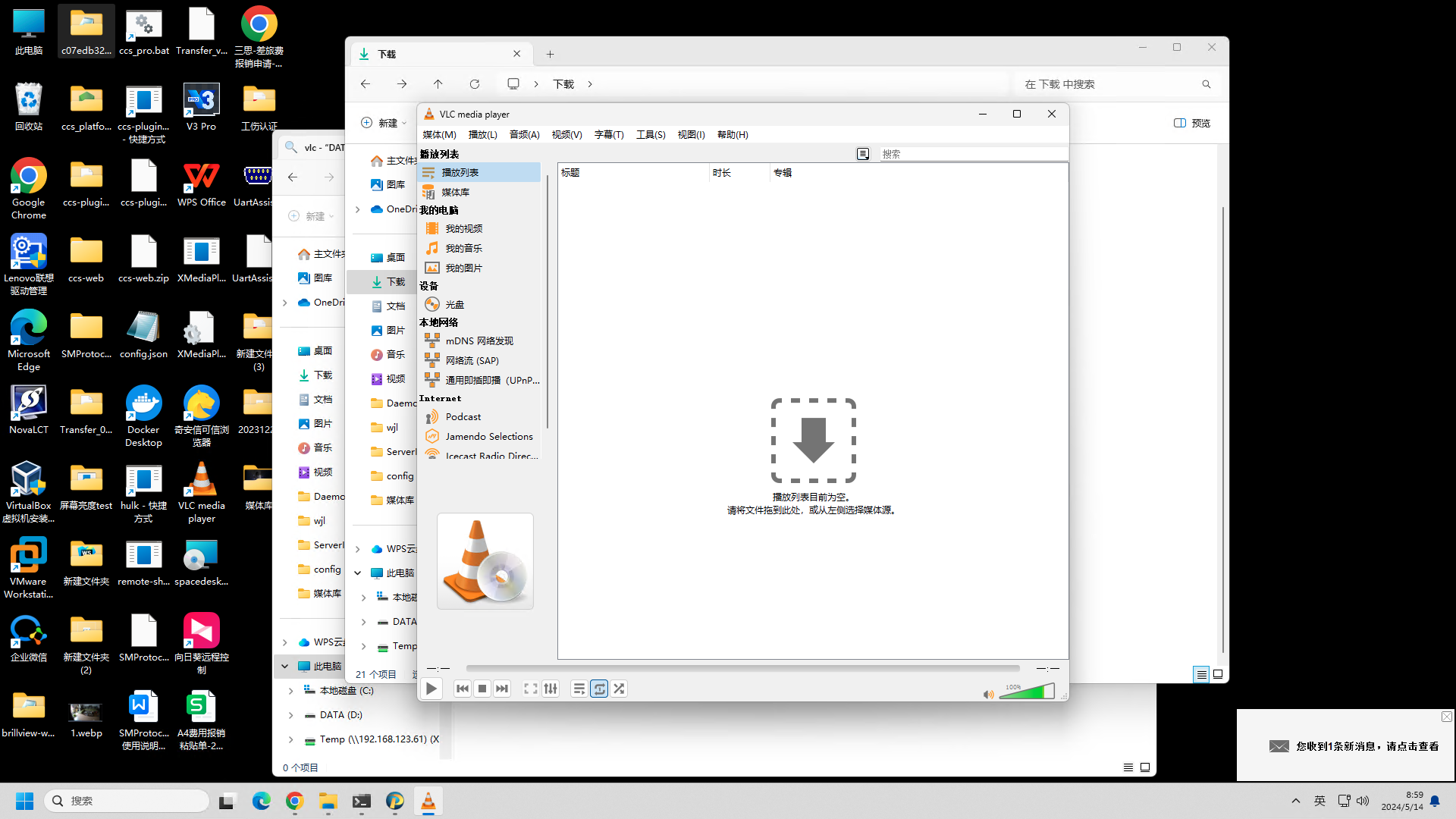
- Continue clicking "Next" during the installation, accepting the default configuration until the installation is complete.
Web Control Configuration (Windows Version)
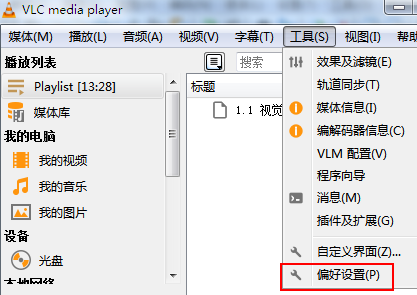
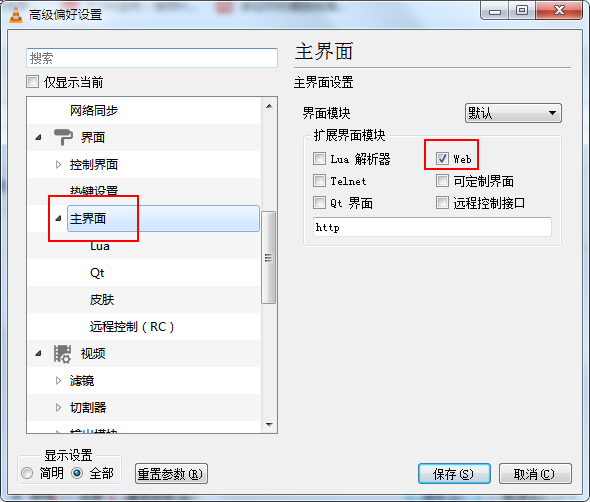
Open Preferences and select "Show All".
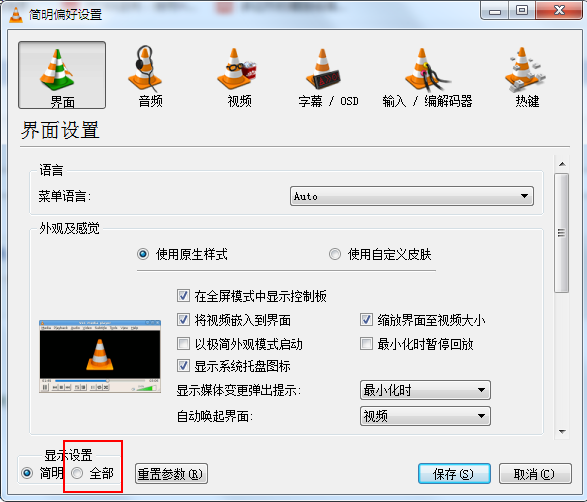
Go to the "Interface" options and select "Web".
Set the HTTP password in the Lua section.
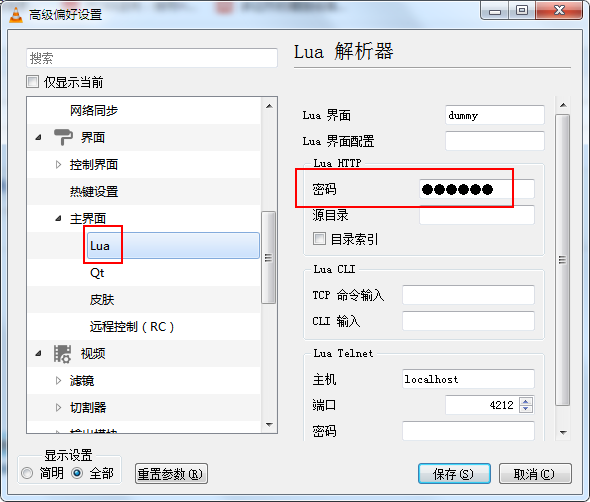
Note: Restart the software for the changes to take effect.
You can now access VLC via http://127.0.0.1:8080/.
When logging in, the username should be left blank, and the password is the one you just set.
If you need to access it over the local area network, you will also need to configure the firewall to allow VLC through; otherwise, access may fail.
VLC Plugin Configuration
Frontend Plugin Configuration
Go to Plugins => Plugin Repository =>
VLC Video Control Plugin=> Install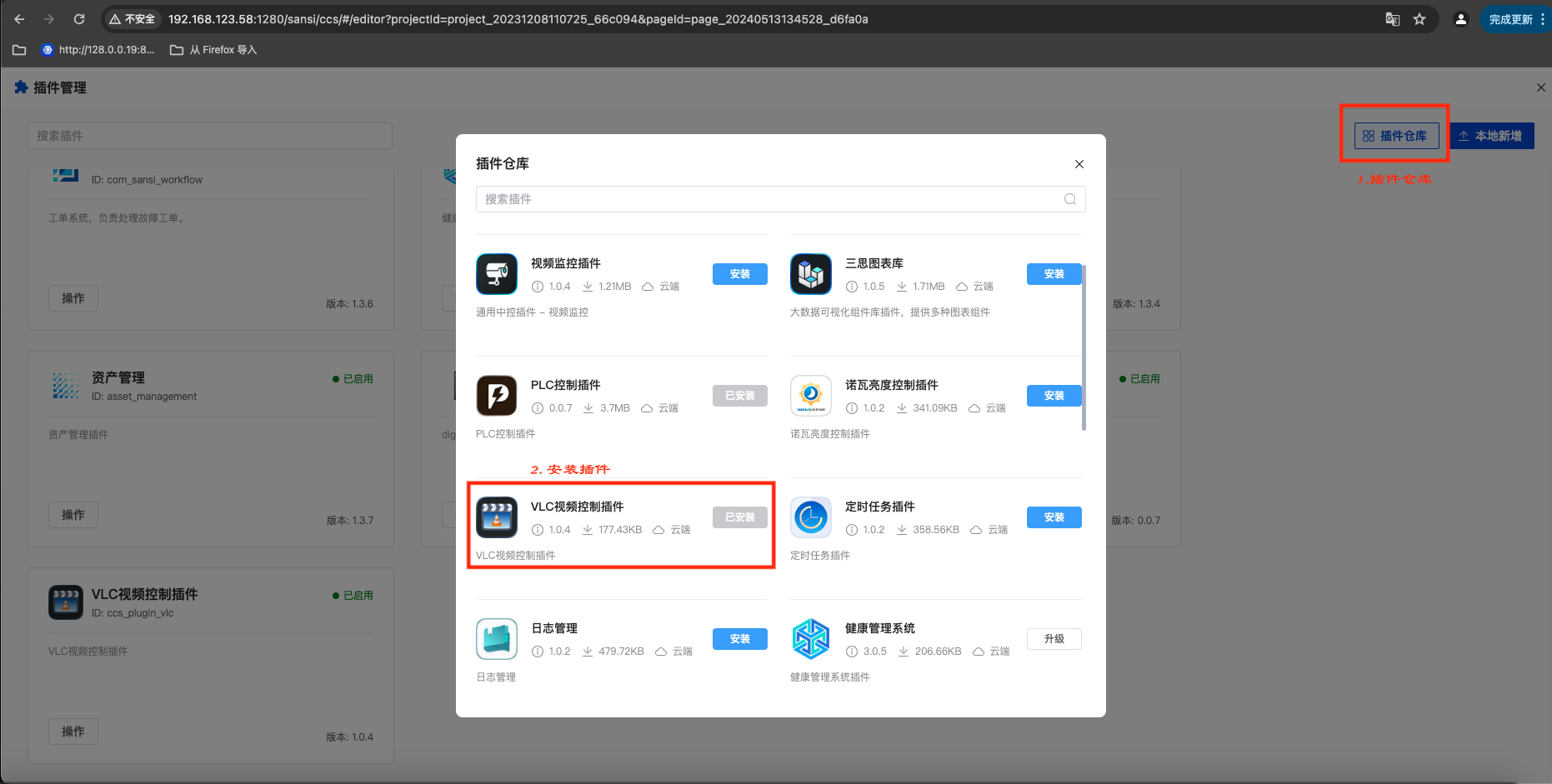
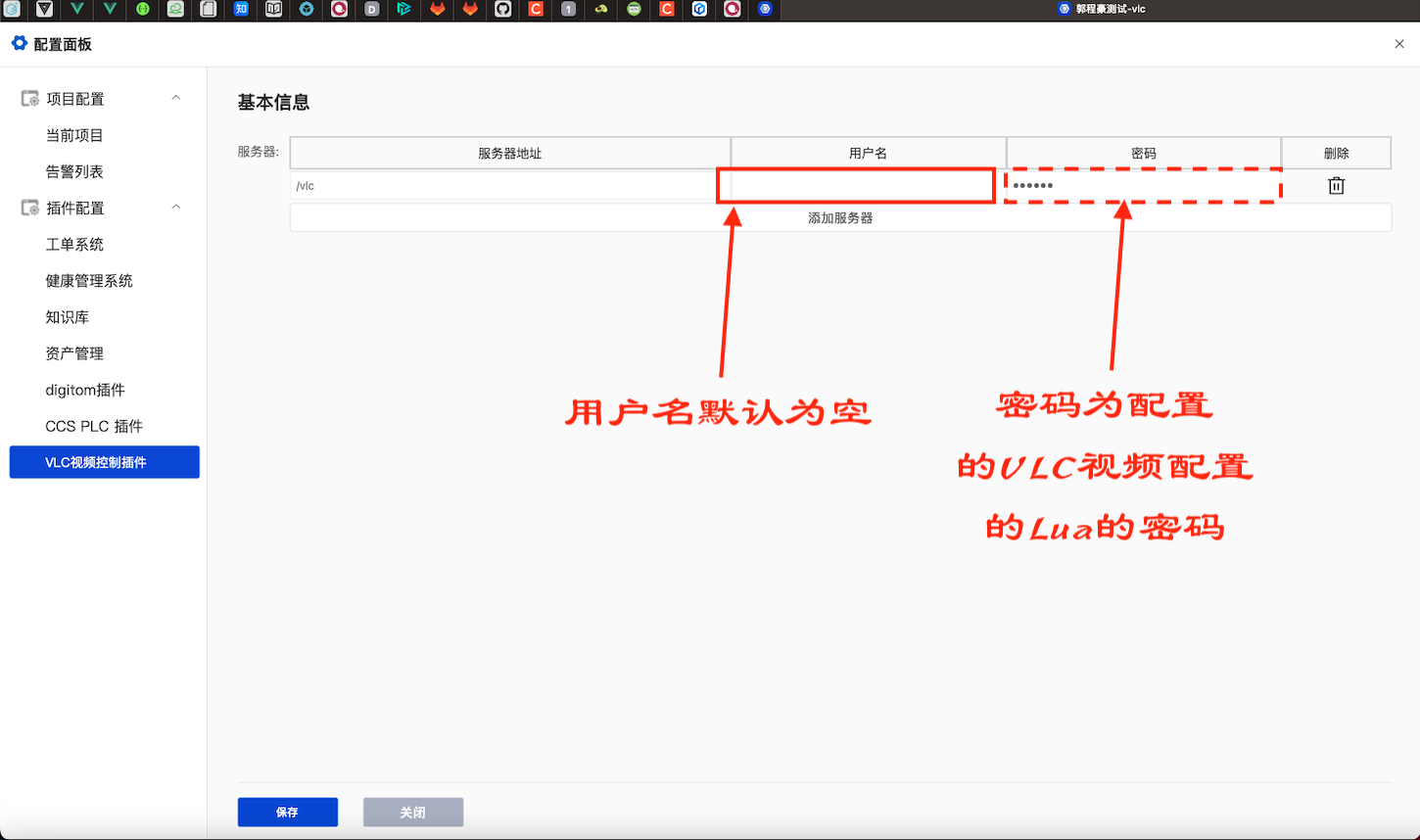
Add VLC proxy under Configuration => System Services.
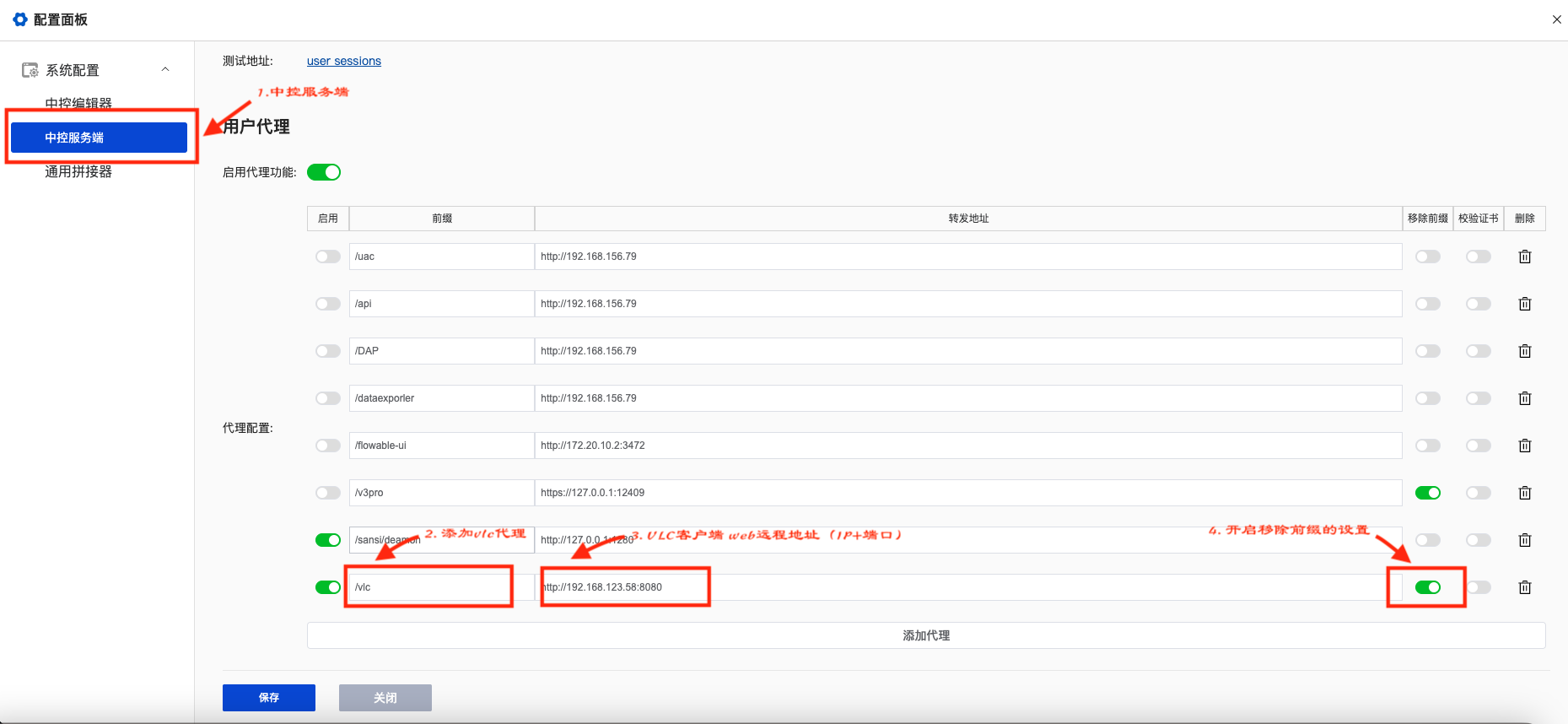
In the plugin configuration, set the VLC username and password, which are the username and password configured during VLC client installation.
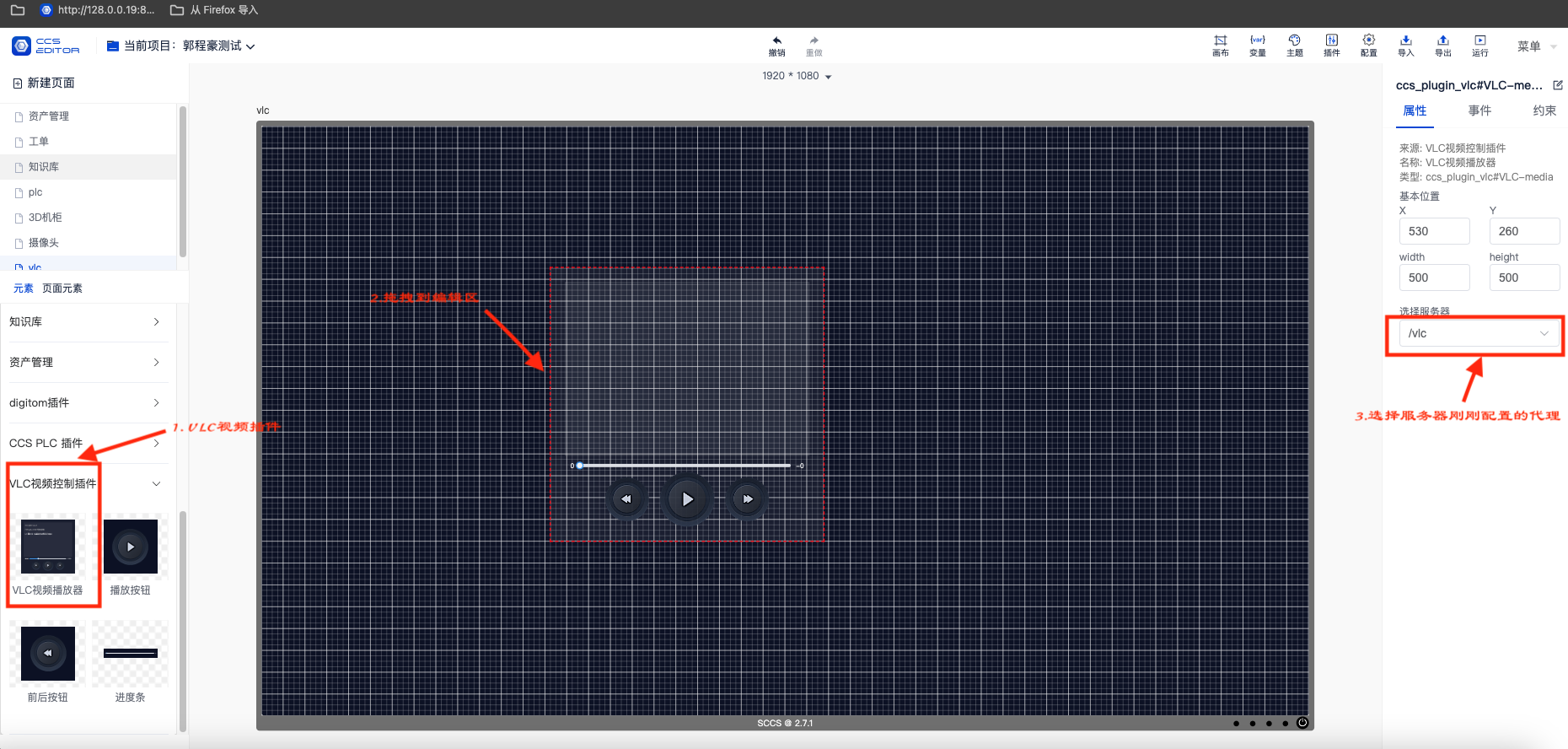
Drag and drop the VLC video player component into the editing area of the page.
User Manual
| Deployment Manual | Version | Compiled By | Date |
|---|---|---|---|
| VLC Video Player User Guide | V1.0.0 | Wang Jiale | 2024.05.14 |
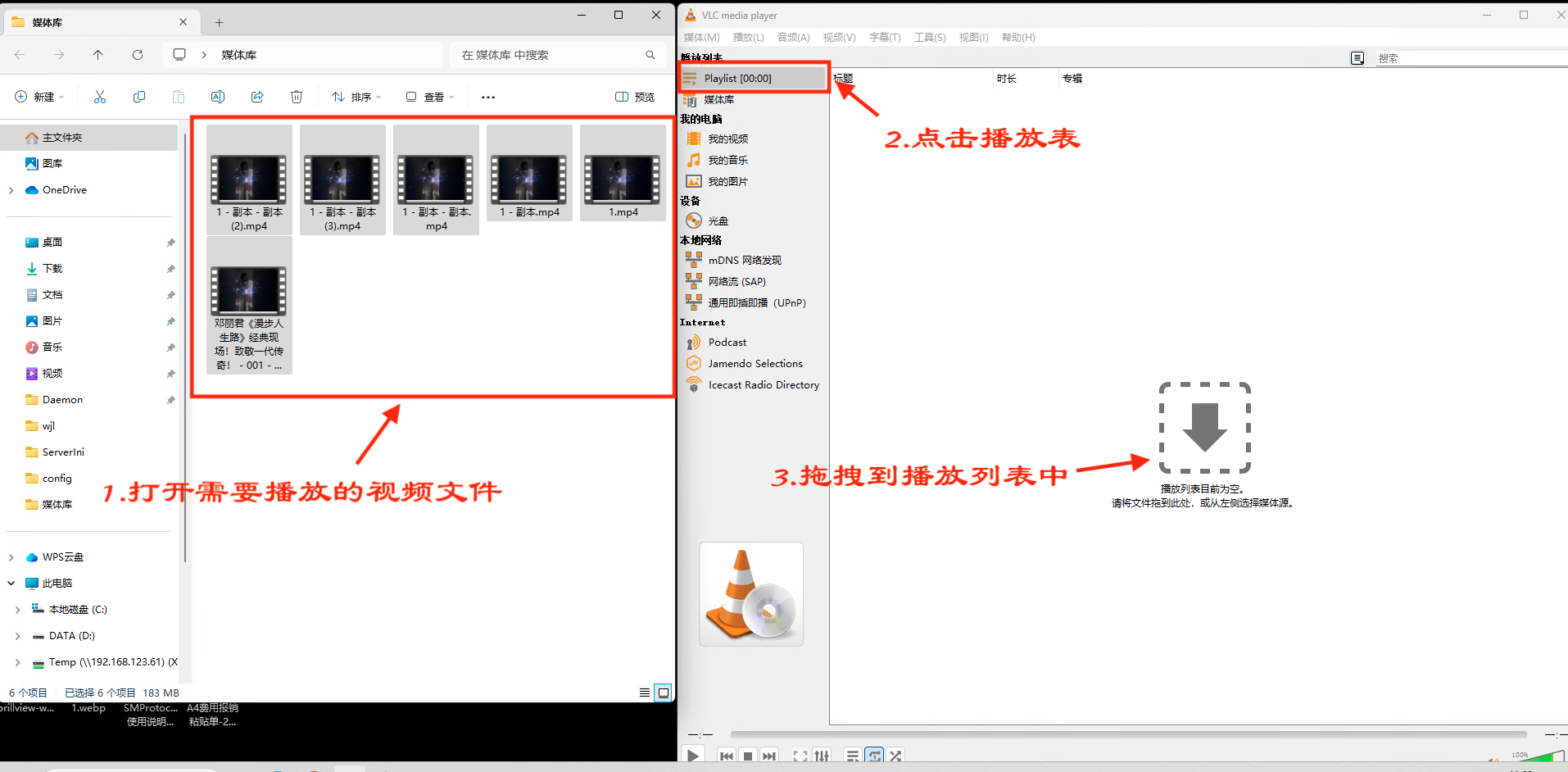
Open the VLC media player software, select a folder with video files that have a playlist, and drag the video files into the software.
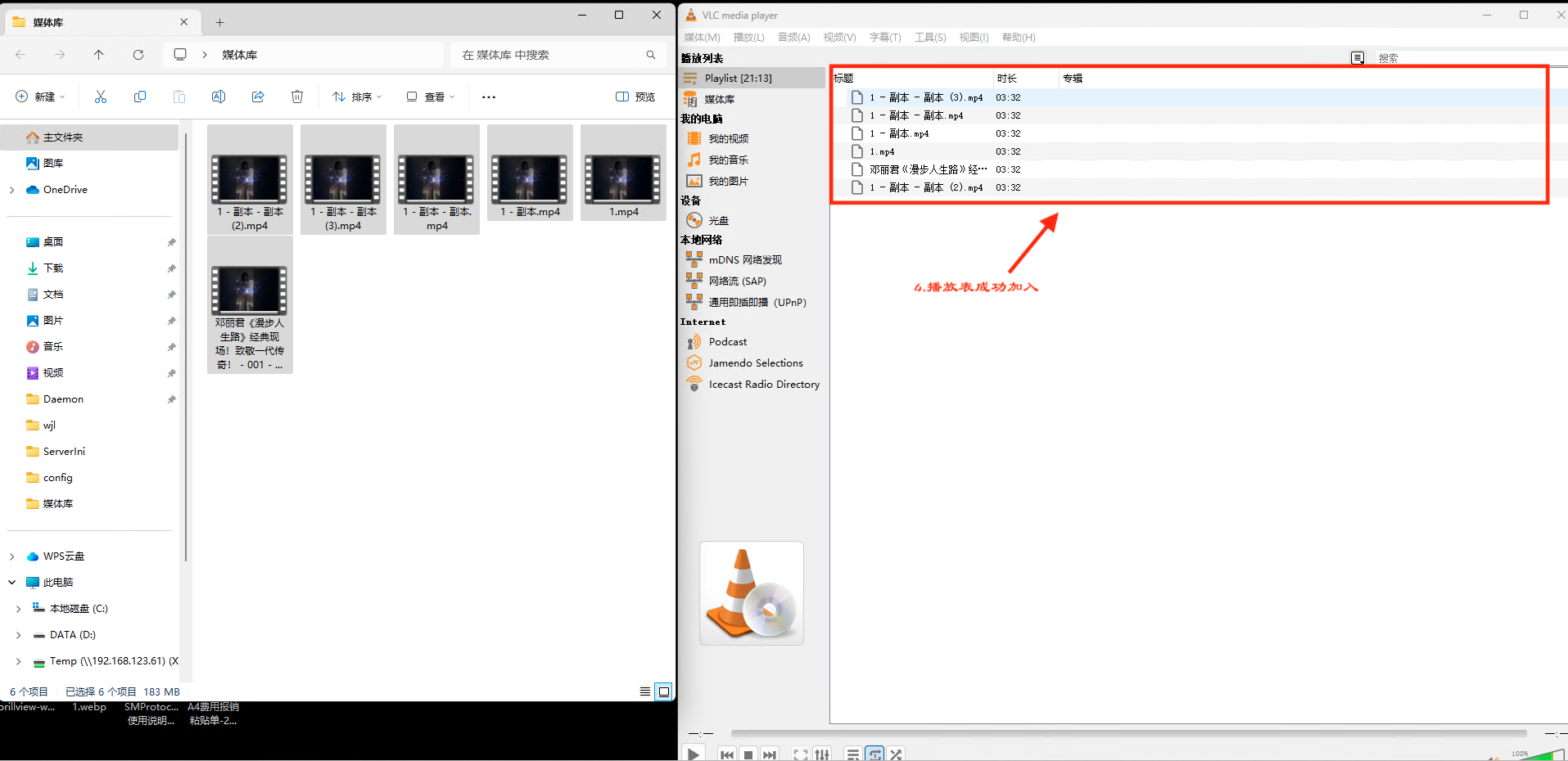
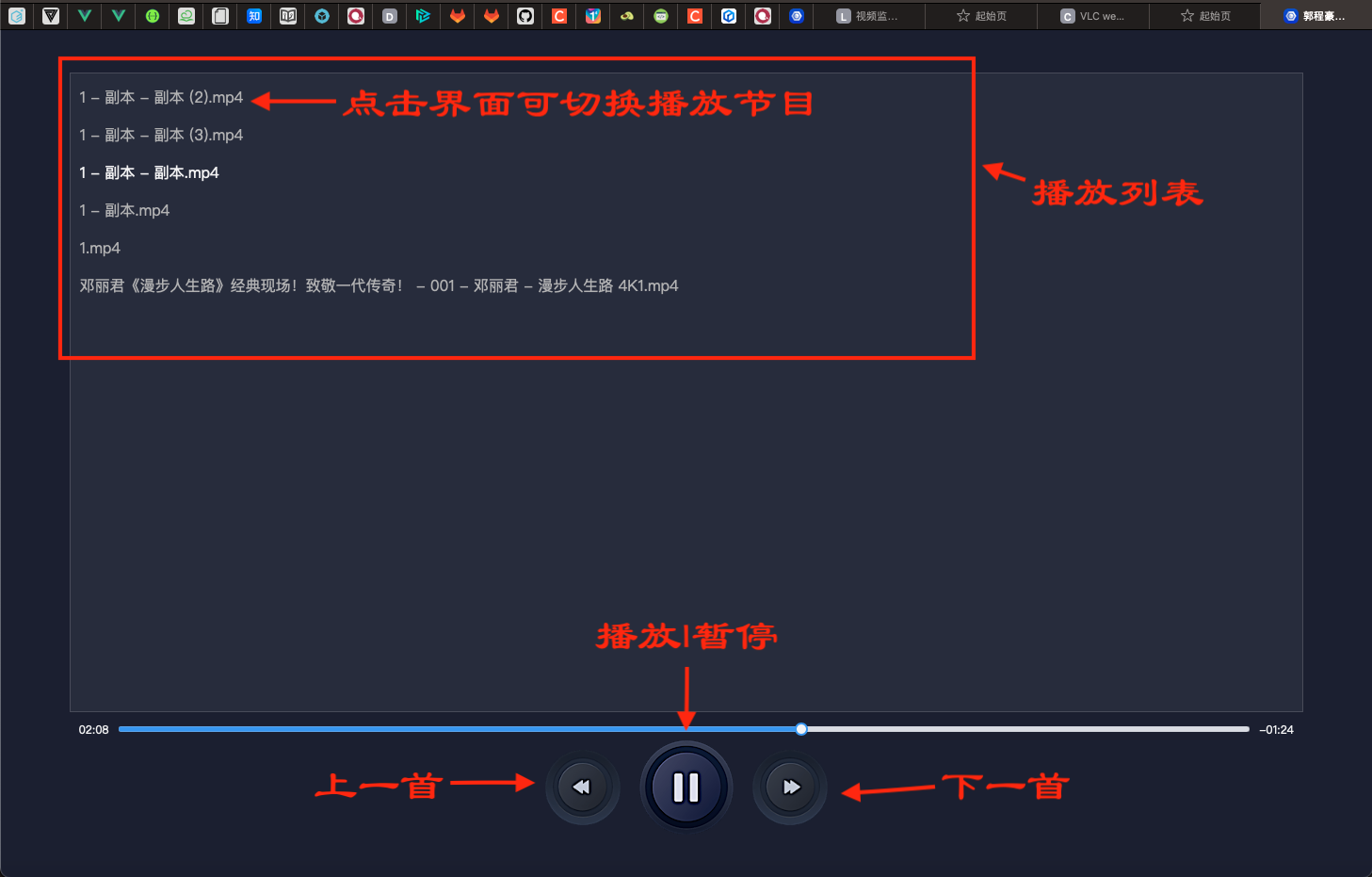
The VLC video plugin page will display the video playlist, supporting the following functions:
- Play video
- Pause video
- Previous
- Next
- Seek video progress
- Switch video